Visualização normal

Antes de ontemStream principal
  • ✇Malwarebytes
  • 3 easy-to-miss cybersecurity risks for small businesses
    There’s a lot to security that isn’t necessarily “cyber.” It’s not all hackers or complex network attacks. Alongside traditional cyberattacks that deploy malware or exploit known software vulnerabilities, there are also less technical—yet equally devastating—forms of theft. This doesn’t mean that well-known cybersecurity best practices don’t apply. Every small business owner should still use unique passwords for every account, turn on multi-factor authentication, keep their software and op
     

3 easy-to-miss cybersecurity risks for small businesses

3 de Maio de 2026, 07:33

There’s a lot to security that isn’t necessarily “cyber.” It’s not all hackers or complex network attacks.

Alongside traditional cyberattacks that deploy malware or exploit known software vulnerabilities, there are also less technical—yet equally devastating—forms of theft.

This doesn’t mean that well-known cybersecurity best practices don’t apply. Every small business owner should still use unique passwords for every account, turn on multi-factor authentication, keep their software and operating systems updated, and run always-on cybersecurity software.

But for the everyday small business owner juggling dozens of accounts, networks, devices, and the reams of data being created, stored, and shared across text messages, emails, and online portals, this advice is for you.

For National Small Business Week in the US, here are three ways to protect your business that require little technical prowess.

Don’t use your Social Security Number as your tax ID

In the US, the Internal Revenue Service (IRS) allows small business owners to use their personal Social Security Number (SSN) as the Federal Tax ID. It’s a small grace meant to simplify annual record-keeping for sole proprietors and owner-employees, but for cybercriminals, it’s a basic oversight they’d like every small business to make.

Using your Social Security Number as your Federal Tax ID means putting your Social Security Number in an ever-increasing number of hands. That’s because small business taxes are different from taxes for everyday salaried employees.

Whenever a small business takes on a new client or a contractor who pays for services costing at least $600, that small business has to share and receive what is called a W-9 form. This exact form isn’t filed with the IRS, but it is used to track payments for later filings.

What’s more important, though, is that this form asks for an owner’s name, address, and tax ID number.

This means that as a small business grows, its vulnerability to identity theft increases in tandem. Every W-9 filed that uses an owner’s SSN as their tax ID number is another opportunity for that SSN to be stolen. After just one year of operation, a small business owner’s SSN could end up in the inboxes, filing cabinets, and cloud drives of a dozen different people and companies.

This is exactly what cybercriminals want.

Equipped with a W-9 form about your business, a cybercriminal could impersonate you or your business. They could open a business credit line, file fraudulent returns that claim your small business income, or scam your clients.

How to stay safe:

Apply for a free Employer Identification Number (EIN) at IRS.gov. It’s quick to do and it separates your business tax identity from your personal tax identity. After that, put the EIN on W-9s, 1099s, and all other business paperwork instead of your SSN.

Keep your personal cloud storage personal

The most popular cloud storage for most small business owners is the cloud storage they already have—their personal Google Drive or iCloud.

Built to make memory archival as easy as possible, these tools can automatically back up and secure nearly every single moment that happens through your device, from the vacation photos you snapped last summer, to your kid’s first steps recorded on video, to the texts you sent, the notes you made, and the calendar appointments you managed.

But this type of automatic archival poses a threat to any non-personal information that you view, send, markup, or sign when using your personal smartphone. Suddenly, and often without thinking about it, your cloud storage has backups of signed contracts, tax returns, client intake forms, invoices, business financial statements, and photos of physical paperwork.

Above, we warned about using your SSN as your tax ID because it creates a risk if anyone in your business network is breached. But storing client information in your personal cloud storage creates a different problem: it puts that risk directly on you.

Compounding the threat here is the fact that many personal cloud storage accounts are shared with family members. More people accessing the same account means more exposure and more chances for mistakes, even if everyone has good intentions.

How to stay safe:

Go through the cloud backup settings on both your phone and your computer and manage what data is being synced. Move sensitive business files to a dedicated business storage account with proper access controls, sharing permissions, and audit logs—something that can tell you who opened a file and when.

If anything business-related has to live in a personal cloud account, give that account a strong, unique password, turn on multi-factor authentication, and don’t share access with anyone who isn’t you.

Protect device and account access in the home

Devices have a funny way of moving around. Your smartphone goes into your spouse’s hands as they override your music choices in the car. Your tablet ends most nights in your kid’s bedroom as they watch TV. And your laptop gets tugged around from couch to counter to kitchen table—each time fully opened and logged in, a portal to the web.

You trust everyone in your home to act safely online, but the path to online safety is full of mistakes.

A single errant click on a fake ad, a malicious search result, or a disguised download is all it takes to compromise your device today, along with all your small business records.

Aside from the threat of malware, someone using your device could make purchases, accidentally delete files, and overwrite important documents.

Remember, an “insider threat” doesn’t need to be malicious to cause damage—they just need to be inside your network (which in this, is your home).

How to stay safe:

Treat your devices that you use for work as work devices. That means requiring a passcode or password for device entry, along with multi-factor authentication for important business accounts.

Also, to ensure that any wrong click doesn’t lead to a malicious PDF download or a wayward malware installation, use always-on antimalware protection software, like Malwarebytes for Teams.

Secure your success

It’s easy to get overwhelmed with modern cybersecurity advice. Every week there are new vulnerabilities to patch, emerging scams to avoid, and novel viruses and pieces of malware that can seemingly take over your device, your data, and your business.

Thankfully, there are important steps you can take today that don’t require you to fiddle with internal settings or take a class on network engineering. Some of the most effective protections are simple: Limit how widely you share sensitive information, keep business and personal data separate, and control who can access your devices.

For everything else, try Malwarebytes for Teams to receive 24/7, always-on antimalware protection to shut out viruses, block malware attacks, and keep hackers out of your business.

  • ✇Malwarebytes
  • Hackers stole hundreds of thousands of Roblox accounts: Here’s what to do
    More than 610,000 Roblox accounts were reportedly stolen. Was yours or your child’s among them? Ukrainian police arrested three individuals in Lviv who allegedly orchestrated one of the largest Roblox account theft operations to date. Between October 2025 and January 2026, the hacking group is said to have compromised over 610,000 Roblox accounts, including at least 357 high-value “elite” accounts, making around $225,000 from selling access to them. The hackers distributed infostealing ma
     

Hackers stole hundreds of thousands of Roblox accounts: Here’s what to do

30 de Abril de 2026, 12:48

More than 610,000 Roblox accounts were reportedly stolen. Was yours or your child’s among them?

Ukrainian police arrested three individuals in Lviv who allegedly orchestrated one of the largest Roblox account theft operations to date. Between October 2025 and January 2026, the hacking group is said to have compromised over 610,000 Roblox accounts, including at least 357 high-value “elite” accounts, making around $225,000 from selling access to them.

The hackers distributed infostealing malware disguised as game-enhancement tools, harvested login credentials from infected devices, and sold accounts through a Russian website and closed online communities based on their value.

This operation targeted Roblox accounts because they hold significant monetary value for many users. Accounts can contain high Robux balances, limited-edition items that can no longer be obtained, years of gaming progress with achievements and unlocks, and paid access to premium content. 

Roblox account recovery

If you recently downloaded any suspicious game enhancements or other Roblox-related software, your first priority is to run a full system anti-malware scan.

Then check for unknown or untrusted browser extensions. Keep only those that came from verified, trusted sources.

If the scans led to any removals, clear your browser history and cookies completely. Note that this will log you out of most websites.

If you still have access to your Roblox account, change your password and turn on two-step verification if you haven’t already.

If the hackers changed your password and you’re unable to log in, use the password recovery option on the Roblox login page by clicking “Forgot Password or Username?”. Enter the email address associated with your account and check your inbox (including spam folders) for the reset link.

After recovering access, immediately terminate all active sessions to prevent hackers from maintaining access through stolen cookies. Go to Settings > Security and click Log out of all other sessions at the bottom of the page. This ensures that anyone who had unauthorized access can no longer use your account.

If you’ve been completely locked out—because hackers have changed both your password and recovery details—contact Roblox Support immediately. Visit the Roblox support page and provide as much detail as possible. They may ask for:

  • Your account username (this is crucial for identification).
  • The original email address used to create the account.
  • Payment information or purchase receipts showing Robux transactions.
  • The approximate date and time of the compromise.
  • Screenshots showing account details before the compromise, including creation date.
  • Your previous account settings or any other details that prove ownership.

Roblox explicitly states that, unless required by law, it is under no obligation to restore compromised accounts. It does not guarantee that accounts will be returned to their previous state or that lost virtual items and currency can be recovered. Only in very limited circumstances may Roblox offer the ability to recover lost inventory or its approximate value. It’s important to note that you must contact Roblox within 30 days of the compromise if you want assistance recovering lost items or currency. The support process typically takes 2–5 days.


Picked up something you shouldn’t have?


How to protect your Roblox account

There are a few steps that make it harder for someone to steal your Roblox account:

  • Verified email address. Ensure your account has a verified email address that you actively monitor. This helps you spot unauthorized password or email changes quickly.
  • Use unique passwords. Never reuse passwords across different accounts. If one is exposed elsewhere, attackers will try it on other platforms, including Roblox. Your Roblox password should be completely unique and stored securely. A password manager can help you with both.
  • Don’t share access. Never share your password with anyone, even with people claiming to be friends. Your account credentials should belong only to you (and your parents if you’re a minor). Roblox staff will never ask for your password.
  • Be wary of game enhancements, hacks, cracks and keys. The hackers in this case specifically distributed malware disguised as game-enhancement tools. Be extremely cautious about downloading any third-party programs, cheats, exploits, or tools that claim to improve your Roblox experience. These are often vehicles for credential theft and account compromise.
  • Keep software updated. Keep all the software on your device up-to-date, so you’re protected against the latest known exploits.
  • Use anti-malware. Run up-to-date, real-time anti-malware software to protect your device against information stealers and other malware.

Let’s face it, an incognito window can only do so much. 
 
Breaches, dark web trading, credit fraud. Malwarebytes Identity Theft Protection monitors for all of it, alerts you fast, and comes with identity theft insurance. 

How to Remove Objects from Video: AI Tools & Pro Tips (2026)

Remove unwanted objects from video effortlessly with AI in 2026. Learn step-by-step methods, best tools, and pro tips to clean up your footage like a professional.

Apple patches WebKit bug that could let sites access your data

18 de Março de 2026, 08:19

Apple has released a Background Security Improvement that silently fixes a WebKit vulnerability (CVE-2026-20643).

The post Apple patches WebKit bug that could let sites access your data appeared first on Security Boulevard.

  • ✇Malwarebytes
  • Apple patches WebKit bug that could let sites access your data
    Apple has released a Background Security Improvement to patch a flaw that could allow malicious websites to bypass browser protections and access data from other sites. What is it? The patched WebKit vulnerability is described as: “A cross-origin issue in the Navigation API was addressed with improved input validation.” WebKit vulnerabilities refer to security flaws in Apple’s web rendering engine, which powers Safari, Mail, and the App Store on iOS and macOS. What this means is
     

Apple patches WebKit bug that could let sites access your data

18 de Março de 2026, 08:19

Apple has released a Background Security Improvement to patch a flaw that could allow malicious websites to bypass browser protections and access data from other sites.

What is it?

The patched WebKit vulnerability is described as:

“A cross-origin issue in the Navigation API was addressed with improved input validation.”

WebKit vulnerabilities refer to security flaws in Apple’s web rendering engine, which powers Safari, Mail, and the App Store on iOS and macOS.

What this means is that the CVE-2026-20643 vulnerability makes it possible for a malicious website to pretend to be another site, maybe one you trust, and then read or steal information that should be kept separate. Normally, browsers enforce a rule called the “same‑origin policy,” which is like a strict fence that stops one site from peeking into another site’s data. This bug could help cybercriminals cut through that fence.

In practical terms, an attacker would first have to lure you to a specially crafted web page. If you visited it, that page could try to bypass the normal isolation between sites and access things it should not see, such as data from another tab or embedded content from a different service.

Attackers do not currently appear to exploit this flaw in the wild, but they like to chain issues like this with other bugs to steal accounts or sensitive data, which likely prompted Apple to ship it as a Background Security Improvement. Apple’s fix tightens how WebKit checks and handles cross‑site navigation.

What to do

This patch for a WebKit vulnerability, tracked as CVE-2026-20643, installs on top of versions 26.3.1/26.3.2 and not as a separate full OS version. Background Security Improvements are only available on the latest OS branch (26.x) and apply silently in the background if you’re on the latest version.

For iOS and iPadOS users, you can check if you’re using the latest software version by  going to Settings > General > Software Update. It’s also worth turning on Automatic Updates if you haven’t already. You can do that on the same screen.

For macOS Tahoe users, you can find out if you’re on the latest 26.3 version from the Apple menu. In the upper-left corner of your screen, choose About This Mac. The information shown there includes the macOS name and version number. If you need to know the build number as well, click the version number to see it.

This Background Security Improvement is only available for Mac users running Tahoe 26.3.1 and MacBook Neo users running 26.3.2.

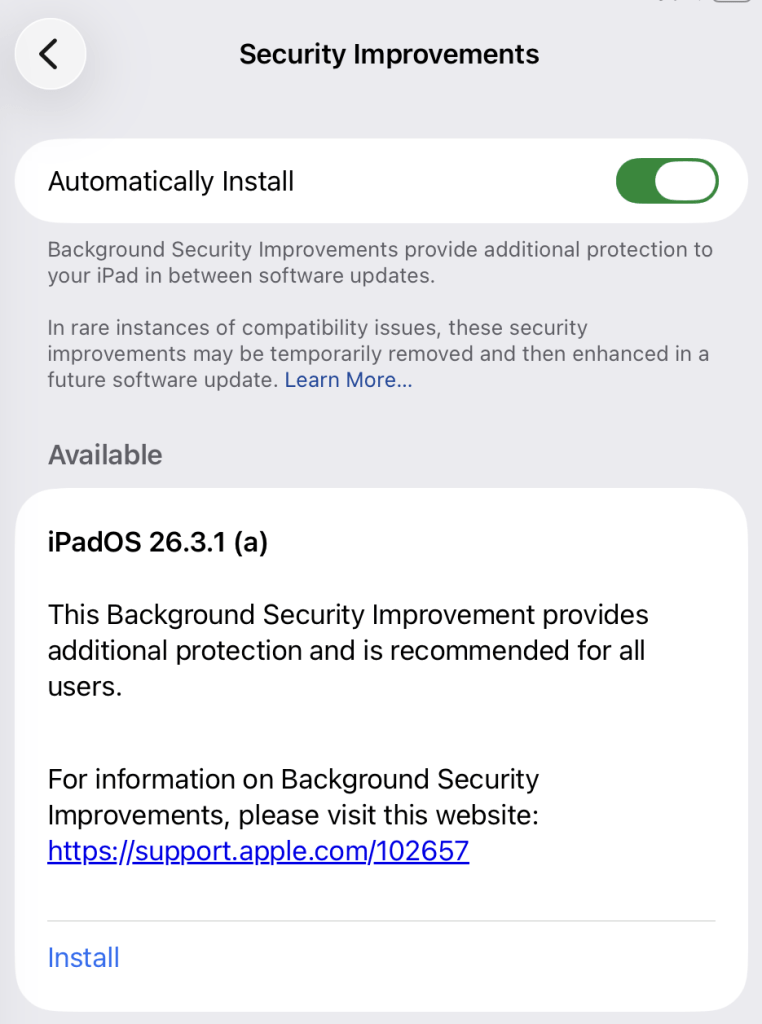
All users have to do is to check if they have the Background Security Improvements option set to enabled.

For iPhone and iPad users, this setting can be found under Privacy & Security, where you can scroll down and look for the Background Security Improvements toggle.

Automatically install security improvements

On a Mac (macOS Tahoe 26.3.+ only), you can check by following these instructions:

  1. Click the Apple menu > System Settings.
  2. In the sidebar, click Privacy & Security.
  3. Scroll down on the right and click Background Security Improvements.
  4. Make sure Automatically Install is turned on. If it’s off, the Mac won’t get Background Security Improvements until the fixes are rolled into a later full update.

The Install option in my screenshot means that you can speed up the process by clicking it. But it’s fine to wait until it happens automatically.

After the update, your OS version should show 26.3.1 (a), except for MacBook Neos which should be at 26.3.2 (a).


We don’t just report on phone security—we provide it

Cybersecurity risks should never spread beyond a headline. Keep threats off your mobile devices by downloading Malwarebytes for iOS, and Malwarebytes for Android today.

  • ✇Malwarebytes
  • Delete doesn’t mean gone. Here’s how File Shredder fixes that
    You have done it a thousand times. Right-click. Delete. Empty Trash. Done.Except it’s not done. That file, your tax return, your private photos, that EmbezzlementPlan.doc… it’s all still sitting on your drive. Invisible to you, but not to anyone with a $30 recovery tool downloaded from the internet.The problem: Your deleted files aren’t actually goneMost users assume that deleting a file removes it permanently. In reality, standard deletion only removes the file’s reference from the file system.
     

Delete doesn’t mean gone. Here’s how File Shredder fixes that

16 de Março de 2026, 11:22

You have done it a thousand times. Right-click. Delete. Empty Trash. Done.

Except it’s not done. That file, your tax return, your private photos, that EmbezzlementPlan.doc… it’s all still sitting on your drive. Invisible to you, but not to anyone with a $30 recovery tool downloaded from the internet.

The problem: Your deleted files aren’t actually gone

Most users assume that deleting a file removes it permanently. In reality, standard deletion only removes the file’s reference from the file system. The underlying data often remains intact on disk until it is overwritten by other files. Think of it like tearing the table of contents out of a book while leaving all the pages intact. The operating system forgets where the file is listed, but the data itself is still there.

The space the file used gets marked as available for new data. Until something else writes over it, the original file may remain fully readable on the disk. Depending on how you use your computer, that could take days, weeks, or even months.

Recovery software exploits this. It scans your drive for data that still exists but is no longer listed in the file system. If you’re trying to recover a file you accidentally deleted, this is a lifesaver. But if you’re trying to permanently dispose of sensitive information, it’s a serious problem.

The answer: Overwrite, don’t just delete

To address this privacy gap, we’ve introduced File Shredder for Windows. It permanently destroys the files and folders you’re trying to delete so they can’t be recovered.

When you overwrite a file, you replace every single byte of its contents with new data. The original information is physically altered on the disk surface. Once overwritten, the original data no longer exists. There is nothing left to recover.

But one overwrite is not always enough. Advanced recovery techniques can sometimes detect traces of previous data, especially on older hard drives where magnetic patterns leave subtle residue. That’s why File Shredder doesn’t just overwrite once. Depending on your chosen security level, it overwrites multiple times, using different patterns each pass.

How it works

File Shredder uses DoD 5220.22-M, a data sanitization standard developed by the US Department of Defense for securely destroying classified data stored on computers. 

The standard overwrites data using specific patterns: 

  • Zero-fill passes (every byte set to 0x00) 
  • One-fill passes (every byte set to 0xFF) 
  • Cryptographically random data passes 
  • Verification to confirm the overwrite was successful 

Why these specific patterns? Zeros and ones represent binary data. Random data adds unpredictability. By cycling through these patterns multiple times, the original magnetic or electronic state of the storage medium is thoroughly disrupted, making forensic recovery impractical. 

When File Shredder finishes, that file isn’t just deleted. It’s gone. 

Three levels of shredding

File Shredder overwrites a file before deleting it, helping prevent recovery after it is removed. This is most meaningful on traditional hard drives, where overwrite passes are more direct and predictable. On SSDs, storage works differently, so multiple passes do not provide the same level of assurance. File Shredder offers a few levels so you can choose the right balance of speed and confidence for your device and use case.

Not every file on your computer will need military-grade destruction. Shredding takes time because each pass means reading and writing the entire file contents. File Shredder gives you three options, so you can balance security against speed.  

Basic (1 Pass) 

The entire file is overwritten with zeros. This is the fastest option and is effective for everyday file deletion where you want to prevent casual recovery. If someone ran a recovery tool after a Basic shred, they would find nothing but empty data where your file used to be. 

Best for: Temporary files, downloads you no longer need, general cleanup where speed matters. 

Thorough (4 Passes, DoD 5220.22-M) 

The file is overwritten with zeros, then ones, then random data, then zeros again. After these passes complete, File Shredder performs a verification step, reading the file back to confirm the overwrite patterns were successfully written. This catches any disk errors or write failures that might have left original data intact. 

Pattern: Zeros (0x00) > Ones (0xFF) > Random > Zeros (0x00) 

Best for: Financial documents, tax records, personal identification documents, medical records, anything you would not want exposed in a data breach or if your computer were stolen. 

Paranoid (8 Passes, Extended DoD 5220.22-M) 

This runs the full zeros-ones-random-zeros sequence twice, with verification after completion. The additional passes provide extra assurance against advanced forensic recovery techniques. 

Pattern: Zeros > Ones > Random > Zeros > Zeros > Ones > Random > Zeros 

Best for: Highly confidential business data, legal documents, intellectual property, anything subject to regulatory compliance, or situations where you need absolute certainty. 

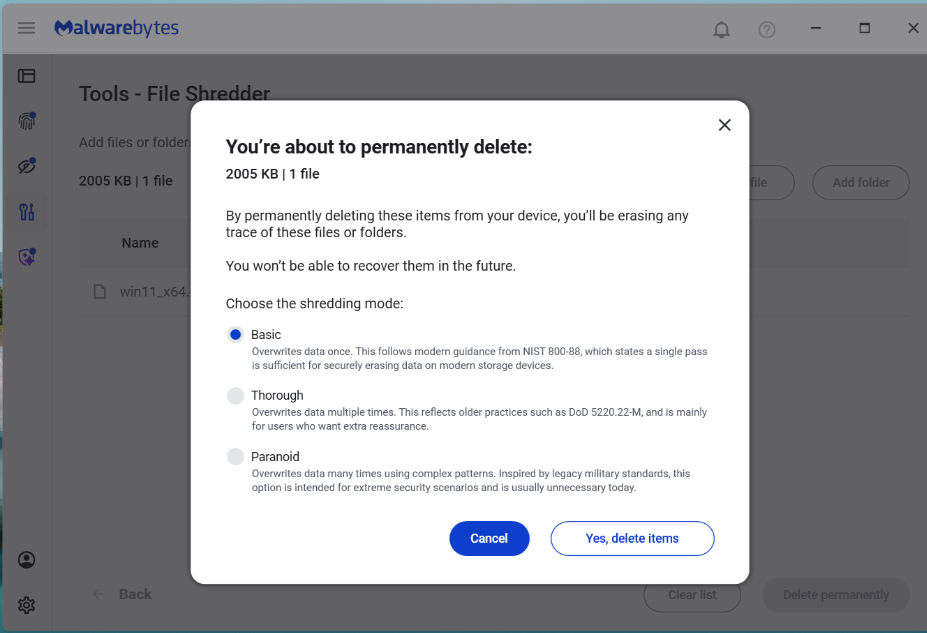
File Shredder from Malwarebytes has three levels of shredding.

A note on SSDs

Solid-state drives (SSDs) behave differently from traditional hard drives because wear leveling and flash translation layers may redirect writes to different physical blocks. This means overwriting a file once or multiple times does not guarantee the original data was overwritten. Multi-pass shredding methods were designed for HDDs and are less predictable on SSDs. 

How to get started 

File Shredder lives in the Tools section of your Malwarebytes desktop software, alongside other system utilities. We designed it to be straightforward while ensuring you understand the permanence of what you are about to do. 

Go to Tools in Malwarebytes, then File Shredder

Select 

Choose individual files, entire folders, or multiple items at once. File Shredder automatically protects critical system files, so you cannot accidentally shred something that would damage Windows or your Malwarebytes installation. Before anything happens, you’ll see a complete list of every file that will be shredded, with full visibility into file names, locations, and sizes. 

Confirm 

Clear warning dialogs explain that destruction is permanent. You must explicitly acknowledge before anything is destroyed. Once a file is shredded, it cannot be recovered.

Shred 

Choose your level (Basic, Thorough, or Paranoid) and confirm. During shredding, you’ll see real-time progress showing:

  • which file is being shredded
  • how far along the process is
  • estimated time remaining

You can pause or cancel the job. However, once File Shredder starts working on a file, it finishes shredding that file before stopping. This prevents files from being left in a partially overwritten state, which could leave them corrupted or difficult to delete properly.

Done 

When shredding completes, File Shredder shows a report listing every file that was successfully destroyed. You’ll also receive a notification confirming the job is finished.

How File Shredder handles large files safely

Shredding large files or deeply nested directories can use a lot of CPU and resources on your machine. To balance security with performance, the implementation includes:

  • Buffered write operations for efficient disk access
  • Chunked overwrite processing to handle large files without excessive memory use
  • Recursive folder shredding that processes entire directory trees
  • Cancellation handling where feasible, without leaving partial data behind
  • Error reporting so you know if any file could not be shredded (for example, if it’s open in another application)

Preventing accidental shredding

Building a feature that claims to permanently destroy data is a serious responsibility. We did not just write the code and assume it worked. We tested aggressively.

Because shredding is irreversible, the UI incorporates multiple safeguards before execution:

  • Explicit file or folder selection
  • Clear warnings about permanent deletion
  • Confirmation prompts before shredding begins
  • Shredding prevention on protected system paths  or Malwarebytes files

When you’re done with a file, it should really be done

For too long, “delete” has mostly meant out of sight, not out of existence. File Shredder changes that. By securely overwriting files before removing them, it helps ensure your sensitive data stays private even after you delete it.


We don’t just report on threats—we remove them

Cybersecurity risks should never spread beyond a headline. Keep threats off your devices by downloading Malwarebytes today.

  • ✇Malwarebytes
  • How to see your Google Search history (and delete it)
    Your Google Search history provides one of the most detailed windows into your private life, and I know this because when I looked at my own search history last year, I was overwhelmed by the information buried within.Across just 18 months, Google tracked the 8,079 searches I made and the 3,050 websites I visited because of those searches. That included my late-night perusal of WebMD because of medical symptoms I’d looked up just seconds before, my tour of Goodwill donation sites as I searched f
     

How to see your Google Search history (and delete it)

10 de Março de 2026, 14:40

Your Google Search history provides one of the most detailed windows into your private life, and I know this because when I looked at my own search history last year, I was overwhelmed by the information buried within.

Across just 18 months, Google tracked the 8,079 searches I made and the 3,050 websites I visited because of those searches. That included my late-night perusal of WebMD because of medical symptoms I’d looked up just seconds before, my tour of Goodwill donation sites as I searched for where to drop off clothes ahead of an upcoming move, and my ironically tracked visit to a Reddit thread titled “How do I delete most, if not all, of my info off of the Internet?” (One answer I learned: Don’t use Google Search.)

Google tracked my every question, concern, and flight of fancy—almost literally. On just one day in August 2025, Google recorded the seven flight searches I made on Google Flights and the six hotel searches I made on Google Travel.

Google also recorded the many questions and requests I made when researching topics for the Lock and Code podcast, which I host. And while all of that Google data made for an interesting investigation into what Google knows about me (which you can listen to below), it also made it clear that more people should know how to access this same information.

For most Google users, if Web & App Activity is turned on, Google is saving what they look up, what time they looked it up, and what websites they clicked on as a result. There are ways to turn that data tracking off, but the first step is to know where to look.

Here’s how to do that.

How to find your Google Search history

You can start by opening your web browser and signing into Google’s centralized hub for your data online at myactivity.google.com.

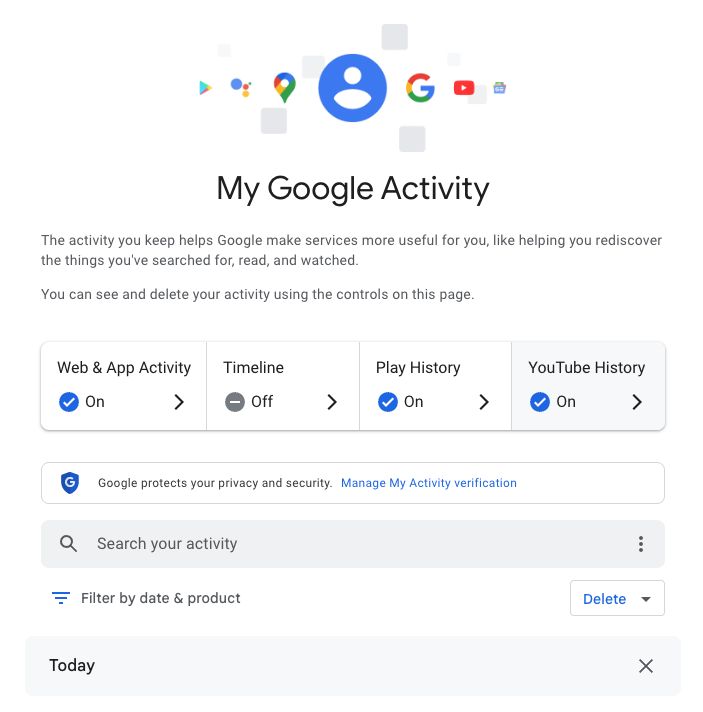
My Google Activity
The My Google Activity home page

Once logged in, you’ll see the above welcome screen with quick settings that you can change, if you want to. Those settings are different for some users, but may include:

  • Web & App Activity
  • Timeline
  • Play History
  • YouTube History

Further down on the page, you can browse through your Google Search history. (Our screenshot gallery below can help walk you through the steps.)

  • First, look for the search bar in the welcome screen that says Search your activity.
  • Right below, you will find the words Filter by date & product. These words are clickable. Click them.
  • Once you’ve clicked Filter by date & product, you’ll see a pop-up menu where you can look through your Google activity by date or product. Instead of focusing on the date, scroll down through the list of Google products and check the box for Google Search.
  • Press Apply.
  • Find the search bar in the My Google Activity homepage
  • Click on the words “Filter by date & product”
  • Scroll down through the list of items until you find Google Search
  • Click on the Google Search checkbox and click “Apply”

After you press Apply, you’ll be taken to a webpage that lists your Google Search history in reverse chronological order, showing you your most recent activity first. As you scroll down, you can find older activity. You can also use the search bar at the top of the page to look for individual pieces of activity, like a search or series of searches that you previously made.

From here, you can also delete individual Google Search entries so that Google no longer stores that data. This will only apply to the individual search you made.

  • You can delete individual searches by clicking the “X” button in the top right corner of each search record
  • Confirm your deletion by pressing “Delete”
  • Your search is now no longer tied to your overall Google activity

If you want to better protect your privacy, making targeted deletions from your Google Search history is a difficult, lengthy, and imperfect method. Instead, you can simply tell Google to stop recording any of your searches from now on.

How to turn off Google Search history

There’s a simple way to instruct Google to stop saving your online searches to your Google Account, and it takes just a few clicks. Follow the instructions below, along with the image gallery, for guidance.

  • Go to your My Google Activity homepage (this is the same page you saw when first signing into myactivity.google.com)
  • Click on that quick control button we saw earlier: Web & App Activity
  • From here, you will see a new screen with the title Activity Controls
  • Find the button that says Turn off and click it
  • Choose between Turn off and Turn off and delete activity
  • Find the “Turn off” button from the Activity Controls webpage
  • You can choose one of two options for turning off your data
  • With one click, you can stop Google from recording your activity

If you selected Turn off, you’re done. Google will no longer save your Google Searches as part of your overall Google profile activity. This option means that Google still has your prior searches recorded, though. So, if you want, you can choose the second option, Turn off and delete activity.

When you select that option, Google will walk you through additional steps to choose what types of data you want erased, such as past activity tied to Google Search, Maps, Ads, Image Search, Google Play Store, Help and other services. All of these options reveal just how many products and pipelines Google has built to vacuum up your data.

Don’t be overwhelmed, though. Go through the list at your own pace and start making decisions about your data that are right for you.


We don’t just report on data privacy—we help you remove your personal information

Cybersecurity risks should never spread beyond a headline. With Malwarebytes Personal Data Remover, you can scan to find out which sites are exposing your personal information, and then delete that sensitive data from the internet.

  • ✇Malwarebytes
  • Signal and WhatsApp accounts targeted in phishing campaign
    Dutch intelligence services AIVD and MIVD warn that Russian state‑backed hackers are running a large‑scale campaign to break into Signal and WhatsApp accounts of high‑value targets.The targets are said to be senior officials, military personnel, civil servants, and journalists. The attackers are not breaking end‑to‑end encryption or exploiting a vulnerability in the apps themselves. Instead, they rely on proven phishing and social engineering methods to trick users into handing over verification
     

Signal and WhatsApp accounts targeted in phishing campaign

10 de Março de 2026, 08:19

Dutch intelligence services AIVD and MIVD warn that Russian state‑backed hackers are running a large‑scale campaign to break into Signal and WhatsApp accounts of high‑value targets.

The targets are said to be senior officials, military personnel, civil servants, and journalists. The attackers are not breaking end‑to‑end encryption or exploiting a vulnerability in the apps themselves. Instead, they rely on proven phishing and social engineering methods to trick users into handing over verification codes and PINs, or to add a malicious “linked device” to their account.

Last year we reported on GhostPairing, a method that tricks the target into completing WhatsApp’s own device-pairing flow, silently adding the attacker’s browser as an invisible linked device to the account.

In the cases reported by the Dutch intelligence services, the attackers contacted victims on Signal or WhatsApp while posing as “Signal Security Support Chatbot”, “Signal Support” or a similar official‑sounding account.

The message typically warns about suspicious activity or a possible detected data leak and instructs the user to complete a verification step to avoid losing data or having their account blocked.

Victims are then asked to send back the SMS verification code they just received and/or their Signal PIN.

If the victim complies, the attacker can register the account on a device they control and effectively take it over, receiving new messages and sending messages as the victim.

In a second variant, attackers abuse the “linked devices” feature (Signal’s and WhatsApp’s desktop or other secondary device function). Targets are pushed to click a link or scan a QR code that silently links the attacker’s device to the victim’s account. The victim keeps access as normal, but the attacker can now read along in real time without obvious signs of compromise.

These attacks are not new, but deserve a renewed warning because they rely entirely on human behavior, and understanding how they work makes them easier to stop. The methods used are not technically sophisticated and they can easily be copied by non‑state actors or ordinary cybercriminals.

Because of the current Russian campaigns, AIVD and MIVD say that chat apps such as Signal and WhatsApp are unsuitable for sharing classified, confidential, or otherwise sensitive government information, even though they technically support end‑to‑end encryption.

How to keep your conversations confidential

One specific warning for the targeted users is to use designated apps for sensitive information. Despite dedicated secure systems being available to many of them, some resorted to apps they already knew—Signal and WhatsApp. And to be fair, these apps are safe if you follow a few basic rules:

How to prevent and detect compromised accounts

  • Never share verification codes or PIN numbers. Your SMS verification code and PIN are only needed when you install or re‑register the app on a device. They are never legitimately requested in a chat. Any in‑app message, direct message (DM), email, or SMS asking you to send these codes back is a phishing attempt.
  • Do not trust “support” accounts in chat. Signal explicitly states that Support will never contact you via in‑app messages, SMS, or social media to ask for your verification code or PIN. Treat any “Signal Support Bot”, “Security Chatbot” or similar as malicious, block and report it and then delete the conversation.
  • Be cautious with links and QR codes in chat. Only scan QR codes or click device‑linking links when you yourself are in the app’s device‑linking menu and you initiated the process. If a message pushes you to “verify your device” or “secure your data” via a link or QR, assume it is part of this campaign.
  • Regularly review linked devices and group memberships. In Signal and WhatsApp, check the list of linked devices and remove anything you do not recognize. Also keep an eye out for strange group participants or duplicate contacts (for example “deleted account” or a contact that appears twice), which Dutch intelligence services mention as possible signs of account compromise.
  • Use built‑in hardening features. Enable options like registration lock, registration PIN and device‑change alerts so that your account cannot be silently re‑registered without an extra secret. Store your PIN in a password manager instead of choosing something easy to guess or reusing a common code, to reduce the chance of social engineering or shoulder‑surfing.

Use disappearing messages

Both Signal and WhatsApp support disappearing messages, and using them can meaningfully limit the impact of account compromise or device access (though they don’t prevent it completely).

Short‑timer and disappearing messages reduce how much content is available if an attacker gets into a chat later, or if someone obtains long‑term access to a device or backup. They are not a complete solution, but they can limit the damage.

Signal lets you set a per‑chat timer so that all new messages in that conversation auto‑delete from all devices after the chosen period.​ You can enable it for 1:1 or group chats and choose from various durations (seconds to weeks), and either party can see it is enabled and change the timer.​

WhatsApp also supports disappearing messages with timers per chat (and a default option for new chats). Messages can auto-delete after periods such as 24 hours, 7 days, or 90 days, and newer builds include shorter options like 1 or 12 hours.

You turn it on in the chat info under “Disappearing messages,” then pick the desired timer; only messages sent after enabling it are affected.

For particularly sensitive media or voice messages, WhatsApp also offers “view once”  photos, voice messages, and videos that can only be opened a single time before disappearing from the chat.

Enable multi-factor authentication

We’ve written a complete guide on setting up two-step verification on WhatsApp.

To set up two-factor authentication (2FA) on Signal, enable the Registration Lock feature, which requires your set PIN to log in on a new device. Open Signal, go to Settings > Privacy > Registration Lock and turn it on. This ensures that even if someone steals your SIM, they cannot access your account without your personal PIN.


We don’t just report on privacy—we offer you the option to use it.

Privacy risks should never spread beyond a headline. Keep your online privacy yours by using Malwarebytes Privacy VPN.

  • ✇Malwarebytes
  • Quiz sites trick users into enabling unwanted browser notifications
    Our support team flagged a number of customers who suspected their device might be infected with malware, but Malwarebytes scans came up empty. When the customers provided screenshots, our Malware Removal Support team quickly recognized the format as web push notifications.The reason the scans came up clean is that these notifications aren’t malware on the device. They’re browser notifications from websites that trick users into clicking “Allow.”We helped the customers disable the push notificat
     

Quiz sites trick users into enabling unwanted browser notifications

9 de Março de 2026, 09:53

Our support team flagged a number of customers who suspected their device might be infected with malware, but Malwarebytes scans came up empty.

When the customers provided screenshots, our Malware Removal Support team quickly recognized the format as web push notifications.

The reason the scans came up clean is that these notifications aren’t malware on the device. They’re browser notifications from websites that trick users into clicking “Allow.”

We helped the customers disable the push notifications (see below for instructions). But since most of them didn’t know how they got them in the first place, we went down the rabbit hole to find out where they were coming from.

Examples of web push notifications

We started with one of the most prevalent domains called unsphiperidion[.]co.in, but all we found was a misleading advertisement that promised the Adguard browser extension and instead led to Poperblocker.

Screenshot showing fake "update the Adguard browser extension" prompt
Fake Adguard browser extension update prompt

But another clue, also mentioned by the Malware Removal Support team—a domain called triviabox[.]co[.]in—practically brought us straight to the source.

We found a site that challenged our intelligence by prompting us to take a quiz.

Screenshot showing "Only people who lived through the 80s can score 15/20 on this quiz"
Quiz website example

Later we found these quizzes come in different flavors. Some about geography, vocabulary, and history, while others are specifically targeted at Canada, Germany, France, Japan, and the US.

But the main goal of these sites is to get you to click the “Start the quiz” button, so the site can send notifications later and make money from ads, affiliate schemes, scams, or unwanted downloads.

Screenshot showing "Ready to test your knowledge? Start the quiz"
Ready to test your knowledge? Start the quiz

What that button does before it starts the quiz is show the visitor a prompt with a misleading background.

Screenshot showing "Click Allow to continue" and a show notifications prompt.
Click Allow to continue triggers the browser’s “show notifications” prompt

The show notifications text in the actual prompt tells the real story. You’ll be giving the website permission to show you notifications even when you’re not on the website, which makes it hard for users to determine the origin.

The Click “Allow” to continue text with the red arrow on the website itself is nothing more than a well-placed lure to get you to click that Allow button and open the flood gates. To avoid raising suspicion, the visitor is then presented with the quiz, so later on they will have no reason to suspect what started the ordeal.

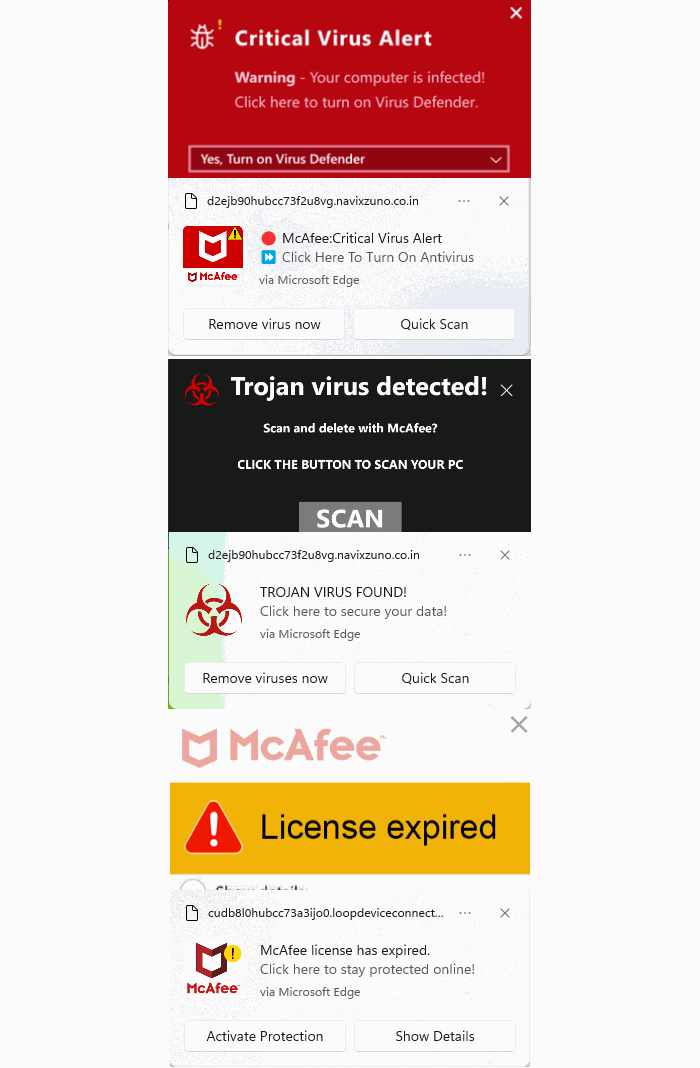
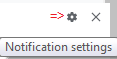
Web push notifications (also called browser push notifications) are not always simple advertisements. Some can be misleading messages about the safety of your computer. The gear icon in the notifications themselves can be very helpful. On Chromium-based browsers, clicking it will lead you to the Notifications settings menu where you can block them.

Unfortunately, we often find them used by “affiliates” to promote security software. If you’re looking for an anti-malware solution that doesn’t make use of such affiliates, you know where to find us.

How to remove and block web push notifications

For every browser, the notifications look slightly different and the methods to disable them are slightly different as well. To make them easier to find, I have split them up by browser.

Chrome

To completely turn off notifications, even from an extension:

  • Click the three dots button in the upper right-hand corner of the Chrome menu to enter the Settings menu.
  • In the Settings menu and click on Privacy and Security.
  • Click on Site settings.
  • In that menu, select Notifications.
  • By default, the slider is set to Sites can ask to send notifications, but feel free to move it to Don’t allow sites to send notifications if you wish to block notifications completely.

For more granular control, you can use the Customized behaviors menu to manipulate the individual items.

Customized behaviors section of the Chromium notifications menu

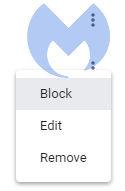
Note that sometimes you may see items with a jigsaw puzzle piece icon in the place of the three stacked dots. These are enforced by an extension, so you would have to figure out which extension is responsible first and then remove it. But for the ones with the three dots behind them, you can click on the dots to open this context menu:

Selecting Block will move the item to the block list. Selecting Remove will delete the item from the list. It will ask permission to show notifications again if you visit their site (unless you have set the slider to Block).

Shortcut: another way to get into the Notifications menu shown earlier is to click on the gear icon in the notifications themselves. This will take you directly to the itemized list.

Firefox

To completely turn off notifications in Firefox:

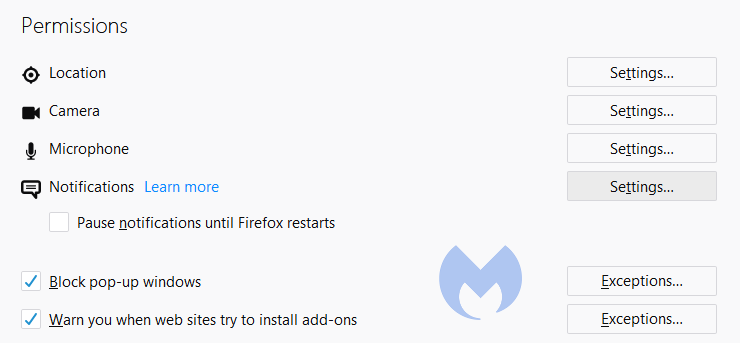
  • Click the three horizontal bars in the upper right-hand corner of the menu bar and select Options in the settings menu.
  • On the left-hand side, select Privacy & Security.
  • Scroll down to the Permissions section and click on Notifications.

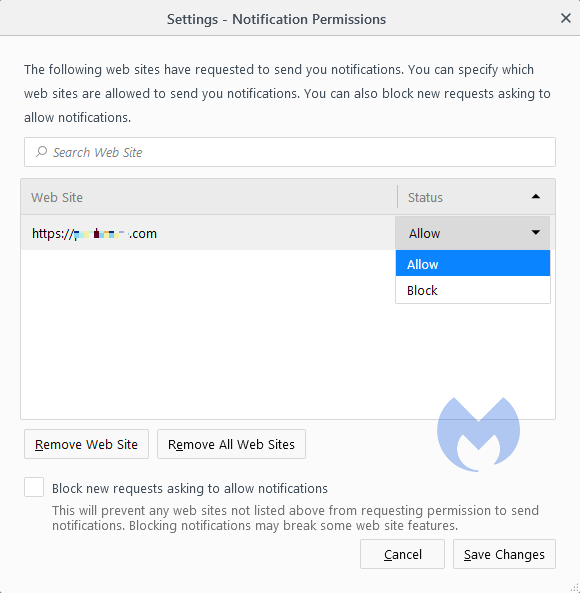
  • In the resulting menu, put a checkmark in the Block new requests asking to allow notifications box at the bottom.

In the same menu, you can apply a more granular control by setting listed items to Block or Allow by using the drop-down menu behind each item.

Click on Save Changes when you’re done.

Opera

Where push notifications are concerned, you can see how closely related Opera and Chrome are.

  • Open the menu by clicking the O in the upper left-hand corner.
  • Click on Settings (on Windows)/Preferences (on Mac).
  • Click on Advanced and select Privacy & security.
  • Under Content settings (desktop)/Site settings (Android,) select Notifications.
Opera notifications menu

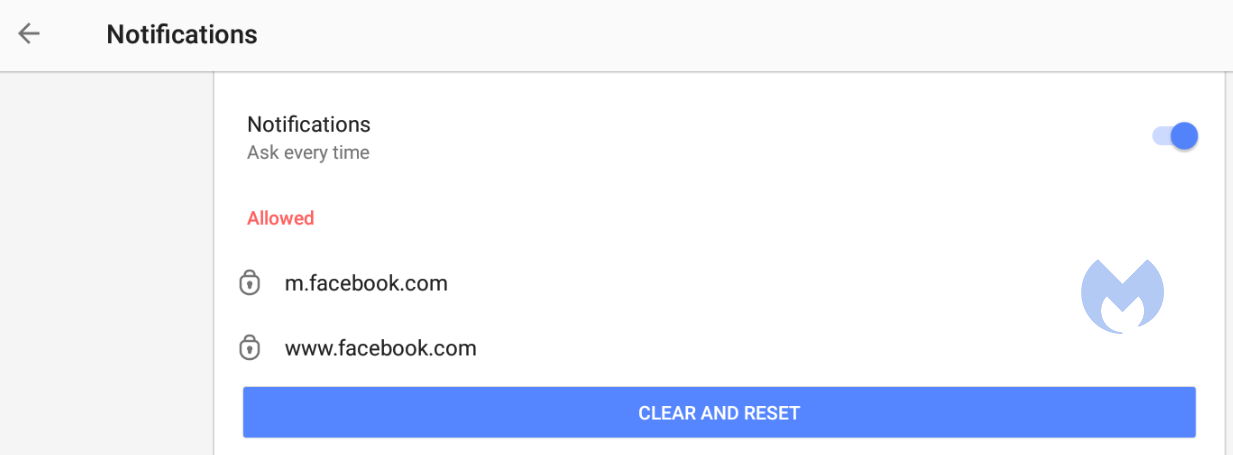
On Android, you can remove all the items at once or one by one. On desktops, it works exactly the same as it does in Chrome. The same is true for accessing the menu from the notifications themselves. Click the gear icon in the notification, and you will be taken to the Notifications menu.

Edge

In Edge, go to Settings and more in the upper right corner of your browser window, then

  • Select Settings  > Privacy, search, and services > Site permissions > All sites.
  • Select the website for which you want to block notifications, find the Notifications setting, and choose Block from the dropdown menu.​​​​​​​

To manage notifications from your browser address bar: 

To check or manage notifications while visiting a website you’ve already subscribed to, follow the steps below:   

  • Select View site information to the left of your address bar.
  • Under Permissions for this site Notifications, choose Block from the drop-down menu.

Safari on Mac

On your Mac, open the Apple menu, then

  • Choose System Settings, then click Notifications in the sidebar. (You may need to scroll down.)
  • Go to Application Notifications, click the website, then turn off Allow Notifications.

The website remains in the list in Notifications settings. To remove it from the list, deny the website permission to send notifications in Safari settings. See Change websites settings.

To stop seeing requests for permission to send you notifications in Safari:

  • Go to the Safari app on your Mac.
  • Choose Safari > Settings.
  • Click Websites, then click Notifications.
  • Deselect Allow websites to ask for permission to send notifications.

From now on, when you visit a website that wants to send you notifications, you aren’t asked.

Are these notifications useful at all?

While we could conceive of some cases where push notifications might be found useful, we would certainly not hold it against you if you decided to disable them altogether.

Web push notifications are not just there to disturb Windows users. Android, Chromebook, MacOS, even Linux users may see them if they use one of the participating browsers: Chrome, Firefox, Opera, Edge, and Safari. In some cases, the browser does not even have to be opened, and it can still display push notifications.

Be careful out there and think twice before you click “Allow.”

Indicators of Compromise (IOCs)

During the course of the investigation we found—and blocked—these domains related to the campaign:

  1. dailyrumour[.]co.nz
  2. edifaqe[.]org
  3. geniusfun[.]co.in
  4. geniusfun[.]co.za
  5. genisfun[.]co.nz 
  6. holicithed[.]com
  7. ivenih[.]org
  8. loopdeviceconnection[.]co.in
  9. mindorbittest[.]com
  10. navixzuno[.]co.in
  11. quizcentral[.]co.in
  12. quizcentral[.]co.za
  13. rixifabed[.]org
  14. triviabox[.]co.in
  15. uhuhedeb[.]org
  16. unsphiperidion[.]co.in
  17. yeqeso[.]org
  18. ylloer[.]org

We don’t just report on threats—we remove them

Cybersecurity risks should never spread beyond a headline. Keep threats off your devices by downloading Malwarebytes today.

  • ✇Malwarebytes
  • Samsung TVs stop spying on viewers in Texas. Here’s how to disable ACR anywhere
    Samsung has settled a lawsuit with the Texas Attorney General over how its smart TVs collect and monetize viewing data using Automated Content Recognition (ACR). As part of the settlement, Samsung agreed to stop collecting ACR data from Texans without explicit, informed consent and to rewrite its on‑screen privacy prompts and dialogs. Texas Attorney General (AG) Paxton stated: “I commend Samsung for being one of the first smart TV companies in the world to make these important changes.”
     

Samsung TVs stop spying on viewers in Texas. Here’s how to disable ACR anywhere

2 de Março de 2026, 12:01

Samsung has settled a lawsuit with the Texas Attorney General over how its smart TVs collect and monetize viewing data using Automated Content Recognition (ACR). As part of the settlement, Samsung agreed to stop collecting ACR data from Texans without explicit, informed consent and to rewrite its on‑screen privacy prompts and dialogs.

Texas Attorney General (AG) Paxton stated:

“I commend Samsung for being one of the first smart TV companies in the world to make these important changes.”

The Texas AG sued Samsung and other TV makers (Hisense, Sony, LG, TCL) over ACR-based “mass surveillance programs” monitoring what people watch and building profiles used for advertising and monetization.

ACR works by:

  • Taking tiny samples of the sound or picture from what’s on your screen (a few seconds at a time).
  • Turning those samples into a kind of fingerprint (a compact pattern that uniquely represents that content).
  • Comparing that fingerprint to a giant database of known shows, movies, channels, and ads to find a match.

If it finds a match, the system knows “this TV user is watching Episode X of Show Y at time Z” or “this ad just played on this device.”

Paxton argues that customers did not meaningfully consent to this data collection, which he calls “watchware,” framing it as deliberate monitoring, rather than an accident.

Samsung also faces a federal class action in New York. Plaintiffs claim Samsung TVs track, store, and sell viewing data to companies such as Google and X (Twitter) without informed consent, in violation of the federal Video Privacy Protection Act and various state privacy laws.​

The New York complaint further alleges that Samsung’s ACR records image and audio every 500 ms regardless of source (broadcast, streaming apps, or PC monitor use), and that Samsung’s privacy notice downplays the scope of that data collection by referring to “processing” viewing history.

How to disable ACR

If you’d prefer to limit or disable ACR-style monitoring of your watching behavior, here’s where to look. Menu names may vary slightly depending on the model and year.

Samsung

Samsung has agreed to modify its consent and disclosure practices for Texas residents as part of the settlement. Users elsewhere can manually adjust these settings:

  • Press Home on the remote.
  • Go to Settings → Support → Terms & Privacy → Privacy Choices (or Settings → All Settings → General & Privacy → Terms & Privacy / Privacy Choices).
  • Turn Viewing Information Services off (this is Samsung’s ACR).
  • Optional hardening: In the same menu area, disable Interest-Based Advertising and any Voice Recognition Services if you don’t want voice data sent off‑box.

LG TVs (webOS)

  • Press Settings (gear icon).
  • Go to All Settings → General → System → Additional Settings.
  • Set Live Plus to off (this is LG’s ACR layer).
  • In the same or nearby menu, enable Limit Ad Tracking (or similar option) to reduce ad profiling.

Vizio TVs

  • Press Menu on the remote.
  • Go to System → Reset & Admin.
  • Turn Viewing Data off (this disables Vizio’s ACR and viewing logs).

Sony TVs (Google TV / Android TV)

Many Sony TVs use Samba Interactive TV as the ACR component.

  • Press Home.
  • For newer Google TV models:
    • Go to Settings → All Settings → Privacy; toggle Samba Interactive TV off.​
  • For models using usage‑diagnostics style controls:
    • Go to Settings → Device Preferences → Usage & Diagnostics and turn all reporting off.

This disables the Samba ACR integration and general telemetry used for ad/experience tuning.

Roku TVs (TCL, Hisense, etc. running Roku OS)

  • From the Roku home screen, go to Settings → Privacy.
  • Under Advertising:
    • Uncheck / toggle off Personalize ads (this stops use of your advertising ID for interest‑based ads).
    • Optionally select Reset advertising ID to rotate the ID.​
  • Under Smart TV Experience (if present):
    • Turn off Use info from TV inputs to stop ACR on HDMI and other external sources.​

We don’t just report on threats—we remove them

Cybersecurity risks should never spread beyond a headline. Keep threats off your devices by downloading Malwarebytes today.

  • ✇Malwarebytes
  • How to understand and avoid Advanced Persistent Threats
    By definition, an advanced persistent threat (APT) is a prolonged, targeted attack on a specific victim with the intention to compromise their system and gain information from or about that target. About a decade ago, the term was mostly used for state-sponsored threat actors. I used threat actors here, because in the state where they operated from and for, they are not seen as cybercriminals. That perception changes, of course, when you’re on the receiving end of such an attack. When thes
     

How to understand and avoid Advanced Persistent Threats

26 de Fevereiro de 2026, 15:52

By definition, an advanced persistent threat (APT) is a prolonged, targeted attack on a specific victim with the intention to compromise their system and gain information from or about that target.

About a decade ago, the term was mostly used for state-sponsored threat actors. I used threat actors here, because in the state where they operated from and for, they are not seen as cybercriminals. That perception changes, of course, when you’re on the receiving end of such an attack.

When these threats were first identified, their targets were governments and military organizations. Nowadays, the target can be any person, organization or business. We commonly see attacks on healthcare, telecoms, finance, MSPs, SaaS platforms, and supply chain providers.

“APT” is often used as a dramatic label for any serious breach, even if it was short‑lived or opportunistic. So, let’s break down the name to see what really qualifies as an APT.

Advanced

Advanced does not necessarily mean Hollywood‑level hacking, but it does mean the attackers are deliberate and well prepared. They often combine several techniques: buying or discovering new, unknown software flaws (so‑called zero‑day vulnerabilities), abusing old but unpatched bugs, and crafting very convincing phishing emails that look like genuine messages from colleagues or partners. They may also use legitimate admin tools already present in the network, which makes their activity harder to spot because it looks like normal IT work, so-called LOLbins (Living Off the Land Binaries).

In practice, “advanced” is less about using the fanciest tool and more about choosing the right mix of tools and tactics for a specific victim. An APT group might spend weeks studying a target’s people, systems, and suppliers and then analyze those data with help of an AI. That way, when they finally make a move, it has the highest chance of working on the first try.

Persistent

Persistence is what makes APTs so dangerous. These attackers don’t care about a quick hit‑and‑run raid. They want to break in, stay inside, and keep coming back for as long as access is useful to them. If defenders discover their activity and kick them out of one system, they may use another back door they prepared earlier, or will simply regroup and look for a new way in.

Being persistent also means they move slowly and quietly. Attackers may spend months exploring the network, creating multiple hidden entry points, and regularly checking back in to see what new data has appeared that is worth stealing. From the defender’s point of view, this turns the incident from a single event into an ongoing campaign. You have to assume the attackers will try again, even after you think you have removed them.

Threat

The word threat doesn’t imply that only one kind of malware is involved. An APT usually includes several types of attacks. It refers to the whole operation: the people, their tools, and their infrastructure, not just one piece of malware.

An APT may involve phishing, exploiting vulnerabilities, installing remote access tools, and stealing or abusing passwords. Together, these activities form the threat to the organization’s systems and data.

Behind the threat is a team with a goal (for example, stealing sensitive designs, spying on communications, or preparing for future disruption), and with the patience and resources to keep pushing until they reach that goal.

How to stay safe

To avoid falling victim to an APT, assume you could be up against a formidable opponent.

  • Be cautious with unexpected emails, messages and attachments, not just at work.
  • Use passkeys where possible and strong, unique passwords where not, and a password manager.
  • Turn on multi‑factor authentication (MFA) wherever possible.
  • Keep your software and hardware updated, especially public-facing network equipment.
  • Use an up-to-date, real-time anti-malware solution, preferably with a web protection component.
  • Take note of anything out‑of‑the‑ordinary activity and report it, as even small details can turn out to be important later.

We don’t just report on threats—we remove them

Cybersecurity risks should never spread beyond a headline. Keep threats off your devices by downloading Malwarebytes today.

  • ✇Malwarebytes
  • OpenClaw: What is it and can you use it safely?
    An AI tool with a funny name has caused quite a commotion as of late—including some allegations of machine consciousness—so here is a breakdown on OpenClaw. Launched in November 2025, OpenClaw is an open-source, autonomous artificial intelligence (AI) agent that was made to run locally on your own computer, allowing it to manage tasks, interact with applications, and read and write files directly. It acts as a personal digital assistant, integrating with chat apps like WhatsApp and Discord
     

OpenClaw: What is it and can you use it safely?

23 de Fevereiro de 2026, 18:10

An AI tool with a funny name has caused quite a commotion as of late—including some allegations of machine consciousness—so here is a breakdown on OpenClaw.

Launched in November 2025, OpenClaw is an open-source, autonomous artificial intelligence (AI) agent that was made to run locally on your own computer, allowing it to manage tasks, interact with applications, and read and write files directly. It acts as a personal digital assistant, integrating with chat apps like WhatsApp and Discord to automate emails, scan calendars, and browse the internet for information. 

OpenClaw was formerly known as ClawdBot, but the project brushed up against the large AI developer Anthropic, because of its own tool named “Claude.” In response, OpenClaw’s developer quickly renamed the project to “Moltbot,” which brought impersonation campaigns from cybercriminals. The trademark trouble and the abuse that followed put a dent in OpenClaw’s reputation.

Another dent followed when Hudson Rock published an article about the first observed case of an infostealer grabbing a complete OpenClaw configuration from an infected system, effectively looting the “identity” of a personal AI agent rather than just browser passwords.

The case underlines an impending danger—and not just for OpenClaw, but for other AI agents as well. Infostealers are starting to harvest not just credentials but entire AI personas plus their cryptographic “skeleton keys,” turning one compromised agent into a pivot point for full‑blown account takeover and long‑term profiling.

As I stated before in a broader context, adversaries are starting to target AI systems at the supply‑chain level, quietly poisoning training data and inserting backdoors that only surface under specific conditions. OpenClaw sits squarely in this emerging risk zone: open source, moving fast, and increasingly wired into mailboxes, cloud drives, and business workflows while its security model is still being improvised.

At this stage of its development, treating OpenClaw as a hardened productivity tool is wishful thinking, since it behaves more like an over‑eager intern with an adventurous nature, a long memory, and no real understanding of what should stay private.

Researchers and regulators have already documented prompt injection risks, log poisoning, and exposed instances that hand attackers plaintext credentials or tokens via poisoned emails, websites, or logs that the agent dutifully processes.

How to use OpenClaw safely

For anyone thinking about using OpenClaw in production, the bigger picture is even less comforting. OpenClaw runs locally but is designed to be adventurous: it can browse, run shell commands, read and write files, and chain “skills” together without a human checking every step. Misconfigured permissions, over‑privileged skills, and a culture of “just give it access so it can help” mean the agent often sits at the center of your accounts, tokens, and documents, with very few guardrails.

In fact, an employee at Meta who works in AI safety and alignment recently shared on the social media platform X that she was unable to prevent ClawBot from deleting a major portion of her email inbox.

Further, the Dutch data protection authority (Autoriteit Persoonsgegevens) warned organizations not to deploy experimental agents like OpenClaw on systems that handle sensitive or regulated data at all, flagging the combination of privileged local access, immature security engineering, and a rapidly growing ecosystem of dubious third‑party plugins as a kind of Trojan horse on the endpoint.

Microsoft provided a list of recommendations in this field that make a lot of sense. They are not specifically aimed at OpenClaw, but provide a conservative baseline for self‑hosted, Internet‑connected agents with durable credentials. (If these recommendations feel overly technical, it’s because safely using an AI agent with broad access is still an experimental and technical process.)

  •  Run OpenClaw (or similar agents) in a sandboxed VM or container on isolated hosts, with default‑deny egress and tightly scoped allow‑lists.
  • Give the runtime its own non‑human service identities, least privilege, short token lifetimes, and no direct access to production secrets or sensitive data.
  • Treat skill/extension installation as introducing new code into a privileged environment: restrict registries, validate provenance, and monitor for rare or newly seen skills.
  • Log and periodically review agent memory/state and behavior for durable instruction changes, especially after ingesting untrusted content or shared feeds.
  • Understand and provide for the event where you may need to nuke‑and‑pave: keep non‑sensitive state snapshots handy, document a rebuild and credential‑rotation playbook, and rehearse it.
  • Run an up to date real-time anti-malware solution that can detect information stealers and other malware.

We don’t just report on threats—we remove them

Cybersecurity risks should never spread beyond a headline. Keep threats off your devices by downloading Malwarebytes today.

  • ✇Malwarebytes
  • How to find and remove credential-stealing Chrome extensions
    Researchers have found yet another family of malicious extensions in the Chrome Web Store. This time, 30 different Chrome extensions were found stealing credentials from more than 260,000 users. The extensions rendered a full-screen iframe pointing to a remote domain. This iframe overlaid the current webpage and visually appeared as the extension’s interface. Because this functionality was hosted remotely, it was not included in the review that allowed the extensions into the Web Store. I
     

How to find and remove credential-stealing Chrome extensions

13 de Fevereiro de 2026, 10:27

Researchers have found yet another family of malicious extensions in the Chrome Web Store. This time, 30 different Chrome extensions were found stealing credentials from more than 260,000 users.

The extensions rendered a full-screen iframe pointing to a remote domain. This iframe overlaid the current webpage and visually appeared as the extension’s interface. Because this functionality was hosted remotely, it was not included in the review that allowed the extensions into the Web Store.

In other recent findings, we reported about extensions spying on ChatGPT chats, sleeper extensions that monitored browser activity, and a fake extension that deliberately caused a browser crash.

To spread the risk of detections and take-downs, the attackers used a technique known as “extension spraying.” This means they used different names and unique identifiers for basically the same extension.

What often happens is that researchers provide a list of extension names and IDs, and it’s up to users to figure out whether they have one of these extensions installed.

Searching by name is easy when you open your “Manage extensions” tab, but unfortunately extension names are not unique. You could, for example, have the legitimate extension installed that a criminal tried to impersonate.

Searching by unique identifier

For Chrome and Edge, a browser extension ID is a unique 32‑character string of lowercase letters that stays the same even if the extension is renamed or reshipped.

When we’re looking at the extensions from a removal angle, there are two kinds: those installed by the user, and those force‑installed by other means (network admin, malware, Group Policy Object (GPO), etc.).

We will only look at the first type in this guide—the ones users installed themselves from the Web Store. The guide below is aimed at Chrome, but it’s almost the same for Edge.

How to find installed extensions

You can review the installed Chrome extensions like this:

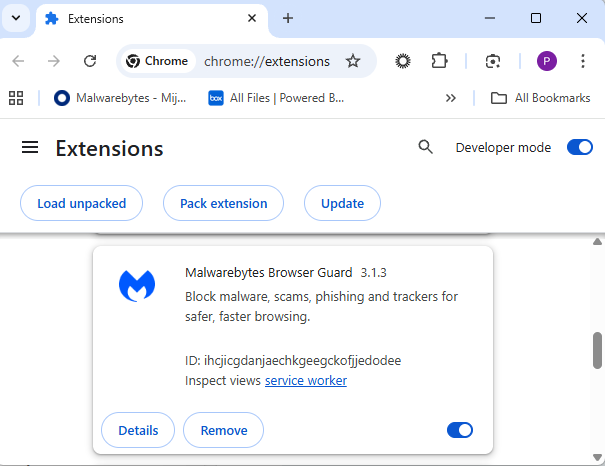
  • In the address bar type chrome://extensions/.
  • This will open the Extensions tab and show you the installed extensions by name.
  • Now toggle Developer mode to on and you will also see their unique ID.
Extensions tab showing Malwarebytes Browser Guard
Don’t remove this one. It’s one of the good ones.

Removal method in the browser

Use the Remove button to get rid of any unwanted entries.

If it disappears and stays gone after restart, you’re done. If there is no Remove button or Chrome says it’s “Installed by your administrator,” or the extension reappears after a restart, there’s a policy, registry entry, or malware forcing it.

Alternative

Alternatively, you can also search the Extensions folder. On Windows systems this folder lives here: C:\Users\<your‑username>\AppData\Local\Google\Chrome\User Data\Default\Extensions.

Please note that the AppData folder is hidden by default. To unhide files and folders in Windows, open Explorer, click the View tab (or menu), and check the Hidden items box. For more advanced options, choose Options > Change folder and search options > View tab, then select Show hidden files, folders, and drives.

Chrome extensions folder

You can organize the list alphabetically by clicking on the Name column header once or twice. This makes it easier to find extensions if you have a lot of them installed.

Deleting the extension folder here has one downside. It leaves an orphaned entry in your browser. When you start Chrome again after doing this, the extension will no longer load because its files are gone. But it will still show up in the Extensions tab, only without the appropriate icon.

So, our advice is to remove extensions in the browser when possible.

Malicious extensions

Below is the list of credential-stealing extensions using the iframe method, as provided by the researchers.

Extension IDExtension name
acaeafediijmccnjlokgcdiojiljfpbeChatGPT Translate
baonbjckakcpgliaafcodddkoednpjgfXAI
bilfflcophfehljhpnklmcelkoiffapbAI For Translation
cicjlpmjmimeoempffghfglndokjihhnAI Cover Letter Generator
ckicoadchmmndbakbokhapncehanaeniAI Email Writer
ckneindgfbjnbbiggcmnjeofelhflhajAI Image Generator Chat GPT
cmpmhhjahlioglkleiofbjodhhiejheiAI Translator
dbclhjpifdfkofnmjfpheiondafpkoedAi Wallpaper Generator
djhjckkfgancelbmgcamjimgphaphjdlAI Sidebar
ebmmjmakencgmgoijdfnbailknaaiffhChat With Gemini
ecikmpoikkcelnakpgaeplcjoickgacjAi Picture Generator
fdlagfnfaheppaigholhoojabfaapnhbGoogle Gemini
flnecpdpbhdblkpnegekobahlijbmfokChatGPT Picture Generator
fnjinbdmidgjkpmlihcginjipjaoapolEmail Generator AI
fpmkabpaklbhbhegegapfkenkmpipickChat GPT for Gmail
fppbiomdkfbhgjjdmojlogeceejinadgGemini AI Sidebar
gcfianbpjcfkafpiadmheejkokcmdkjlLlama
gcdfailafdfjbailcdcbjmeginhncjkbGrok Chatbot
gghdfkafnhfpaooiolhncejnlgglhkheAI Sidebar
gnaekhndaddbimfllbgmecjijbbfpabcAsk Gemini
gohgeedemmaohocbaccllpkabadoogplDeepSeek Chat
hgnjolbjpjmhepcbjgeeallnamkjnfgiAI Letter Generator
idhknpoceajhnjokpnbicildeoligdghChatGPT Translation
kblengdlefjpjkekanpoidgoghdngdglAI GPT
kepibgehhljlecgaeihhnmibnmikbngaDeepSeek Download
lodlcpnbppgipaimgbjgniokjcnpiiadAI Message Generator
llojfncgbabajmdglnkbhmiebiinohekChatGPT Sidebar
nkgbfengofophpmonladgaldioelckbeChat Bot GPT
nlhpidbjmmffhoogcennoiopekbiglbpAI Assistant
phiphcloddhmndjbdedgfbglhpkjcffhAsking Chat Gpt
pgfibniplgcnccdnkhblpmmlfodijppgChatGBT
cgmmcoandmabammnhfnjcakdeejbfimnGrok

We don’t just report on threats—we remove them

Cybersecurity risks should never spread beyond a headline. Keep threats off your devices by downloading Malwarebytes today.

  • ✇Malwarebytes
  • Matrix Push C2 abuses browser notifications to deliver phishing and malware
    Cybercriminals are using browser push notifications to deliver malware and phishing attacks. Researchers at BlackFog described how a new command-and-control platform, called Matrix Push C2, uses browser push notifications to reach potential victims. When we warned back in 2019 that browser push notifications were a feature just waiting to be abused, we noted that the Notifications API allows a website or app to send notifications that are displayed outside the page at the system level. Th
     

Matrix Push C2 abuses browser notifications to deliver phishing and malware

24 de Novembro de 2025, 12:43

Cybercriminals are using browser push notifications to deliver malware and phishing attacks.

Researchers at BlackFog described how a new command-and-control platform, called Matrix Push C2, uses browser push notifications to reach potential victims.

When we warned back in 2019 that browser push notifications were a feature just waiting to be abused, we noted that the Notifications API allows a website or app to send notifications that are displayed outside the page at the system level. This means it lets web apps send information to a user even when they’re idle or running in the background.

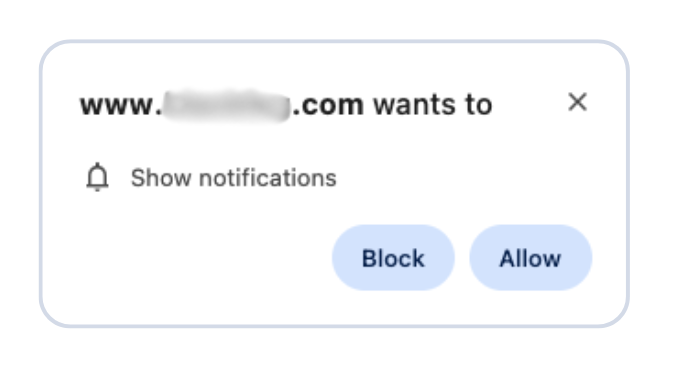
Here’s a common example of a browser push notification:

Browser notification with Block and Allow

This makes it harder for users to know where the notifications come from. In this case, the responsible app is the browser and users are tricked into allowing them by the usual “notification permission prompt” that you see on almost every other website.

But malicious prompts aren’t always as straightforward as legitimate ones. As we explained in our earlier post, attackers use deceptive designs, like fake video players that claim you must click “Allow” to continue watching.

Click allow to play video?

In reality, clicking “Allow” gives the site permission to send notifications, and often redirects you to more scam pages.

Granting browser push notifications on the wrong website gives attackers the ability to push out fake error messages or security alerts that look frighteningly real. They can make them look as if they came from the operating system (OS) or a trusted software application, including the titles, layout, and icons. There are pre-formatted notifications available for MetaMask, Netflix, Cloudflare, PayPal, TikTok, and more.

Criminals can adjust settings that make their messages appear trustworthy or cause panic. The Command and Control (C2) panel provides the attacker with granular control over how these push notifications appear.

Matrix C2 panel
Image courtesy of BlackFog

But that’s not all. According to the researchers, this panel provides the attacker with a high level of monitoring:

“One of the most prominent features of Matrix Push C2 is its active clients panel, which gives the attacker detailed information on each victim in real time. As soon as a browser is enlisted (by accepting the push notification subscription), it reports data back to the C2.”

It allows attackers to see which notifications have been shown and which ones victims have interacted with. Overall, this allows them to see which campaigns work best on which users.

Matrix Push C2 also includes shortcut-link management, with a built-in URL shortening service that attackers can use to create custom links for their campaign, leaving users clueless about the true destination. Until they click.

Ultimately, the end goal is often data theft or monetizing access, for example, by draining cryptocurrency wallets, or stealing personal information.

How to find and remove unwanted notification permissions

A general tip that works across most browsers: If a push notification has a gear icon, clicking it will take you to the browser’s notification settings, where you can block the site that sent it. If that doesn’t work or you need more control, check the browser-specific instructions below.

Chrome

To completely turn off notifications, even from extensions:

  • Click the three dots button in the upper right-hand corner of the Chrome menu to enter the Settings menu.
  • Select Privacy and Security.
  • Click Site settings.
  • Select Notifications.
  • By default, the option is set to Sites can ask to send notifications. Change to Don’t allow sites to send notifications if you want to block everything.
Chrome notifications settings

For more granular control, use Customized behaviors.

  • Selecting Remove will delete the item from the list. It will ask permission to show notifications again if you visit their site.
  • Selecting Block prevents permission prompts entirely, moved them to the block list.
Firefox Notifications settings
  • You can also check Block new requests asking to allow notifications at the bottom.
Web Site notifications settings

In the same menu, you can also set listed items to Block or Allow by using the drop-down menu behind each item.

Opera

Opera’s settings are very similar to Chrome’s:

  • Open the menu by clicking the O in the upper left-hand corner.
  • Go to Settings (on Windows)/Preferences (on Mac).
  • Click Advanced, then Privacy & security.
  • Under Content settings (desktop)/Site settings (Android) select Notifications.
website specific notifications Opera

On desktop, Opera behaves the same as Chrome. On Android, you can remove items individually or in bulk.

Edge

Edge is basically the same as Chrome as well:

  • Open Edge and click the three dots (…) in the top-right corner, then select Settings.
  • In the left-hand menu, click on Privacy, search, and services.
  • Under Sites permissions > All permissions, click on Notifications.
  • Turn on Quiet notifications requests to block all new notification requests. 
  • Use Customized behaviors for more granular control.

Safari

To disable web push notifications in Safari, go to Safari > Settings > Websites > Notifications in the menu bar, select the website from the list, and change its setting to Deny. To stop all future requests, uncheck the box that says Allow websites to ask for permission to send notifications in the same window. 

For Mac users

  1. Go to Safari > Settings > Websites > Notifications.
  2. Select a site and change its setting to Deny or Remove.
  3. To stop all future prompts, uncheck Allow websites to ask for permission to send notifications.

For iPhone/iPad users

  1. Open Settings.
  2. Tap Notifications.
  3. Scroll to Application Notifications and select Safari.
  4. You’ll see a list of sites with permission.
  5. Toggle any site to off to block its notifications.

We don’t just report on threats—we help safeguard your entire digital identity

Cybersecurity risks should never spread beyond a headline. Protect your, and your family’s, personal information by using identity protection.

  • ✇Malwarebytes
  • Fake calendar invites are spreading. Here’s how to remove them and prevent more
    We’re seeing a surge in phishing calendar invites that users can’t delete, or that keep coming back because they sync across devices. The good news is you can remove them and block future spam by changing a few settings. Most of these unwanted calendar entries are there for phishing purposes. Most of them warn you about a “impending payment” but the difference is in the subject and the action they want the target to take. Sometimes they want you to call a number: And sometimes they
     

Fake calendar invites are spreading. Here’s how to remove them and prevent more

21 de Novembro de 2025, 12:28

We’re seeing a surge in phishing calendar invites that users can’t delete, or that keep coming back because they sync across devices. The good news is you can remove them and block future spam by changing a few settings.

Most of these unwanted calendar entries are there for phishing purposes. Most of them warn you about a “impending payment” but the difference is in the subject and the action they want the target to take.

Sometimes they want you to call a number:

"Call this number" scams

And sometimes they invite you to an actual meeting:

fake Geek Squad billing update meeting

We haven’t followed up on these scams, but when attackers want you to call them or join a meeting, the end goal is almost always financial. They might use a tech support scam approach and ask you to install a Remote Monitoring and Management tool, sell you an overpriced product, or simply ask for your banking details.

The sources are usually distributed as email attachments or as download links in messaging apps.

How to remove fake entries from your calendar

This blog focuses on how to remove these unwanted entries. One of the obstacles is that calendars often sync across devices.

Outlook Calendar

If you use Outlook:

  • Delete without interacting: Avoid clicking any links or opening attachments in the invite. If available, use the “Do not send a response” option when deleting to prevent confirming that your email is active.
  • Block the sender: Right-click the event and select the option to report the sender as junk or spam to help prevent future invites from that email address.
  • Adjust calendar settings: Access your Outlook settings and disable the option to automatically add events from email. This setting matters because even if the invite lands in your spam folder, auto-adding invites will still put the event on your calendar.
    Outlook accept settings
  • Report the invite: Report the spam invitation to Microsoft as phishing or junk.
  • Verify billing issues through official channels: If you have concerns about your account, go directly to the company’s official website or support, not the information in the invite.

Gmail Calendar

To disable automatic calendar additions:

  • Open Google Calendar.
  • Click the gear icon and select Settings in the upper right part of the screen.
    Gmail calendar settings
  • Under Event settings, change Add invitations to my calendar to either Only if the sender is known or When I respond to the invitation email. (The default setting is From everyone, which will add any invite to your calendar.)
  • Uncheck Show events automatically created by Gmail if you want to stop Gmail from adding to your calendar on its own.

Android Calendar

To prevent unknown senders from adding invites:

  • Open the Calendar app.
  • Tap Menu > Settings.
  • Tap General > Adding invitations > Add invitations to my calendar.
  • Select Only if the sender is known.

For help reviewing which apps have access to your Android Calendar, refer to the support page.

Mac Calendars

To control how events get added to your Calendar on a Mac:

  • Go to Apple menu > System Settings > Privacy & Security.
  • Click Calendars.
  • Turn calendar access on or off for each app in the list.
  • If you allow access, click Options to choose whether the app has full access or can only add events.

iPhone and iPad Calendar

The controls are similar to macOS, but you may also want to remove additional calendars:

  • Open Settings.
  • Tap Calendar > Accounts > Subscribed Calendars.
  • Select any unwanted calendars and tap the Delete Account option.

Additional calendars

Which brings me to my next point. Check both the Outlook Calendar and the mobile Calendar app for Additional Calendars or subscribed URLs and Delete/Unsubscribe. This will stop the attacker from being able to add even more events to your Calendar. And looking in both places will be helpful in case of synchronization issues.

Several victims reported that after removing an event, they just came back. This is almost always due to synchronization. Make sure you remove the unwanted calendar or event everywhere it exists.

Tracking down the source can be tricky, but it may help prevent the next wave of calendar spam.

How to prevent calendar spam

We’ve covered some of this already, but the main precautions are:

  • Turn off auto‑add or auto‑processing so invites stay as emails until you accept them.
  • Restrict calendar permissions so only trusted people and apps can add events.
  • In shared or resource calendars, remove public or anonymous access and limit who can create or edit items.
  • Use an up-to-date real-time anti-malware solution with a web protection component to block known malicious domains.
  • Don’t engage with unsolicited events. Don’t click links, open attachments, or reply to suspicious calendar events such as “investment,” “invoice,” “bonus payout,” “urgent meeting”—just delete the event.
  • Enable multi-factor authentication (MFA) on your accounts so attackers who compromise credentials can’t abuse the account itself to send or auto‑accept invitations.

Pro tip: If you’re not sure whether an event is a scam, you can feed the message to Malwarebytes Scam Guard. It’ll help you decide what to do next.

The Really Really Sale

We don’t just report on threats—we remove them

Cybersecurity risks should never spread beyond a headline. Keep threats off your devices by downloading Malwarebytes today.

❌
❌