 Entrar
Microsoft Entra Agent ID Flaw Enabled Tenant Takeover via Privilege Escalation
Microsoft Entra Agent ID flaw allowed privilege escalation and tenant takeover via Service Principal abuse, now fully patched by Microsoft.

Now that we know how to add credentials to an on-premises user, lets pose a question:
“Given access to a sync account in Domain A, can we add credentials to a user in another domain within the same Entra tenant?”
This is a bit of a tall order assuming we have very few privileges in Entra itself. Remember from Part 1 that the only thing we can sync down, by default, is the msDS-KeyCredentialLink property. In order to understand how to take advantage of this, we need to learn some more fundamentals of the Entra sync engine and how the rules work:
We have yet to look at a concrete rule, so let’s look at the first rule defined in the Rules Editor.
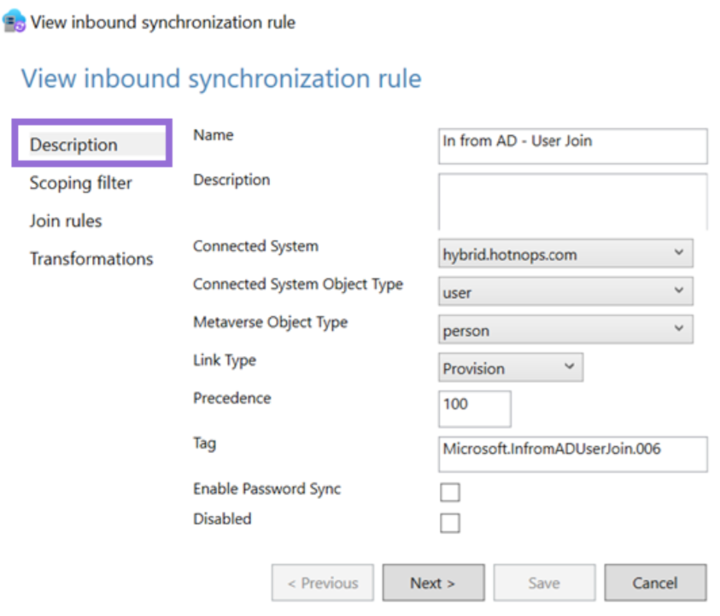
Note that the direction is not shown here, but I am showing the inbound rules in the sync rules editor. The direction is in the XML definition. The “Connected System” is the connector space that the source object is coming from (in this case, hybrid.hotnops.com). Since the AD object is a user, the connector space object is “user” and the user representation in the metaverse is called a “person”. The link type of “Provision” is saying “create a metaverse object if one does not exist yet”. In sum, this rule is telling the sync engine to create a metaverse object for any user in the connector space. Remember the connector is responsible for enumerating LDAP and populating all AD users into the connector space.
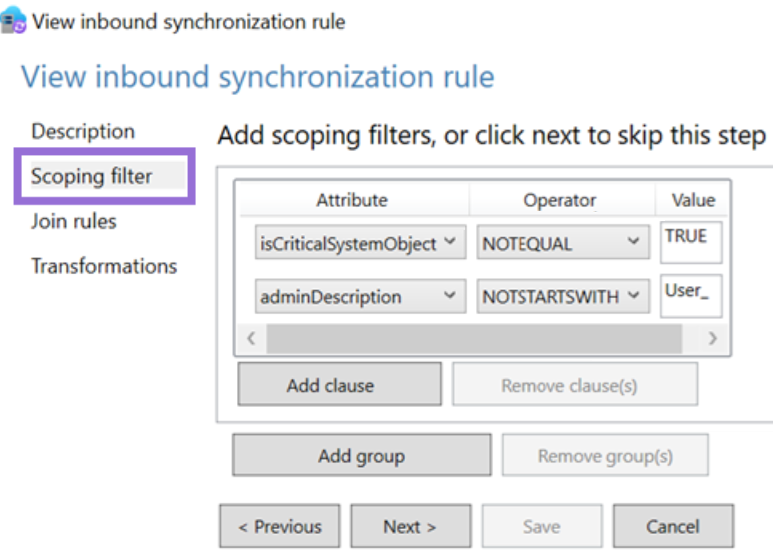
Next, the scoping filter sets which objects are to be provisioned. We can see here that if the connector space object has a property of isCriticalSystemObject not set to “true” AND adminDescription doesn’t start with “User_”, then the object will be provisioned. Remember that the object still exists in connector space, even though it won’t be projected into the metaverse.
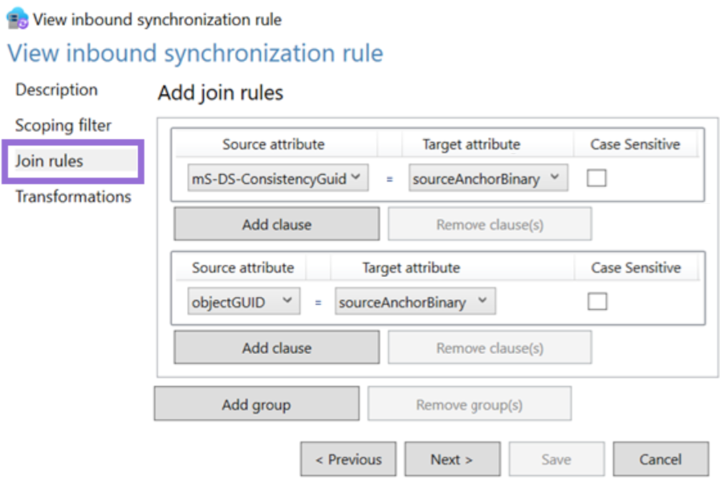
Next, we get to the “join” rules which are critical to understand. The join rules are the logic that creates the links between the metaverse objects, and the connector space objects, resulting in concrete MSSQL relationships. In this case, the rule is saying that the ms-DS-ConsistencyGuid on the connector space object needs to match the sourceAnchorBinary on the metaverse object. If the ms-DS-ConsistencyGuid property doesn’t exist, the objectGUID is used. It’s also important to remember that joins happen for both inbound (from a connector space into the metaverse) and outbound (from the metaverse into the connector space) attribute flows.
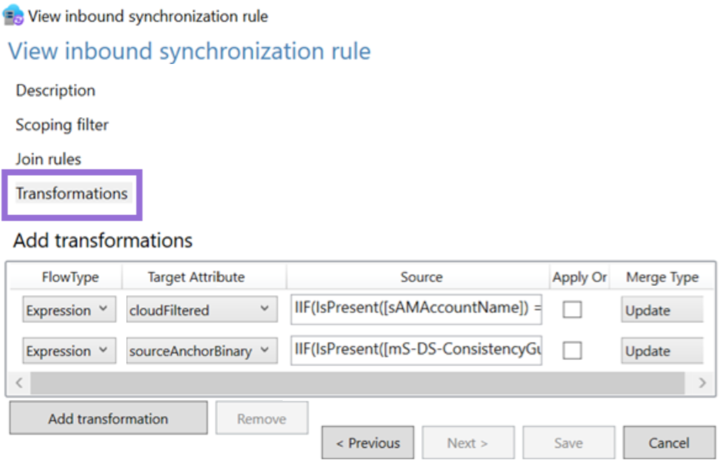
Lastly, the transformations list which target object properties need to be mutated. Note that the language for these transformations is effectively VBA. In this case, two properties will be set on the metaverse person:
We have now walked through a full provisioning rule but note that most rules do not provision anything; rather, they are joined to existing objects and certain transformations are projected into the metaverse.
So far, we have described the flow into the metaverse, so how does a property flow out? Let’s take a look at the two rules we care about. First, let’s look at how users are provisioned in Entra:
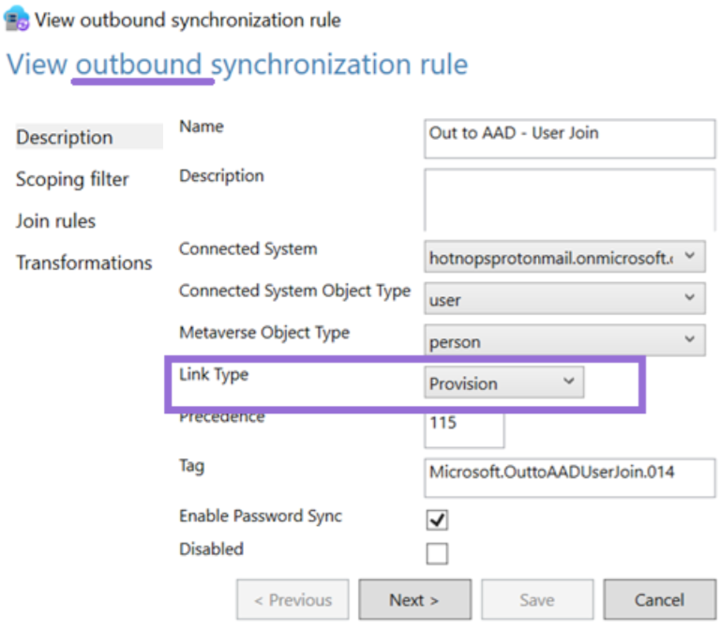
The “Link Type” is “Provision”, meaning that a new object will be created in the Entra connector space. The Entra connector (Sync Agent), will use that object creation to trigger a new user creation in Entra.
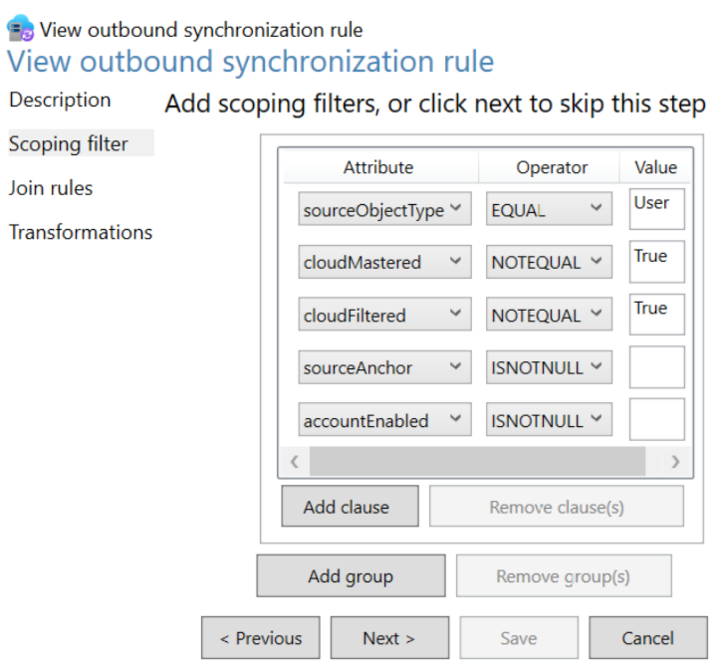
This part is really important. If we look at the filter, objects are only provisioned to the Entra connector space if all of these conditions are met. Remember that some of our privileged accounts, such as the “MSOL” account, “krbtgt”, and “AAD_” account names are set to be cloud filtered. That means that they are projected into the metaverse, but the Entra user provisioning is simply being blocked by the sync engine.
Last rule, I promise. Let’s look at how Entra users are joined to on-premises users:
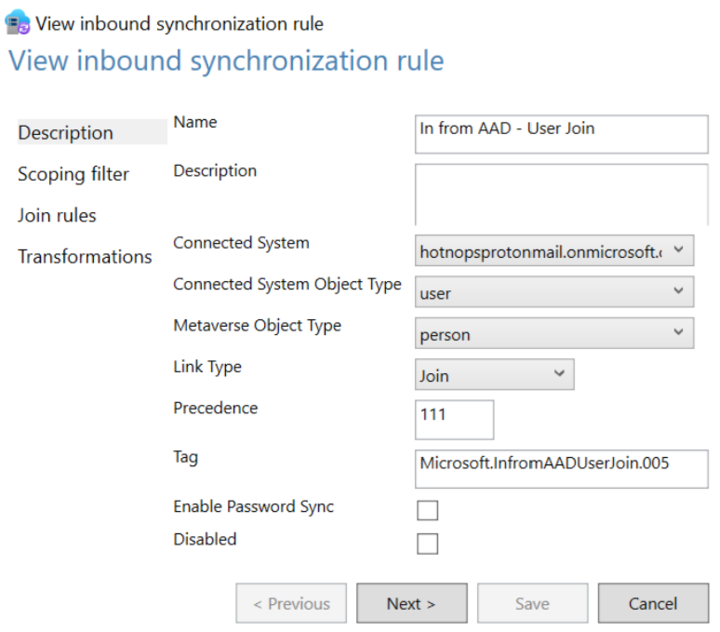
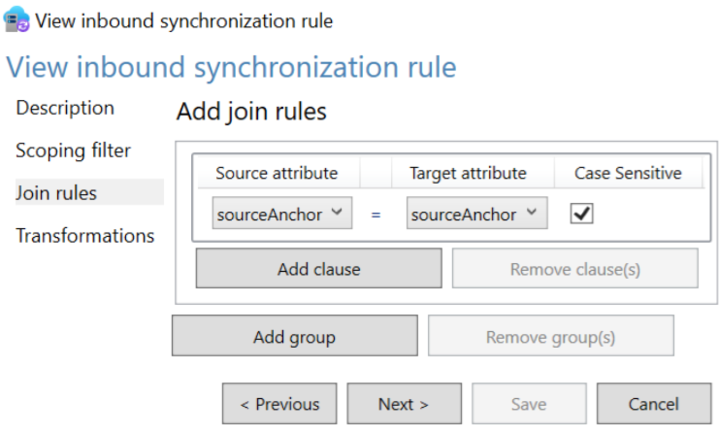
This is saying that if an Entra user with a source anchor matches a metaverse object with the same source anchor, they will be tied together.
Do you see it?
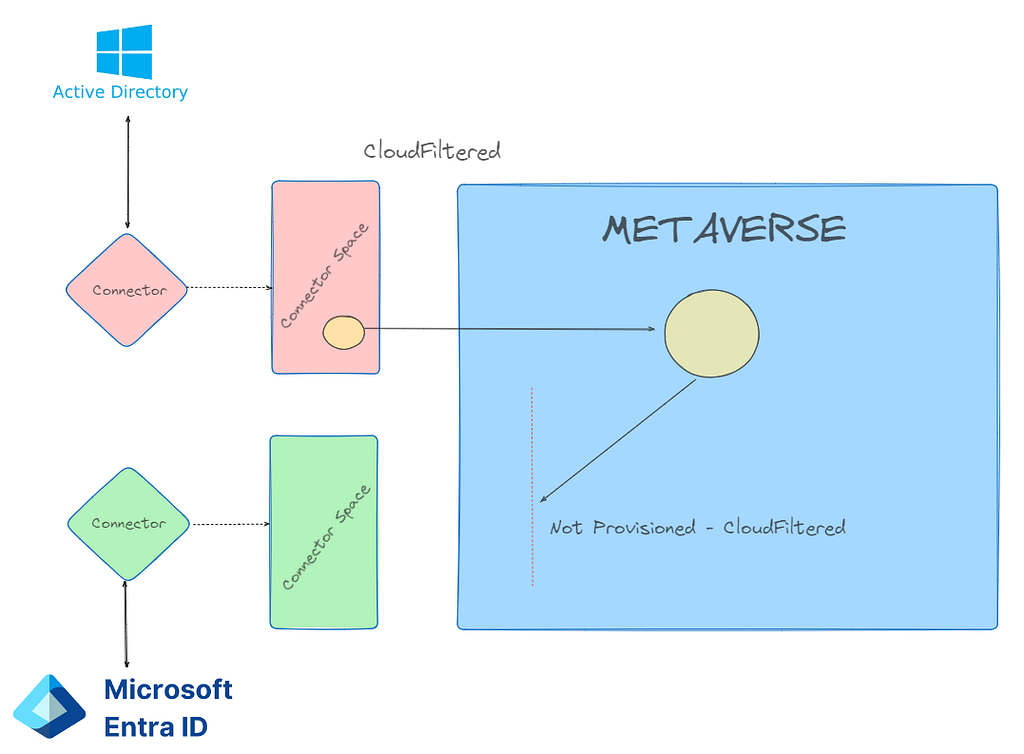
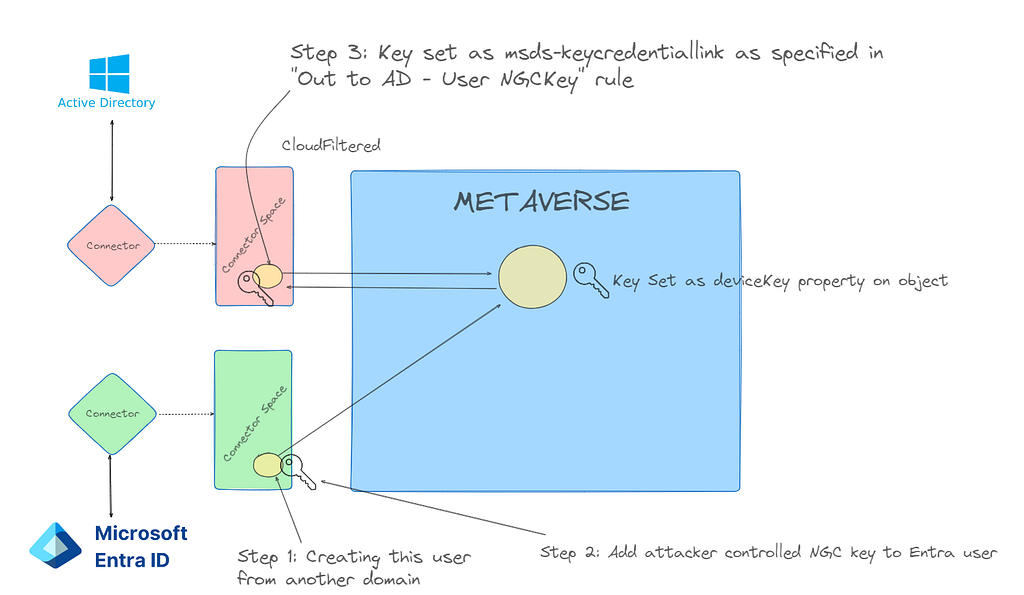
There are partially linked objects in the metaverse, and we can trigger a link by creating a new user with the matching sourceAnchor.
In simple terms, CloudFiltered objects are prevented from being provisioned only! AKA Outbound Filtering. If we can provision the Entra user ourselves, we can complete the inbound join rule and take over the user account in another domain, as long as the MSOL account can write their msDS-KeyCredentialLink property.
And chaining this together, because we can control the user password and creation from the compromised sync account in Domain A, we can then add the WHFB credentials discussed in the part one of this blog series and add credentials to a potentially privileged user.
Before we continue, this attack has some important caveats:
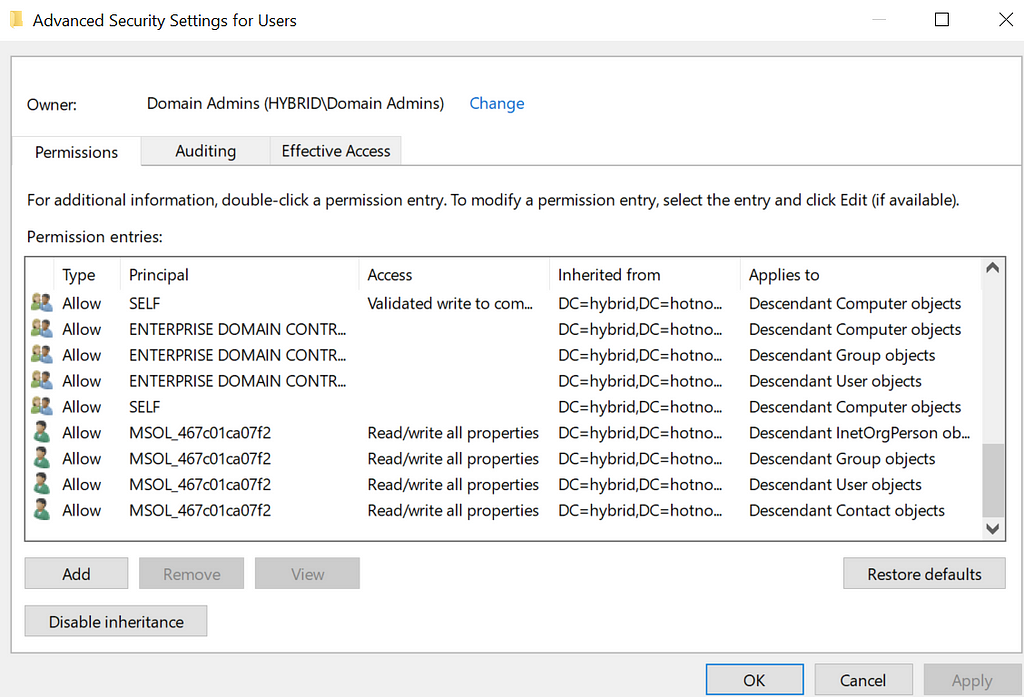
The MSOL account used for attribute flows has write permissions at the “Users” OU level by default. If a user account has inheritance disabled, then MSOL will not be able to write to it and this attack will not affect the account.
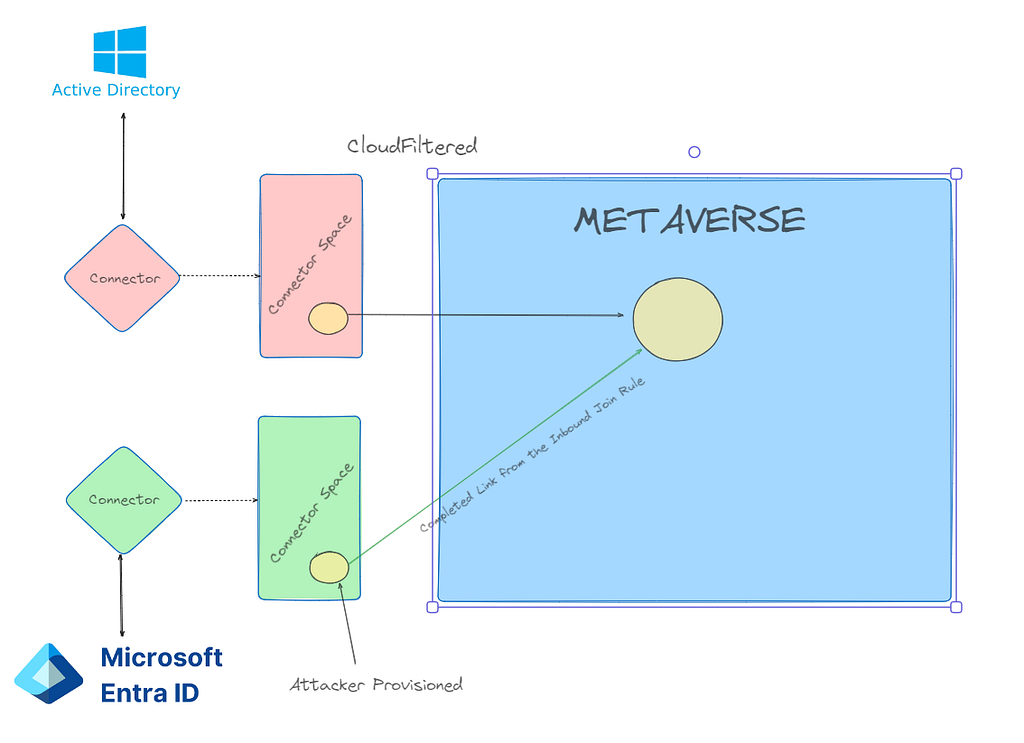
Enough talking; let’s do a walkthrough. In this scenario, we have a tenant (hotnops.com) with two on-premises domains: federated.hotnops.com and hybrid.hotnops.com. As an attacker, we have fully compromised federated.honops.com and have an unprivileged Beacon in hybrid.hotnops.com. We will take advantage of the compromised Entra Connect Sync account in federated.honops.com to take over hybrid.hotnops.com.
If you want a full walkthrough with all the command line minutae, the video is here:
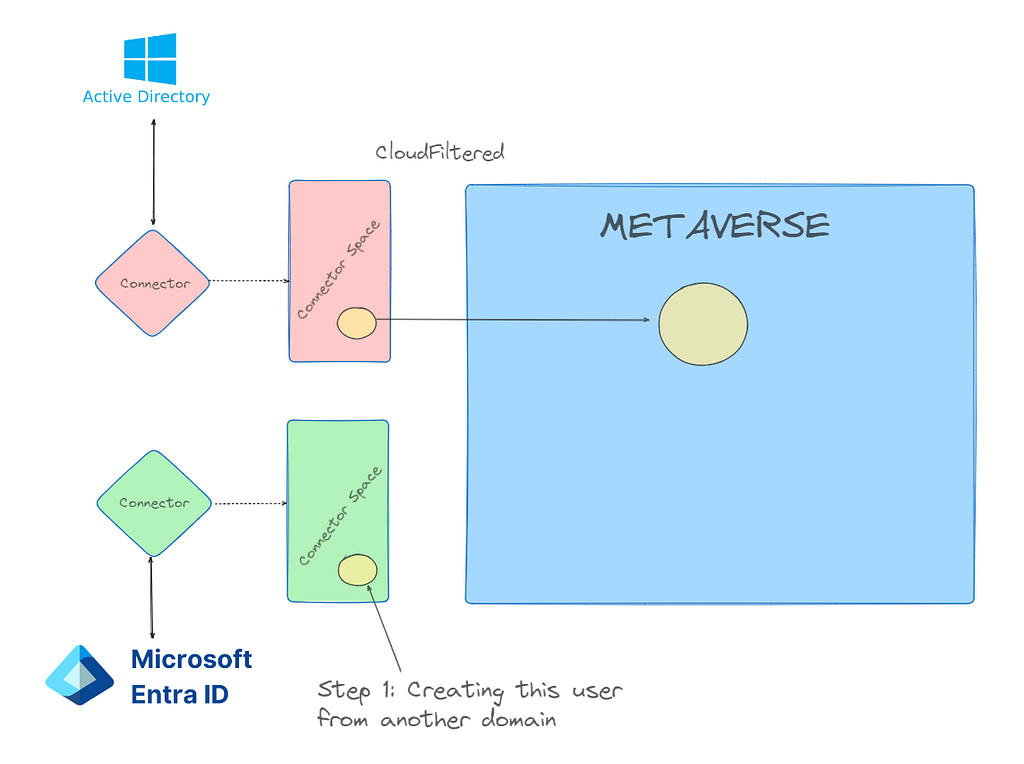
From the Beacon in hybrid.hotnops.com, we need to identify an account we’d like to take over and identify the sourceAnchor that we need.
To do this, we want to find partially synced metaverse objects. For the sake of this walkthrough, we can run dsquery:
#> dsquery * "CN=Users,DC=hybrid,DC=hotnops,DC=com" -attr *
With those results, we want to look for any account that matches our “CloudFiltered” rule, which is defined here.
In our case, there is an account named “AAD_cb48101f-7fc5–4d40-ac6c-09b22d42a3ed”. These are older connector accounts installed with AAD Connect Sync. If you identify an account that may be cloud filtered, you will need the corresponding ObjectID associated with the account that is in the dsquery results. In our case, the object ID is
0A08E28B-5D21–4960-A25A-F724F1E96155
Since the ObjectId is used as the sourceAnchor, we want to create a new Entra user with that sourceAnchor so it will link to our targeted “AAD_” account. In order to convert the UUID to a sourceAnchor, we simply need to convert the UUID to a binary blob where each section is little endian. I have a script to do it here, but there are probably easier ways.
./uuid_to_sourceAnchor.py 0A08E28B-5D21–4960-A25A-F724F1E96155
We now want to use our Sync Account in federated.hotnops.com to create a new user with that sourceAnchor so that it will create a link to our target user in hybrid.hotnops.com. We can do that by obtaining credentials for the ADSync account and using the provisioning API. You’ll need to obtain an access token for the ADSync account, which I demonstrate in the video linked above. Once you have your token, you’ll need to use AADInternals to create the account.
#> Set-AADIntAzureADObject -AccessToken $token -SourceAnchor $sourceAnchor -userPrincipalName <upnOfTarget> -accountEnabled $true
At this point, we have achieved Step 1. We have a new user in Entra with a matching sourceAnchor, and now we need to wait up to 30 minutes (by default) for the target domain to run an Entra Connect sync, at which time the Entra user and the on-premises target “AAD_cb48101f-7fc5–4d40-ac6c-09b22d42a3ed” link together.
Once the user is created, add an msDS-KeyCredentialLink to the newly created Entra user as documented in the first blog post in this series.
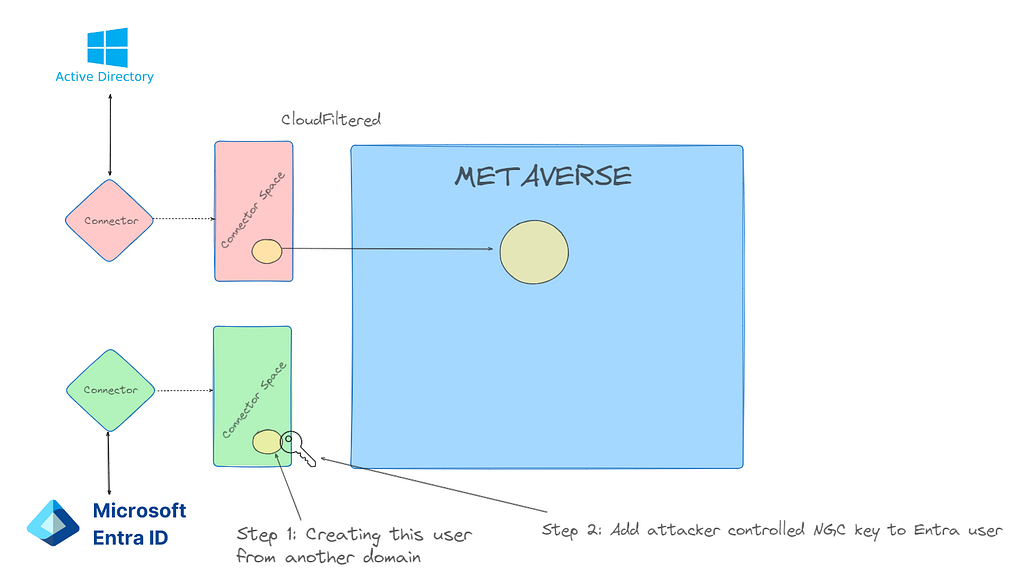
Once the Entra Connect sync agent on hybrid.hotnops.com runs the next sync, it will use the join rule “In from AAD — User Join” to link the Entra user to the metaverse object associated with the on-premises “AAD_cb48101f-7fc5–4d40-ac6c-09b22d42a3ed” account.
From here, we will use our Beacon in hybrid.hotnops.com and methods documented in the Shadow Credentials blog to elevate privileges.
As a result of registering a Windows Hello For Business (WHFB) key on your created Entra user, you will have a key called “winhello.key”. In order to use it with Rubeus, we need to format it as a PFX file. The steps are below:
openssl req -new -key ./winhello.key -out ./winhello_cert_req.csr
openssl x509 -req -days 365 -in ./winhello_cert_req.csr -signkey ./winhello.key -out ./winhello_cert.pem
openssl pkcs12 -export -out aad.pfx -inkey ./winhello.key -in ./winhello_cert.pem
Now, we need to go to our Beacon on hybrid.hotnops.com and upload the PFX:
beacon> upload aad.pfx
Now, run the Rubeus command:
beacon> rubeus asktgt /user:AAD_cb48101f-7fc5–4d40-ac6c-09b22d42a3ed /certificate:C:\Path\To\aad.pfx /password:"certPassword" /domain:hybrid.hotnops.com /dc:DC1-HYBRID.hotnops.com /getcredentials /ptt
Congratulations! Your Beacon process now has a token for your targeted account.
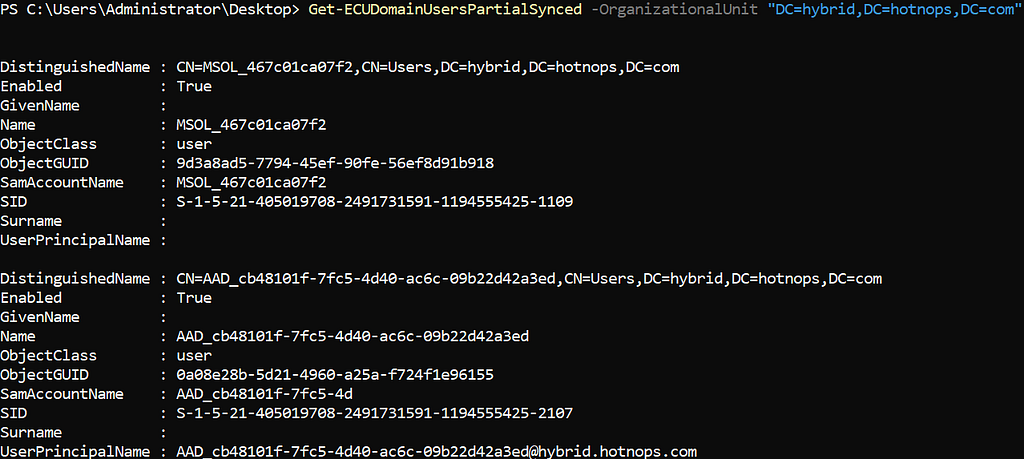
For our purposes, a partially synced user is one that has an object in the on-premises connector space, a projection in the metaverse, but not an object in the Entra connector space. The reason why these exist, as mentioned earlier, is due to outbound filtering. In order to determine which users are partially synced, we can query all the objects in the metaverse and connector spaces and see which ones don’t have an object in the Entra connector space. The script to do that is here and here is an example output:
When Entra Connect is installed, an Active Directory Domain Services (AD DS) Connector account is created in the naming scheme of “MSOL_<random garbage>”. This account is responsible for syncing hashes (yes, it has DCSync privileges) and reading/writing properties on users to support the attribute flows. As a result of this, the MSOL account is given write all over all users in the “Users” OU.
That means this attack can affect any user that inherits their discretionary access control lists (DACLs) from the Users OU (which is pretty much all users). This is generally true of any Sync attack; however, something I learned during this research is that users added to sensitive privileged groups such as Domain Administrators will automatically have their inheritance disabled. Even when I re-enable it, some script comes along and disables it again. This led me to this technet article which claims that any AD group marked “protected” will routinely get a template DACL applied to them located at CN=AdminSDHolder,CN=System,DC=hybrid,DC=hotnops,DC=com.
So which users are “protected”?
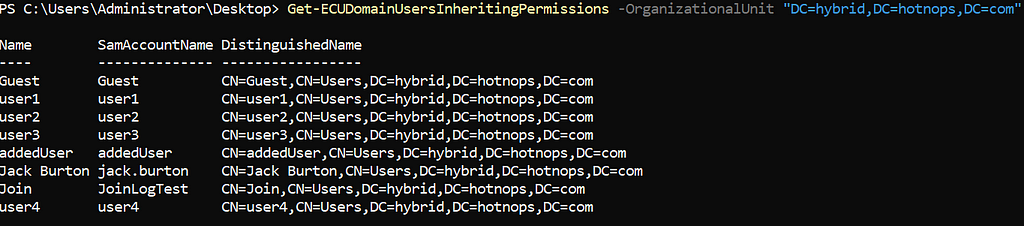
Any user that has the adminCount property set to “1”. (Edit: Thanks to Clément Notin (@cnotin) for pointing out that the adminCount is the result of AD evaluating such criteria, not the source. More details here) Ultimately, as long as the target’s msDS-KeyCredentialLink attribute is writable by the MSOL account AND it is partially synced, then it is susceptible to this attack. I provided a powershell cmdlet to list all users that inherit their DACLs from the Users OU:
Detection of this misconfiguration/attack may be difficult but there are some solid signals that something is off. If any users in the Entra connector space have a metaverse projection with a “cloudFiltered” attribute set to “true”, then something is wrong. You can use the powershell cmdlet here to check for those users. While this doesn’t detect all hijackable metaverse objects, it does cover the most obvious case of cloudFiltered users.

Microsoft Entra Connect Sync: Configure filtering - Microsoft Entra ID
Gerenios/AADInternals: AADInternals PowerShell module for administering Azure AD and Office 365
DEF CON 32 — Abusing Windows Hello Without a Severed Hand — Ceri Coburn, Dirk jan Mollema
aadinternals.com/talks/Attacking Azure AD by abusing Synchronisation API.pdf
Entra Connect Attacker Tradecraft: Part 2 was originally published in Posts By SpecterOps Team Members on Medium, where people are continuing the conversation by highlighting and responding to this story.
This blog walks you through setting up an ADFS lab using Ludus and/or a flexible hybrid cloud environment for testing.
The associated GitHub repo is here.
I was recently on an engagement where the customer was using Active Directory Federated Services (ADFS). ADFS is an Identity Provider (idP) by Microsoft that allows third-party applications and internal applications to delegate authentication to Active Directory.
I see ADFS all the time during my engagements, and although I knew about this technology in theory, I wanted to gain more experience with it. How fun would it be to spin up an ADFS lab, learn how it works under the hood, practice attacks, and analyze possible detection’s? The possibilities are endless with a home lab!
I’m a heavy Ludus user, and I use Zach Stein’s SCCM Ludus range all the time, so going with Ludus was a no brainer. Erik Hunstad developed Ludus which simplifies lab deployments, making it a powerful tool for managing virtual environments. If you’re not familiar with it yet, be sure to check out the Ludus documentation here.
While I was building the lab, I wanted to see if it would be possible to automate the process for integrating Microsoft 365 apps with ADFS for authentication. To do this on a domain-joined system, I would need to run the AzureAdConnect.msi installer, which replicates objects from an on-prem Active Directory environment to Entra ID and when configured can also write changes from Entra ID back to on-prem AD. Automating this became more difficult than I anticipated.
Instead, I’ve created an Ansible role called “entra_prep”, which prepares a dedicated server to connect your on-prem AD environment to Entra ID. You can find more details in the “Roles” section on how this works. Keep in mind that you’ll need your own Entra tenant to move forward. Once that’s set up, the only other step is running the AzureADConnect installer and following the wizard. Everything else you need for a hybrid cloud lab is ready to go.
What makes this lab super flexible is that it is essentially “choose your own adventure”. You have the freedom to decide exactly how you would like to structure your lab.
You get the picture, there’s a lot you can do with this home lab. I do believe this lab strikes a good balance between automation and manual setup that lets you set up how you want the cloud environment to be and still save you some time.
Ludus uses Ansible roles to manage the software and configurations in the lab environment. The following are roles that I created for this lab.
This role installs the ADFS role on a server, creates an ADFS service account, and requests a certificate that ADFS uses.
This role requests the root certificate from the certificate authority (CA) and imports it into the local machine security store. This is necessary to remove the following certificate error which is caused because the lab machine does not trust the CA that signed the cert being used by ADFS.
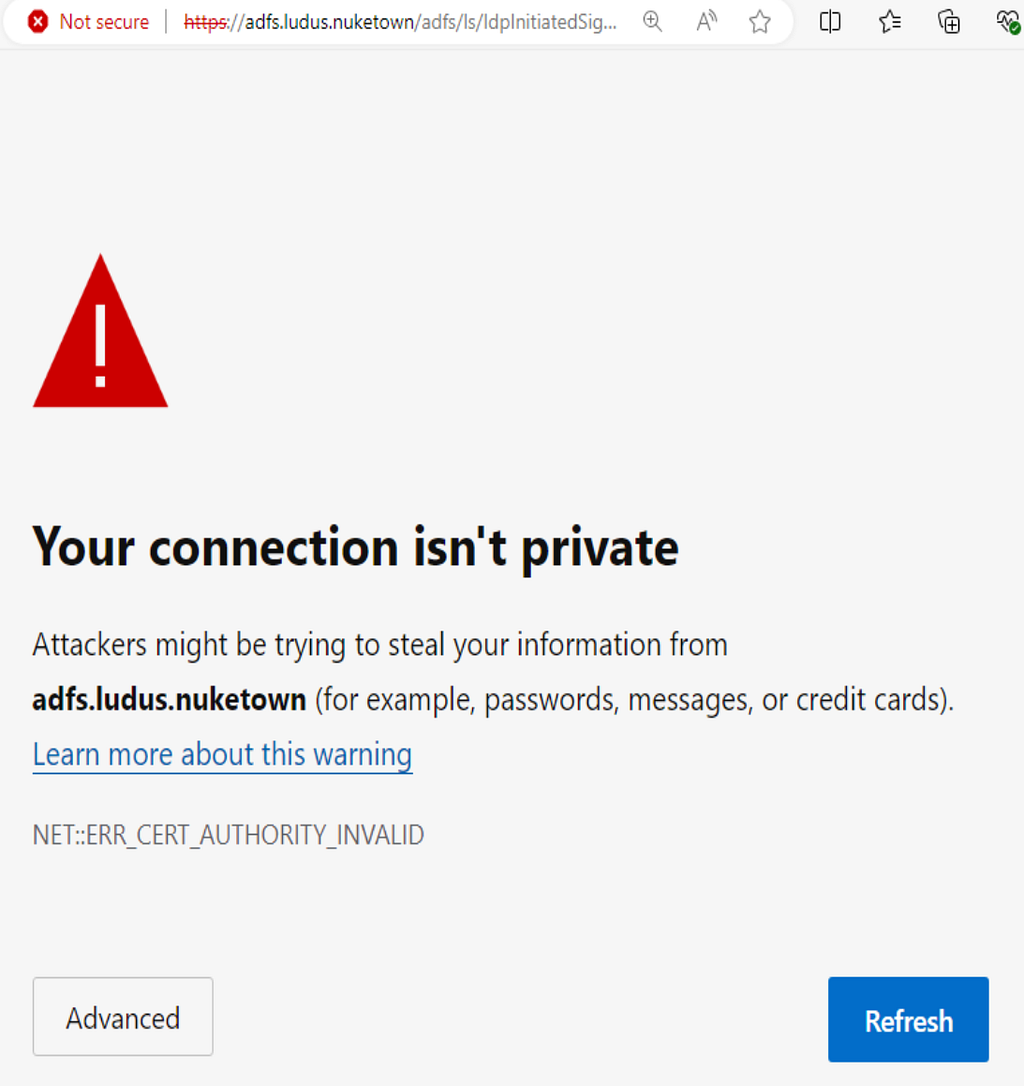
This role adds an alternative user principal name (UPN) to the local domain which is required before connecting an on-prem domain to Entra ID. This role also installs TLS 1.2 which AzureAdConnect.msi requires. Next, this role creates a service account which is used for syncing AD objects from on-prem AD to Entra ID. There are some settings that allow Entra ID to replicate changes to on-prem AD such as group writeback, device writeback, or password writeback. If any of these settings are configured, then some changes in Entra ID like group creation, or password resets will be replicated from Entra ID to on-prem AD. Finally, this role downloads the AzureAdConnect.msi installer to the server that will be used for replication between on-prem AD and Entra ID.
I won’t be covering the installation of Ludus as this is already heavily documented in the Ludus docs. Installation of the ADFS range is simple, you just need to clone the ludas_adfs repo.
git clone https://github.com/bagelByt3s/ludus_adfs /opt/ludus_adfs
Then you add the Ansible collection to Ludus.
ludus ansible collection add /opt/ludus_adfs
Review the sample range configuration file, updating fields to suit your desired environment:
ADFS-Range.yml
ludus:
  - vm_name: "DC01-WinServer2022"
    hostname: "DC01"
    template: win2022-server-x64-template
    vlan: 10
    ip_last_octet: 10
    ram_gb: 8
    cpus: 4
    windows:
      sysprep: true
    domain:
      fqdn: ludus.nuketown
      role: primary-dc
    roles:
      - bagelByt3s.ludus_adfs.install_adcs

  - vm_name: "ADFS-WinServer2022"
    hostname: "ADFS"
    template: win2022-server-x64-template
    vlan: 10
    ip_last_octet: 11
    ram_gb: 8
    ram_min_gb: 2
    cpus: 4
    windows:
      sysprep: true
    domain:
      fqdn: ludus.nuketown
      role: member
    roles:
      - bagelByt3s.ludus_adfs.import_root_cert
      - bagelByt3s.ludus_adfs.install_adfs
    role_vars:
      adfs_service_account: 'adfs_svc'
      adfs_service_account_password: 'password'
      adfs_service_display_name: 'ADFS Service'
      adfs_hostname: 'adfs.ludus.nuketown'
      adfs_FQDN_CA: 'DC01.ludus.nuketown\ludus-CA'
      adfs_CA: "ludus-CA"
      adfs_certificate_subject: "CN=adfs.ludus.nuketown, O=Ludus, C=US"

  - vm_name: "EntraConnect-WinServer2022"
    hostname: "EntraConnect"
    template: win2022-server-x64-template
    vlan: 10
    ip_last_octet: 12
    ram_gb: 8
    ram_min_gb: 2
    cpus: 4
    windows:
      sysprep: true
    domain:
      fqdn: ludus.nuketown
      role: member
    roles:
      - bagelByt3s.ludus_adfs.import_root_cert
      - bagelByt3s.ludus_adfs.entra_prep
    role_vars:
      adfs_CA: "ludus-CA"
      ludus_entra_join_svc_account: "entra_svc"
      ludus_entra_join_svc_account_password: "password"
      ludus_entra_join_alt_upn: "" #Example: domain.onmicrosoft.com or leave blank to skip

  - vm_name: "Workstation-Win11"
    hostname: "Workstation"
    template: win11-22h2-x64-enterprise-template
    vlan: 10
    ip_last_octet: 13
    ram_gb: 4
    ram_min_gb: 2
    cpus: 4
    windows:
      sysprep: true
    domain:
      fqdn: ludus.nuketown
      role: member
    roles:
      - bagelByt3s.ludus_adfs.import_root_cert
    role_vars:
      adfs_CA: "ludus-CA"
ludus range config set -f /opt/ludus_adfs/ADFS-Range.yml
ludus range deploy
Once the deployment completes, you can visit the following URL to confirm that the ADFS deployment was successful (the domain and hostname will be different if you modified the ADFS-Range.yml file).
https://adfs.ludus.nuketown/adfs/ls/IdpInitiatedSignOn.aspx
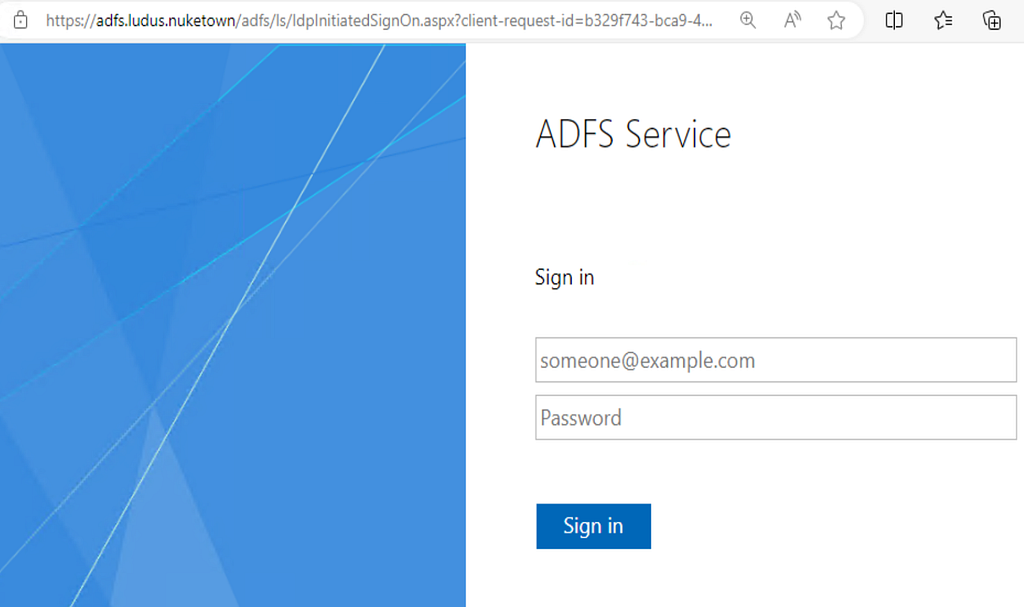
This provides a working ADFS deployment. All that is left for you to do is to integrate third-party applications for Single Sign-On (SSO) using ADFS.
Additionally, if you have an Entra tenant and would like to migrate the domain to a hybrid deployment, simply login to the EntraConnect-WinServer2022 virtual machine and run the installer found at c:\windows\tasks\AzureAdConnect.msi.
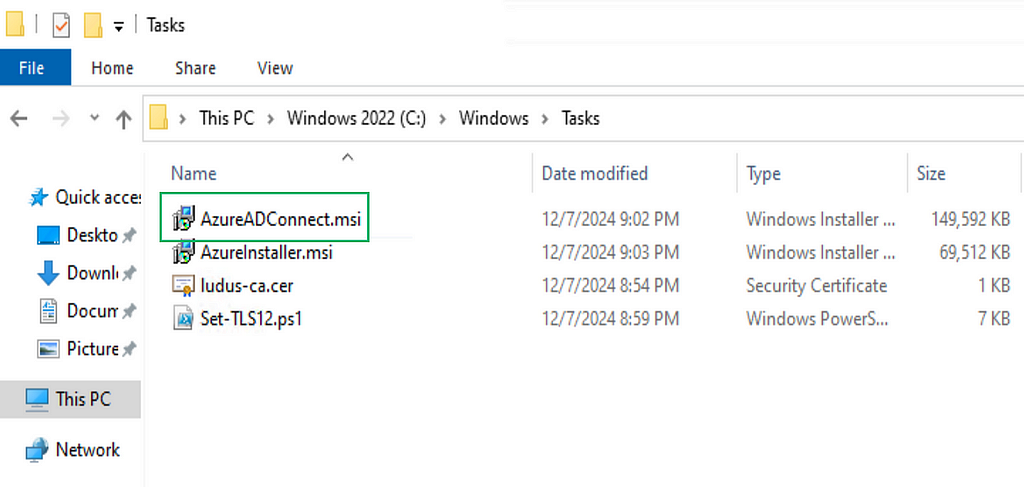
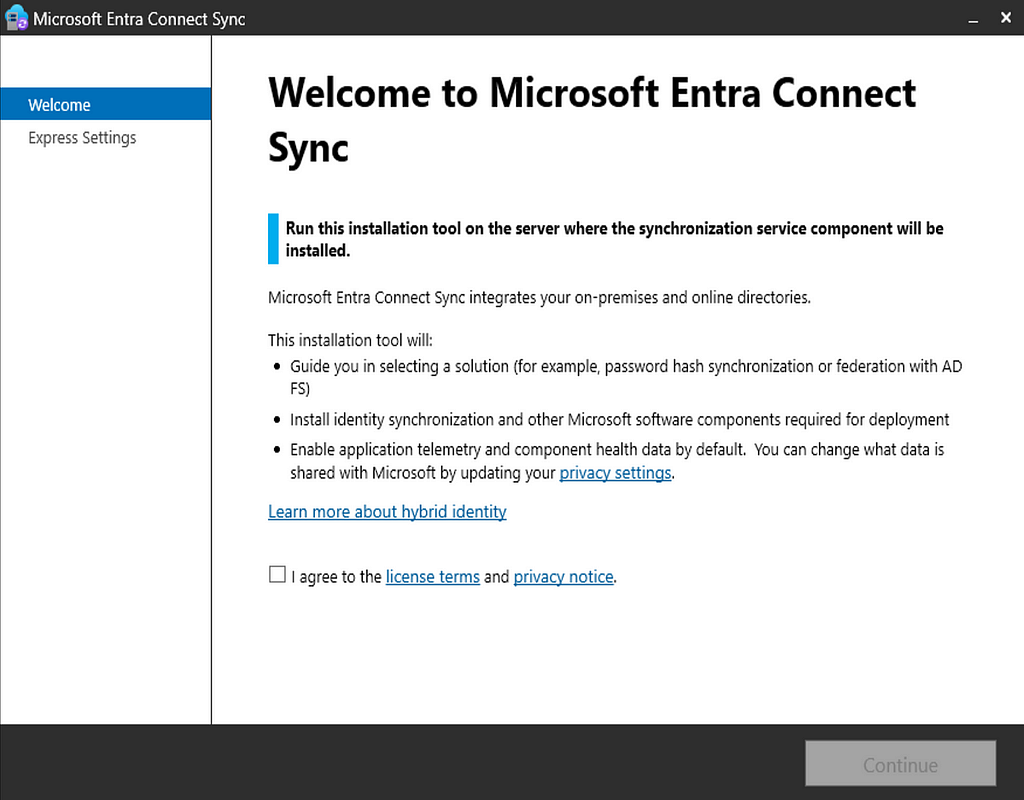
Follow the wizard with your details and you’re on your way!
It was a pleasure to write this blog! If you find this tool helpful in any way, or have suggestions for improvements, please don’t hesitate to reach out!
Special thanks to Erik Hunstad from https://badsectorlabs.com/ , I love Ludus and this would not be possible without it!
Also thank you to Zach Stein, his SCCM Ludus range was a big inspiration for this. Check it out here!
Originally published at https://medium.com on December 19, 2024.
ADFS Entra Lab with Ludus was originally published in Posts By SpecterOps Team Members on Medium, where people are continuing the conversation by highlighting and responding to this story.
