 Entrar
Matrix Push C2 abuses browser notifications to deliver phishing and malware
Cybercriminals are using browser push notifications to deliver malware and phishing attacks.
Researchers at BlackFog described how a new command-and-control platform, called Matrix Push C2, uses browser push notifications to reach potential victims.
When we warned back in 2019 that browser push notifications were a feature just waiting to be abused, we noted that the Notifications API allows a website or app to send notifications that are displayed outside the page at the system level. This means it lets web apps send information to a user even when they’re idle or running in the background.
Here’s a common example of a browser push notification:
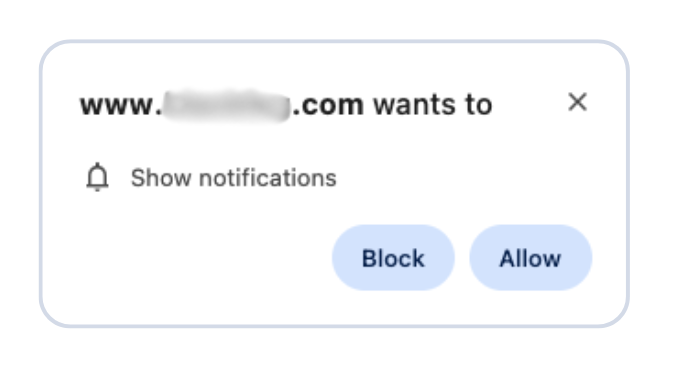
This makes it harder for users to know where the notifications come from. In this case, the responsible app is the browser and users are tricked into allowing them by the usual “notification permission prompt” that you see on almost every other website.
But malicious prompts aren’t always as straightforward as legitimate ones. As we explained in our earlier post, attackers use deceptive designs, like fake video players that claim you must click “Allow” to continue watching.
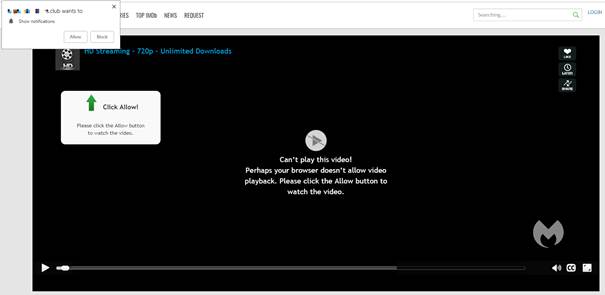
In reality, clicking “Allow” gives the site permission to send notifications, and often redirects you to more scam pages.
Granting browser push notifications on the wrong website gives attackers the ability to push out fake error messages or security alerts that look frighteningly real. They can make them look as if they came from the operating system (OS) or a trusted software application, including the titles, layout, and icons. There are pre-formatted notifications available for MetaMask, Netflix, Cloudflare, PayPal, TikTok, and more.
Criminals can adjust settings that make their messages appear trustworthy or cause panic. The Command and Control (C2) panel provides the attacker with granular control over how these push notifications appear.
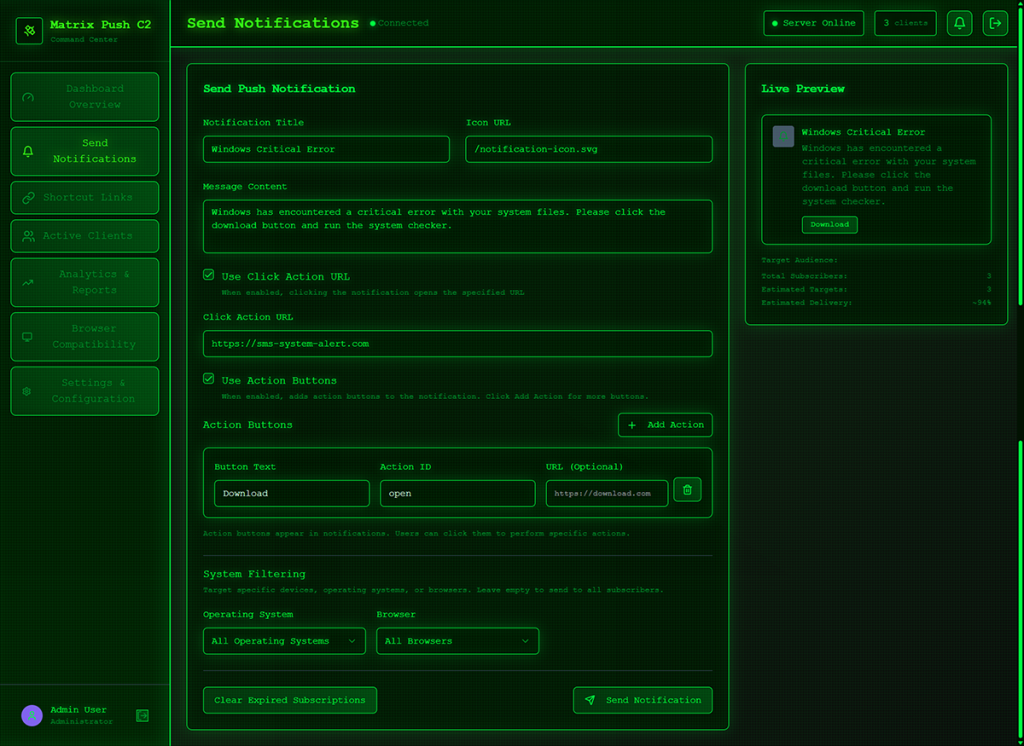
But that’s not all. According to the researchers, this panel provides the attacker with a high level of monitoring:
“One of the most prominent features of Matrix Push C2 is its active clients panel, which gives the attacker detailed information on each victim in real time. As soon as a browser is enlisted (by accepting the push notification subscription), it reports data back to the C2.”
It allows attackers to see which notifications have been shown and which ones victims have interacted with. Overall, this allows them to see which campaigns work best on which users.
Matrix Push C2 also includes shortcut-link management, with a built-in URL shortening service that attackers can use to create custom links for their campaign, leaving users clueless about the true destination. Until they click.
Ultimately, the end goal is often data theft or monetizing access, for example, by draining cryptocurrency wallets, or stealing personal information.
How to find and remove unwanted notification permissions
A general tip that works across most browsers: If a push notification has a gear icon, clicking it will take you to the browser’s notification settings, where you can block the site that sent it. If that doesn’t work or you need more control, check the browser-specific instructions below.
Chrome
To completely turn off notifications, even from extensions:
- Click the three dots button in the upper right-hand corner of the Chrome menu to enter the Settings menu.
- Select Privacy and Security.
- Click Site settings.
- Select Notifications.
- By default, the option is set to Sites can ask to send notifications. Change to Don’t allow sites to send notifications if you want to block everything.
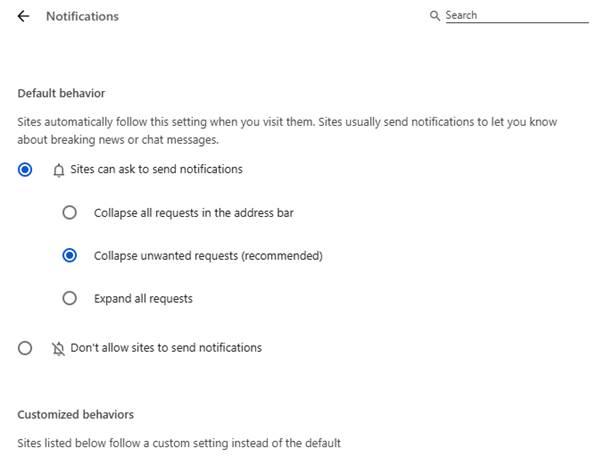
For more granular control, use Customized behaviors.
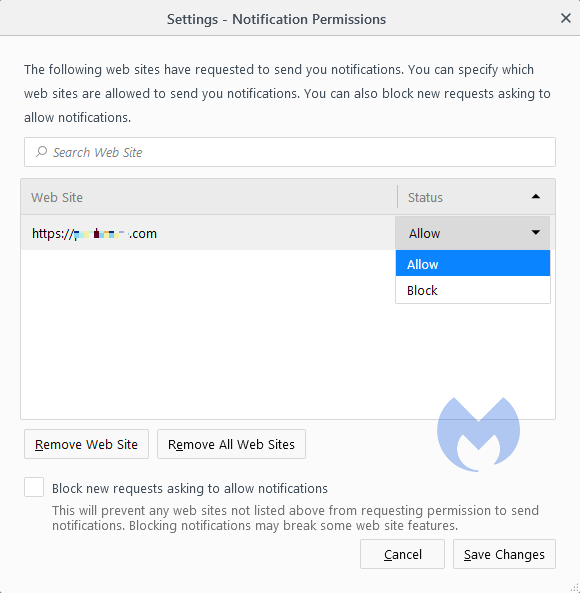
- Selecting Remove will delete the item from the list. It will ask permission to show notifications again if you visit their site.
- Selecting Block prevents permission prompts entirely, moved them to the block list.
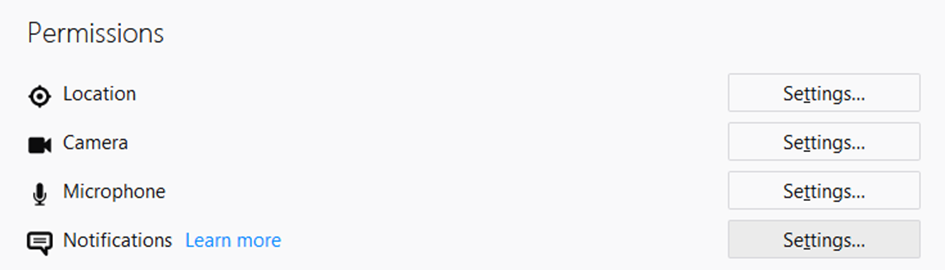
- You can also check Block new requests asking to allow notifications at the bottom.
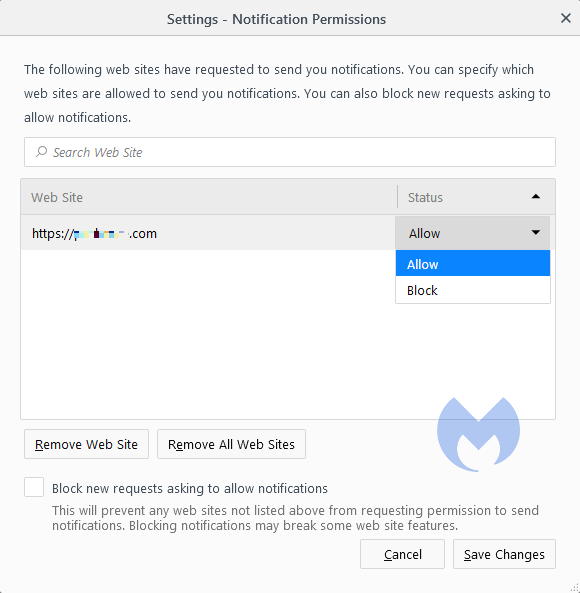
In the same menu, you can also set listed items to Block or Allow by using the drop-down menu behind each item.
Opera
Opera’s settings are very similar to Chrome’s:
- Open the menu by clicking the O in the upper left-hand corner.
- Go to Settings (on Windows)/Preferences (on Mac).
- Click Advanced, then Privacy & security.
- Under Content settings (desktop)/Site settings (Android) select Notifications.
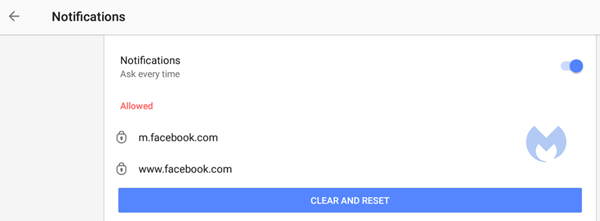
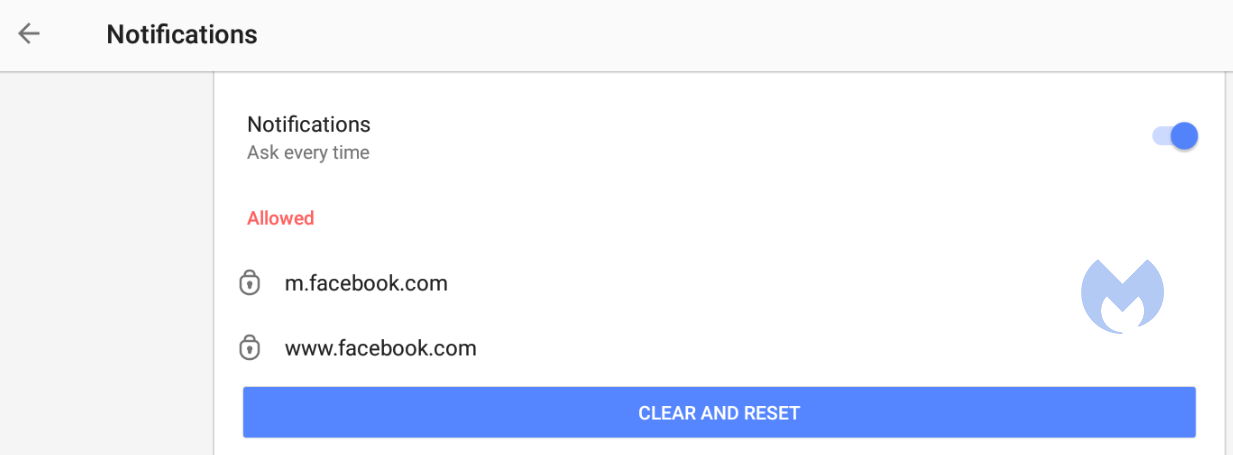
On desktop, Opera behaves the same as Chrome. On Android, you can remove items individually or in bulk.
Edge
Edge is basically the same as Chrome as well:
- Open Edge and click the three dots (…) in the top-right corner, then select Settings.
- In the left-hand menu, click on Privacy, search, and services.
- Under Sites permissions > All permissions, click on Notifications.
- Turn on Quiet notifications requests to block all new notification requests.
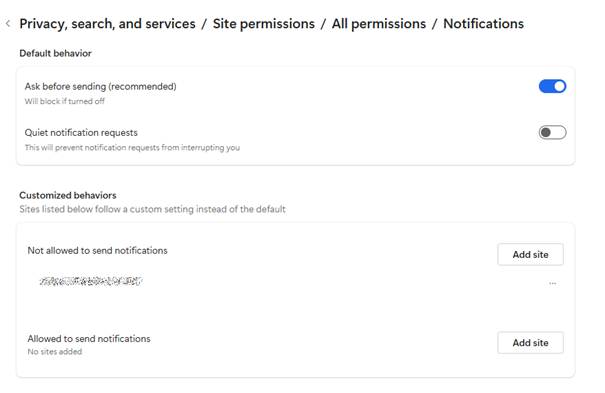
- Use Customized behaviors for more granular control.
Safari
To disable web push notifications in Safari, go to Safari > Settings > Websites > Notifications in the menu bar, select the website from the list, and change its setting to Deny. To stop all future requests, uncheck the box that says Allow websites to ask for permission to send notifications in the same window.
For Mac users
- Go to Safari > Settings > Websites > Notifications.
- Select a site and change its setting to Deny or Remove.
- To stop all future prompts, uncheck Allow websites to ask for permission to send notifications.
For iPhone/iPad users
- Open Settings.
- Tap Notifications.
- Scroll to Application Notifications and select Safari.
- You’ll see a list of sites with permission.
- Toggle any site to off to block its notifications.
We don’t just report on threats—we help safeguard your entire digital identity
Cybersecurity risks should never spread beyond a headline. Protect your, and your family’s, personal information by using identity protection.