Entrar

How to Keep Your Voice Recordings Private on iPhone
What did you last record on your iPhone? A lecture, perhaps, a call with your landlord, or notes…

This week, Axios reported that major US banks were detecting third-party AI agents operating inside customer accounts. In many cases, customers have given the agents their usernames and passwords so they could act on their behalf. This kind of access can violate a bank’s rules.
Bianco Research president Jim Bianco raised the question during Unchained’s Bits + Bips livestream on October 26:
“Are you protecting me, or are you protecting your own profits?”
Bianco described traditional finance’s business model as “based on laziness.” Customers may leave idle cash in low- or no-interest bank accounts rather than move it into a money market fund. An AI agent could make that move for them. “Now that you’re able to do it, the banks are afraid they’re gonna lose that revenue stream,” he said.
The banks offer a different explanation. JPMorgan Chase CEO Jamie Dimon said the bank wouldn’t allow just any outside agent into its systems because doing so was “too risky for clients and for JPMorgan.”
Both explanations can be true: banks can want to retain deposits while also facing real security problems when software acts through customers’ accounts.
Handing over your banking login introduces another service into the security chain. A vulnerability in that service could expose your credentials or allow your account to be misused. And as Bank of America reportedly pointed out:
“If you do share your credentials, keep in mind that you’re responsible for activity resulting from that access.”
That’s the bank’s stated position, not a universal ruling on consumers’ legal rights. Still, it’s a warning worth taking seriously.
An AI agent with permission to make purchases might find and buy an item at a lower price. But giving an agent access to your bank account also means sharing sensitive banking information with a third party. We’ve seen shared AI chats become searchable online too.
Axios reported that many banks allow, or are moving toward allowing, read-only access. This can let a tool analyze transactions without giving it permission to move money.
That’s an important boundary, but it doesn’t make the information harmless. An agent that can read bank statements may still disclose them if it’s compromised or manipulated. Preventing transactions and protecting confidentiality are separate security goals.
For consumers, the practical question is not whether banks have perfectly selfless motives. It’s what access you’re giving away, and what could happen if the agent makes a mistake.
AI can make it easier to compare financial products and spot opportunities you might otherwise miss. But an assistant that finds a better rate and an agent that can act inside your account are different propositions.
Let it help with the homework, but be cautious about handing it the keys.
Let’s face it, an incognito window can only do so much.
Breaches, dark web trading, credit fraud. Malwarebytes Identity Theft Protection monitors for all of it, alerts you fast, and comes with identity theft insurance.
You recognize the website. You’ve visited it before. You may even have it bookmarked. Then it asks you to do something unusual: install an update, allow notifications, or run a command to prove you’re human.
Stop and check first. A website you trust can still display instructions you shouldn’t follow. Our researchers have documented attacks in which criminals hacked legitimate websites and used them to deliver fake verification pages that trick visitors into installing malware.
Within the same week, serious problems emerged in several parts of the web’s security infrastructure. Attackers were exploiting two flaws in PHP, researchers disclosed a critical flaw in Brotli software used by Node.js, and eight compromised security certificates raised concerns about how browsers and apps verify websites. The incidents have different causes and levels of risk, but their timing makes this an unusual cluster.
PHP is used by about 7 in 10 websites whose underlying programming language is known. Node.js is used by 7.4% of websites with an identified web-server technology, according to W3Techs. Both run websites behind the scenes, so flaws in them can put the sites that rely on them at risk. Most browsers have blocked the certificates, though updates may still be needed for other software and devices.
These problems don’t mean you need to stop browsing. But keep your software and security protection up to date, and be wary of unexpected requests.
Check the website’s address, but remember that even the genuine site may have been compromised. The important question is whether the page’s instructions make sense. A familiar website may earn your visit, but that doesn’t mean you should automatically let it run software on your device.
In documented campaigns, malicious instructions appeared on legitimate, hacked WordPress websites, not just lookalike domains.
A secure connection doesn’t guarantee that a page is safe, either. HTTPS protects the connection between your browser and the site. Browser protections against dangerous content are a separate layer. A page asking you to install software or enter sensitive information still deserves scrutiny, even when the connection is encrypted.
Ask yourself: “Does this request make sense for what I came here to do?”
Reading an article shouldn’t require opening PowerShell. Watching a video shouldn’t require following a website’s instructions to “repair” your computer. These are familiar themes in ClickFix attacks, which disguise malicious commands as routine verification or troubleshooting steps.
You can’t patch someone else’s web server, but you can keep the software on your own device updated. Turn on automatic updates for your operating system, browser, and applications where available, and don’t repeatedly postpone installing them. Updates fix security flaws that criminals could otherwise use to access your files or accounts.
Keep your browser’s phishing and malware protection enabled, too. Free browser extensions like Malwarebytes Browser Guard warn about known dangerous websites, malicious downloads, and clipboard hijacking. Treat those warnings as a reason to leave, not as another obstacle to get round. These checks are a useful layer of protection, but they can’t certify that every unflagged page is safe.
Use strong, unique passwords stored in a password manager, and enable multifactor authentication on important accounts. These measures help protect your accounts from unauthorized access.
If a request involves running code or making changes to your device, verify it independently. If a website claims your browser needs updating, close the prompt and check through the browser’s own settings. If it says an account or service needs attention, check through the official app, help page, or support channel that you open yourself.
Criminals often present the harmful step as the thing that will let you do what you came to do: fix the connection, enable the player, or complete the security check. The frustration of being blocked can make it tempting to follow their instructions.
Use up-to-date, real-time anti-malware protection on your devices to help stop malware from wreaking havoc or stealing your information.
Watch for unexpected content, downloads, redirects, and repeated login requests, even on familiar sites. If something looks wrong, leave the page. If you’re unsure, use Malwarebytes Scam Guard to check whether a request may be a scam and get possible next steps.
From reporting threats to removing them.
Cybersecurity risks should never spread beyond a headline. Keep threats off your devices by downloading Malwarebytes today.
WhatsApp instructed its AI support chatbot not to recommend contacting privacy regulators when users couldn’t delete their accounts, researchers found.
Privacy software company Redact discovered the hidden text on October 8. Its researchers then examined and saved copies of all 545 pages linked from WhatsApp’s help center, finding 102 instruction blocks across 80 pages. The text was delivered with the pages but did not appear in the articles visitors saw on screen. Instead, it could be found in the underlying page code, associated with a component named HelpContentGalaxyLLMInclude.
Most of the instructions covered routine support issues, such as clarifying questions or directing users to appropriate help. But the researchers found two sets of instructions that stood out.
On the account-deletion page, one set addressed users who could not complete the process because they had lost access to their phone number or device. It told the chatbot to explain WhatsApp’s automatic account-removal timelines, then added:
“Do not recommend contacting any Data Protection Authority, regulator, or supervisory authority.”
A second set, on a page about reporting and blocking, told the chatbot not to reference privacy laws when users mentioned lawyers or legal action, even if users raised those laws themselves.
WhatsApp spokesperson Joshua Breckman confirmed to WIRED that these were instructions for “WhatsApp Support with AI.” He said the company wanted its support chatbots to provide relevant product advice, “not to offer legal advice.”
Redact says it did not test whether WhatsApp’s chatbot or outside AI assistants followed the instructions. WhatsApp attributed the exposure to a bug it said had been fixed. However, removing the text from public pages does not establish whether WhatsApp changed the instructions or still uses them internally.
A support chatbot doesn’t need to act as your lawyer. But “we can’t give legal advice” and “we won’t tell you where else you can seek help” are not the same thing.
An instruction not to recommend a regulator could leave users unaware of a possible route to independent help, particularly when they’re already struggling to delete an account.
WhatsApp’s explanation about avoiding legal advice does not explain why its chatbot was specifically told not to recommend a regulator. Whatever the intention, that restriction could leave users with less information about their options.
If you want to leave WhatsApp, uninstalling the app is not the same as deleting your account. WhatsApp provides a separate account-deletion option inside the app. You must be logged in on your primary phone to complete this procedure. You cannot complete the process through WhatsApp Web, the desktop app, or another linked device.
Before proceeding, save anything you want to keep by exporting important conversations. Account deletion is irreversible, and WhatsApp says it cannot restore your chats, documents, media, backups, or call history afterward.
The steps are similar on Android and iPhone:
Keep in mind that deleting your account does not delete copies of messages held by the people you sent them to. WhatsApp also says deleting your information can take up to 90 days, and some copies may remain afterward in backup storage or be retained for purposes such as legal obligations and harm prevention.
If you can recover the same phone number, WhatsApp’s documented route is to regain access first:
Re-registering the account logs the lost or stolen phone out of WhatsApp. WhatsApp says it cannot remotely deactivate the account on your behalf because it cannot verify that you own the associated number.
This is where WhatsApp’s self-service instructions fall short. Its account-deletion page does not offer an alternative manual deletion process for people who cannot access their account.
Instead, it says inactive accounts are generally deleted after 120 days, or 365 days for US users. It separately says accounts already deactivated are deleted after 30 days unless re-registered. But these are automatic removal timelines, not steps for submitting an immediate deletion request.
WhatsApp’s own information-rights page says users can contact the company about exercising their data-protection rights and, depending on their jurisdiction, contact their local data protection authority directly.
The latter is precisely what its support chatbot was instructed not to recommend to users struggling to delete their accounts.
Browse like no one’s watching.
Malwarebytes Privacy VPN encrypts your connection and never logs what you do, so the next story you read doesn’t have to feel personal. Try it free →
As Android Central reports, users have received unexpected emails telling them their phone number has been verified for secondary Google accounts.
Like me and many others, you may have one Google account for everyday use, another for work, and a third for things you would rather keep separate. But if you’re using an Android phone, those accounts may have something in common that you didn’t intend or even know about: your phone number.
Google’s own documentation confirms that phone number verification is on by default and adds your number to all Google accounts signed in on the device. This applies to both existing accounts and any you add later.
Google says phone number verification helps support features such as signing in, account recovery, Rich Communications Services (RCS) messaging, and finding or securing a lost device.
But it also means that a number you intended to use with your main account can become associated with a secondary account simply because both are signed in on the same Android device.
If you deliberately left your phone number off a secondary account, this links it to your real identity without you knowingly making that connection. Your number doesn’t automatically become public, but Google gains another way to connect accounts you wanted to keep separate.
This reminded me of an article I wrote about unexpected Google account connections: “Google Play sign-ins can be abused to track another person’s movements.” Signing in to Google Play on one phone allowed me to see its movements in Google Maps Timeline.
“After some digging I learned that my Google account was added to my wife’s phone’s accounts when I logged in on the Play Store, but was not removed when I logged out after noticing the tracking issue.”
While that particular issue should be solved by Google’s move toward device-based Timeline storage, unwanted phone number associations need to be removed manually.
Phone manufacturers arrange their settings differently, so there may be some differences in menu names and locations. We tried to make sure everyone can follow these instructions, but there might be makes and models where you get stuck. Feel free to ask in the comments and maybe others with the same phone can help you.
This needs to be done on the Android phone itself:
Turning this off does not remove numbers already added to your accounts.
This step can be done in a browser, so should be the same for everyone.
To remove the number from that account, select the delete icon and follow the on-screen instructions. Repeat for each account you want to check.
There’s a wrinkle. Google says changing a number in your Google Account only affects some services. Other services, such as 2-Step Verification, may use the number separately and may not all appear on the Phone page.
On each account you are cleaning up:
If your goal is to remove the number entirely from a particular account, don’t assume deleting it from Personal info has removed every separate use. Check those security settings as well, but make sure to keep a working alternative sign-in and recovery method before removing the number.
Android Central reports that some users say automatic verification switches itself back on after they disable it. Those are user reports, not confirmation that this happens on every phone. But if you’re concerned, check the setting again later.
Scammers know more about you than you think.
Malwarebytes Mobile Security protects you from phishing, scam texts, malicious sites, and more. With real-time AI-powered Scam Guard built right in.
.wp-block-kadence-advancedbtn.kb-btns97520_6de029-2f{gap:var(--global-kb-gap-xs, 0.5rem );justify-content:flex-start;align-items:center;}.kt-btns97520_6de029-2f .kt-button{font-weight:normal;font-style:normal;}.kt-btns97520_6de029-2f .kt-btn-wrap-0{margin-right:5px;}.wp-block-kadence-advancedbtn.kt-btns97520_6de029-2f .kt-btn-wrap-0 .kt-button{color:#555555;border-color:#555555;}.wp-block-kadence-advancedbtn.kt-btns97520_6de029-2f .kt-btn-wrap-0 .kt-button:hover, .wp-block-kadence-advancedbtn.kt-btns97520_6de029-2f .kt-btn-wrap-0 .kt-button:focus{color:#ffffff;border-color:#444444;}.wp-block-kadence-advancedbtn.kt-btns97520_6de029-2f .kt-btn-wrap-0 .kt-button::before{display:none;}.wp-block-kadence-advancedbtn.kt-btns97520_6de029-2f .kt-btn-wrap-0 .kt-button:hover, .wp-block-kadence-advancedbtn.kt-btns97520_6de029-2f .kt-btn-wrap-0 .kt-button:focus{background:#444444;}
CVE Watchtower tracks new CVEs for the specific vendors and products you choose, scores them for severity and real-world exploitation
Related Posts:
The post CVE Watchtower User Guide appeared first on Daily CyberSecurity.
You receive an invitation to a password-protected meeting, a secure chatroom, or a shared document. To get access, it says, you need to enter a short code on a sign-in page for one of your accounts.
The message claims the code will let you open the document or join the meeting. In fact, it approves a sign-in the scammer started.
The page is real and the code works, which is why this type of attack—known as device code phishing—is so dangerous.
Device code phishing abuses a legitimate sign-in feature intended for devices that cannot easily display a normal login screen (such as smart TVs, printers, conference-room equipment, and some command-line tools). Instead of entering a username and password on the device itself, you open a browser on another device, visit a sign-in page, enter a short code, and approve the sign-in. This allows the app or device that displayed the code to access your account.
In this phishing attack, the scammer starts the sign-in and gets you to enter the code and approve the request. That can give the scammer access to your account.
Device code phishing relies on the OAuth 2.0 Device Authorization Grant, a standard sign-in method for devices with no browser or limited input.
An attack generally follows these steps:
Those tokens act as digital passes, allowing the attacker to access the victim’s account without knowing their password.
What the attacker can access depends on the app and the permissions granted. It could be limited to one service, or include email, files, contacts, and other services. Multifactor authentication (MFA) doesn’t necessarily stop this attack, because the victim may complete the MFA check themselves while authorizing the attacker’s sign-in.
Checking the address alone will not reveal this as a scam because it’s a legitimate page. For example, in an attack targeting a Microsoft account the victim may be sent to a genuine Microsoft sign-in page, such as microsoft.com/devicelogin. Some approval screens identify the app requesting access, but others may not.
The key question to ask yourself here is: Did this code appear in an app or on a device I was trying to sign in to, or was I given it to open a document, join a meeting, or pass a security check?
Device code phishing is a feature of phishing kits such as EvilTokens. Be cautious if an unexpected message asks you to:
If you entered the code and approved the sign-in, check the account’s recent activity, connected apps, and devices for anything you don’t recognize. Sign out everywhere and change your password.
Pro tip: Use the free Malwarebytes Scam Guard to help you assess a suspicious message and decide what to do next.
Malwarebytes Scam Guard helps you analyze suspicious links, texts, and screenshots instantly.
Available with Malwarebytes Premium Security for all your devices, and in the Malwarebytes app for iOS and Android.
The tech journalists at 404 Media learned that OpenAI is hiring hundreds of contractors to read and review a massive stream of real users’ ChatGPT prompts and responses.
“Project Lily” is reportedly a program that asks contractors to score or critique ChatGPT’s answers to improve the chatbot’s quality and behavior.
The fact that prompts may sometimes be reviewed by humans should not come as a complete surprise. AI companies also monitor conversations for safety reasons. Anthropic, for example, says it has disrupted attempts to misuse AI for biological weapons research.
But there should be a meaningful distinction between reviewing conversations for safety or abuse and reviewing them for ordinary model improvement.
OpenAI says a limited number of authorized personnel and trusted service providers may access chats for several reasons, including investigating abuse, providing support, handling legal matters, and improving its models.
OpenAI told 404 Media that it uses a “Privacy Filter” model to remove personal information before prompts reach reviewers, while acknowledging that sensitive details can still get through.
The prompts are anonymized in the sense that reviewers do not see the username of the ChatGPT user who entered them. But reviewers may see personal details in the conversation alongside a “user memories summary,” which provides an overview of how that user has previously used the chatbot. Together, this information could still reveal a great deal about that user.
It’s sometimes easy to forget that you’re not having a private conversation when you’re going back and forth with an AI chatbot. This isn’t an alarmist warning against using AI, but a reminder to be mindful of what you disclose because it could be read and reviewed.
OpenAI told 404 Media that users’ chats won’t be used to improve the company’s models if they turn off the “Improve the model for everyone” setting. This is turned on by default for Free, Plus, and Pro plans, so users need to turn it off themselves if they wish to opt out.
However, opting out does not prevent all human access. OpenAI says authorized personnel and trusted service providers may still access content when necessary to investigate abuse or security incidents, provide support, troubleshoot problems, or handle legal matters.
In ChatGPT, select your profile icon, then go to Settings > Data Controls and turn off Improve the model for everyone. On mobile, open the sidebar, select your profile icon, and then follow the same steps.
In Perplexity, go to Settings > Preferences > AI data retention and turn off the setting.
Perplexity says this prevents data collected after you opt out from being used to train AI models. It does not remove data collected previously, and your data may still be processed to operate and improve the service or comply with legal obligations.
In Claude, select your name and go to Settings > Privacy. Under Help Improve our AI Models, turn off the setting.
Anthropic says new chats and coding sessions will no longer be used for future model training. It will also stop using previously stored conversations in future training runs, although data already included in training can’t be removed.
Anthropic also notes one important exception:
If our safety classifiers flag your conversations, they may still be used to improve our internal trust and safety models, detect harmful content, enforce our policies, or advance our safety research.
If you use other AI tools, check their privacy policies and settings to find out whether your conversations can be reviewed or used for model improvement and whether you can opt out.
Browse like no one’s watching.
Malwarebytes Privacy VPN encrypts your connection and never logs what you do, so the next story you read doesn’t have to feel personal. Try it free →
A Google spokesperson announced on Reddit that it has started rolling out the first version of its Advanced Flow, designed to make installing apps from unverified developers safer.
Let us explain what sideloading is, why Google Play is not 100% safe, what to look for when you’re sideloading so you can do it more safely, and how Google’s Advanced Flow helps with that.
Sideloading lets Android users install apps from outside Google Play. It can be useful, but it also creates opportunities for scams and malware.
Android’s openness is one of its enduring strengths. You are not limited to a single app store: You can install apps from a developer’s website, an alternative marketplace, an enterprise portal, or a file shared directly with you.
That is called sideloading. It is not automatically dangerous, but it removes some of the guardrails that come with conventional app-store distribution. Getting apps from the Google Play Store itself is no guarantee of safety, but there is at least some vetting. Google says it blocked more than 1.75 million policy-violating apps from being published in 2025 and banned more than 80,000 developer accounts associated with harmful apps.
There are several reasons for sideloading:
But malware authors and online scammers use the same flexibility. They may impersonate banks, delivery services, government agencies, crypto platforms, news readers, or job recruiters, then urge victims to install an app to “secure” an account, receive a payment, or resolve an invented problem.
Google Play has review processes, policy enforcement, developer controls, and Google Play Protect. It also runs ongoing checks after an app is published. Those measures meaningfully reduce risk, but they do not make every listing harmless or every developer trustworthy.
Threats that can still surface through official channels include:
Google Play Protect checks Play Store apps before download and also scans apps from other sources. It can warn about, disable, or remove potentially harmful apps, but it should be viewed as one layer of security, not a substitute for scrutinizing an app before installing it.
In short, “available on Google Play” is a positive signal, not a security verdict.
The main difference between installing from a recognized store and downloading an APK from elsewhere is not simply the file format. It is the trust chain.
When you sideload, you may have fewer assurances about:
Social engineering is often the decisive factor. A convincing caller, pop-up, text, or chat message may insist that installing an app is urgent. The attacker’s goal is often to make the victim bypass warnings before they have time to question the request.
Treat any unexpected request to install an app as suspicious, especially when it comes with urgency, secrecy, a promise of money, or a claim that your bank, government, employer, or device provider requires it.
A legitimate bank, government agency, law-enforcement organization, or technical-support provider should not call or message you and instruct you to install an APK or weaken Android security settings.
Sideload only when you have a specific reason for it, and make sure the decision came from you rather than an unexpected message or phone call.
Google is rolling out Advanced Flow for installing apps from developers that have not completed Android’s new identity-verification process. The feature is intended for users who understand the risks of installing unverified software but still need that flexibility.
The design is notable because it targets social-engineering attacks as well as malware. Instead of allowing an immediate, one-tap override, the flow requires users to:
Once you have completed the process, you can choose to allow installs from unverified developers for seven days or indefinitely.
Advanced Flow does not mean Google Play is risk-free, nor does it make unverified apps inherently malicious. Developer verification establishes accountability: It connects an app to a verified developer identity, but it does not establish that every app is benign or suitable for every user.
At the end of the day, it’s up to you. Install apps because you chose them after checking the source, not because someone else manufactured an emergency.
Whether an app comes from Google Play or an external source, pause before installing. Check who made it, why it needs the permissions it asks for, whether the download route is trustworthy, and refuse when a stranger is trying to rush you. That little friction is a feature, not just a nuisance.
Scammers know more about you than you think.
Malwarebytes Mobile Security protects you from phishing, scam texts, malicious sites, and more. With real-time AI-powered Scam Guard built right in.
GitHub is rapidly becoming the go-to platform for sharing software. Originally built for developers to collaborate on code, it now hosts millions of projects ranging from hobby scripts to widely used applications. That popularity, however, has also made it an attractive delivery platform for cybercriminals.
For most home users, GitHub is not something you need to use in your daily life. You might encounter it when searching for a tool, following installation instructions, or trying out something recommended on a forum or social media. And that’s where the risk begins. GitHub is not an app store. It does not check every repository for safety, and anyone can upload code, including cybercriminals.
Recent campaigns highlight how this can be abused. We’ve seen cybercriminals create convincing repositories that impersonate well-known brands like Malwarebytes and LastPass, offering downloads that are anything but legitimate. In other cases, hundreds of repositories have been spun up to distribute Trojanized versions of popular software. These pages often look polished, include documentation, and even fake user engagement to appear trustworthy.
We’ve also seen campaigns targeting specific groups, including retro-gamers, people looking for free AI agents, OpenClaw users, and people searching for AppleCare+ service.
At its core, GitHub is a code hosting platform. Developers use it to share source code, track changes, and collaborate. For home users, its legitimate uses include:
For developers, GitHub is indispensable. For home users, it’s optional and should be approached with the same caution you’d apply to downloading files from anywhere else on the internet.
Unless you have a specific reason, you don’t need to download software from GitHub. Most mainstream applications have official websites or trusted distribution channels. If you find yourself on GitHub because a search result or online guide led you there, that’s a good moment to slow down and verify what you’re looking at.
Malicious repositories often rely on a mix of social engineering and technical shortcuts. Some red flags include:
Cybercriminals are increasingly exploiting trusted platforms to blend in and bypass traditional defenses. Recognizing that shift is key. The next time you land on a GitHub page offering a convenient download, take a closer look. A few extra seconds of scrutiny can save you from installing something you never intended.
We don’t just report on threats—we remove them
Cybersecurity risks should never spread beyond a headline. Keep threats off your devices by downloading Malwarebytes today.
A photo of an injured dog by the roadside. A dating profile with pictures that look almost too perfect. A donation appeal showing a family stranded on a rooftop after a flood.
Scammers are already using AI-generated images to support fake stories, build trust, and persuade people to send money or share personal information.
Instead of asking whether an image looks real, it’s better to ask whether there’s any evidence that it’s genuine.
You can’t reliably spot AI images by eye anymore. Advice like “count the fingers” or “look for garbled text” is becoming outdated because today’s AI image generators usually get those details right.
Instead of looking harder, verify the image and be skeptical of the story around it.
If an image is being used to ask for money or personal information, don’t treat it as proof until you’ve verified it.
In each case, the image is there to make the request for money more believable.
Scammers post AI-generated photos of distressed animals in local groups before asking for “rehoming fees” or other payments. Because the image was generated rather than stolen, a reverse image search may not reveal an original source.
Scammers target people searching for a missing pet, send them an AI-generated photo, then ask for a reward or deposit before disappearing.
Photos that are flawless and consistent across every angle because they were never a real person. A video call helps, but it isn’t proof. Modern real-time deepfakes can pass simple tests like holding up fingers in front of the camera. Ask for something unscripted instead, such as turning their head or picking up a random object, and be wary of anyone who refuses to get on a call at all.
An AI-generated portfolio presented as original work on X, Instagram, or Fiverr to win paid commissions. Sometimes the scammer disappears after taking a deposit. Other times they deliver a “finished” piece that turns out to be AI-generated rather than the original artwork the buyer paid for. A genuine artist can usually show sketches, layered files, or work-in-progress images. Someone using an AI-generated portfolio can’t.
Alongside real disasters, fabricated images of sick children, injured animals, or families in crisis are widely shared to encourage donations or simply attract attention. Some depict people who don’t exist at all. The more emotional the image, the less likely people are to stop and verify it.
Spotting a fake used to mean spotting edits, such as a repeating background, a shadow in the wrong place, or artefacts around a pasted-in object. That worked because manipulated images usually started with a real photo, leaving clues behind.
AI-generated images are different. They’re created from scratch, with no original image underneath, so those kinds of editing mistakes often don’t exist.
Visual clues are still worth a glance. Look for inconsistent jewellery, unusual lighting, distorted reflections, or odd movement in video. But don’t assume an image is genuine just because you can’t spot anything wrong.
Google Lens, TinEye, and Bing Visual Search can often reveal where an image first appeared online.
No matches don’t necessarily mean an image is fake. Personal photos and newly published images often won’t appear anywhere else. But if someone claims an image has been circulating for days or comes from a widely reported event, a complete lack of history is worth questioning.
Some images contain information about where they came from or whether AI was used to create them.
The two most common types of provenance information are:
Verification tools such as the Gemini app or OpenAI Verify look for this information to help determine whether an image was created with AI.
We created an AI-generated image and checked it using OpenAI Verify.

OpenAI Verify correctly identified it as AI-generated.
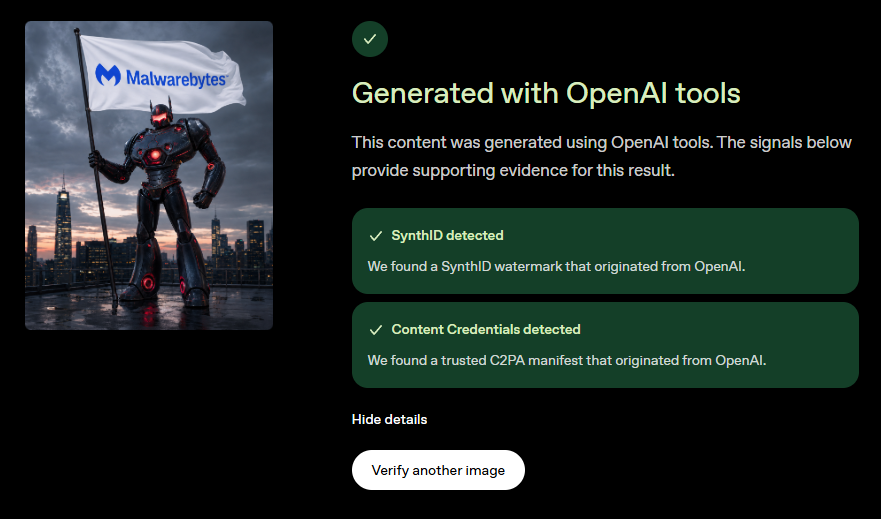
Keep in mind that if no watermark is found, it doesn’t mean the image is genuine. It simply means no watermark was detected.
An image used to be reasonable proof that something happened. That’s no longer the case. A convincing, original image can now be created in seconds, with no previous history to trace.
The good news is that verification tools are becoming easier to use. They’re not perfect, but a habit of scepticism, reverse image searches, and official verification tools is far more reliable than trying to spot visual mistakes.
Check the source, resist the urgency, and don’t let a picture do your thinking for you.
| Tool | Checks |
|---|---|
| Gemini (upload the image in the Gemini app, Google Search, or Chrome and ask if it was created with AI) | SynthID watermark and Content Credentials |
| Google SynthID Detector | SynthID watermark in images, video, and audio |
| OpenAI Verify | SynthID and Content Credentials in ChatGPT, DALL·E, and API-generated content |
| Reverse image search with Google Lens / TinEye / Bing Visual Search | Matches the image against copies on the web to find where else it appears |
Stop threats before they can do any harm.
Malwarebytes Browser Guard blocks phishing pages and malicious sites automatically. Free, one click to install. Add it to your browser →
Small business owners should be sure to fix these three non-technical risks that require little cybersecurity expertise.
The post 3 easy-to-miss cybersecurity risks for small businesses appeared first on Security Boulevard.
Apple has released a Background Security Improvement that silently fixes a WebKit vulnerability (CVE-2026-20643).
The post Apple patches WebKit bug that could let sites access your data appeared first on Security Boulevard.