Entrar
I’ve been deepfaked: What do I do?
Don’t panic if you spot an illegally created image or video of you online – there are ways to request its removal

A Google spokesperson announced on Reddit that it has started rolling out the first version of its Advanced Flow, designed to make installing apps from unverified developers safer.
Let us explain what sideloading is, why Google Play is not 100% safe, what to look for when you’re sideloading so you can do it more safely, and how Google’s Advanced Flow helps with that.
Sideloading lets Android users install apps from outside Google Play. It can be useful, but it also creates opportunities for scams and malware.
Android’s openness is one of its enduring strengths. You are not limited to a single app store: You can install apps from a developer’s website, an alternative marketplace, an enterprise portal, or a file shared directly with you.
That is called sideloading. It is not automatically dangerous, but it removes some of the guardrails that come with conventional app-store distribution. Getting apps from the Google Play Store itself is no guarantee of safety, but there is at least some vetting. Google says it blocked more than 1.75 million policy-violating apps from being published in 2025 and banned more than 80,000 developer accounts associated with harmful apps.
There are several reasons for sideloading:
But malware authors and online scammers use the same flexibility. They may impersonate banks, delivery services, government agencies, crypto platforms, news readers, or job recruiters, then urge victims to install an app to “secure” an account, receive a payment, or resolve an invented problem.
Google Play has review processes, policy enforcement, developer controls, and Google Play Protect. It also runs ongoing checks after an app is published. Those measures meaningfully reduce risk, but they do not make every listing harmless or every developer trustworthy.
Threats that can still surface through official channels include:
Google Play Protect checks Play Store apps before download and also scans apps from other sources. It can warn about, disable, or remove potentially harmful apps, but it should be viewed as one layer of security, not a substitute for scrutinizing an app before installing it.
In short, “available on Google Play” is a positive signal, not a security verdict.
The main difference between installing from a recognized store and downloading an APK from elsewhere is not simply the file format. It is the trust chain.
When you sideload, you may have fewer assurances about:
Social engineering is often the decisive factor. A convincing caller, pop-up, text, or chat message may insist that installing an app is urgent. The attacker’s goal is often to make the victim bypass warnings before they have time to question the request.
Treat any unexpected request to install an app as suspicious, especially when it comes with urgency, secrecy, a promise of money, or a claim that your bank, government, employer, or device provider requires it.
A legitimate bank, government agency, law-enforcement organization, or technical-support provider should not call or message you and instruct you to install an APK or weaken Android security settings.
Sideload only when you have a specific reason for it, and make sure the decision came from you rather than an unexpected message or phone call.
Google is rolling out Advanced Flow for installing apps from developers that have not completed Android’s new identity-verification process. The feature is intended for users who understand the risks of installing unverified software but still need that flexibility.
The design is notable because it targets social-engineering attacks as well as malware. Instead of allowing an immediate, one-tap override, the flow requires users to:
Once you have completed the process, you can choose to allow installs from unverified developers for seven days or indefinitely.
Advanced Flow does not mean Google Play is risk-free, nor does it make unverified apps inherently malicious. Developer verification establishes accountability: It connects an app to a verified developer identity, but it does not establish that every app is benign or suitable for every user.
At the end of the day, it’s up to you. Install apps because you chose them after checking the source, not because someone else manufactured an emergency.
Whether an app comes from Google Play or an external source, pause before installing. Check who made it, why it needs the permissions it asks for, whether the download route is trustworthy, and refuse when a stranger is trying to rush you. That little friction is a feature, not just a nuisance.
Scammers know more about you than you think.
Malwarebytes Mobile Security protects you from phishing, scam texts, malicious sites, and more. With real-time AI-powered Scam Guard built right in.
GitHub is rapidly becoming the go-to platform for sharing software. Originally built for developers to collaborate on code, it now hosts millions of projects ranging from hobby scripts to widely used applications. That popularity, however, has also made it an attractive delivery platform for cybercriminals.
For most home users, GitHub is not something you need to use in your daily life. You might encounter it when searching for a tool, following installation instructions, or trying out something recommended on a forum or social media. And that’s where the risk begins. GitHub is not an app store. It does not check every repository for safety, and anyone can upload code, including cybercriminals.
Recent campaigns highlight how this can be abused. We’ve seen cybercriminals create convincing repositories that impersonate well-known brands like Malwarebytes and LastPass, offering downloads that are anything but legitimate. In other cases, hundreds of repositories have been spun up to distribute Trojanized versions of popular software. These pages often look polished, include documentation, and even fake user engagement to appear trustworthy.
We’ve also seen campaigns targeting specific groups, including retro-gamers, people looking for free AI agents, OpenClaw users, and people searching for AppleCare+ service.
At its core, GitHub is a code hosting platform. Developers use it to share source code, track changes, and collaborate. For home users, its legitimate uses include:
For developers, GitHub is indispensable. For home users, it’s optional and should be approached with the same caution you’d apply to downloading files from anywhere else on the internet.
Unless you have a specific reason, you don’t need to download software from GitHub. Most mainstream applications have official websites or trusted distribution channels. If you find yourself on GitHub because a search result or online guide led you there, that’s a good moment to slow down and verify what you’re looking at.
Malicious repositories often rely on a mix of social engineering and technical shortcuts. Some red flags include:
Cybercriminals are increasingly exploiting trusted platforms to blend in and bypass traditional defenses. Recognizing that shift is key. The next time you land on a GitHub page offering a convenient download, take a closer look. A few extra seconds of scrutiny can save you from installing something you never intended.
We don’t just report on threats—we remove them
Cybersecurity risks should never spread beyond a headline. Keep threats off your devices by downloading Malwarebytes today.
A photo of an injured dog by the roadside. A dating profile with pictures that look almost too perfect. A donation appeal showing a family stranded on a rooftop after a flood.
Scammers are already using AI-generated images to support fake stories, build trust, and persuade people to send money or share personal information.
Instead of asking whether an image looks real, it’s better to ask whether there’s any evidence that it’s genuine.
You can’t reliably spot AI images by eye anymore. Advice like “count the fingers” or “look for garbled text” is becoming outdated because today’s AI image generators usually get those details right.
Instead of looking harder, verify the image and be skeptical of the story around it.
If an image is being used to ask for money or personal information, don’t treat it as proof until you’ve verified it.
In each case, the image is there to make the request for money more believable.
Scammers post AI-generated photos of distressed animals in local groups before asking for “rehoming fees” or other payments. Because the image was generated rather than stolen, a reverse image search may not reveal an original source.
Scammers target people searching for a missing pet, send them an AI-generated photo, then ask for a reward or deposit before disappearing.
Photos that are flawless and consistent across every angle because they were never a real person. A video call helps, but it isn’t proof. Modern real-time deepfakes can pass simple tests like holding up fingers in front of the camera. Ask for something unscripted instead, such as turning their head or picking up a random object, and be wary of anyone who refuses to get on a call at all.
An AI-generated portfolio presented as original work on X, Instagram, or Fiverr to win paid commissions. Sometimes the scammer disappears after taking a deposit. Other times they deliver a “finished” piece that turns out to be AI-generated rather than the original artwork the buyer paid for. A genuine artist can usually show sketches, layered files, or work-in-progress images. Someone using an AI-generated portfolio can’t.
Alongside real disasters, fabricated images of sick children, injured animals, or families in crisis are widely shared to encourage donations or simply attract attention. Some depict people who don’t exist at all. The more emotional the image, the less likely people are to stop and verify it.
Spotting a fake used to mean spotting edits, such as a repeating background, a shadow in the wrong place, or artefacts around a pasted-in object. That worked because manipulated images usually started with a real photo, leaving clues behind.
AI-generated images are different. They’re created from scratch, with no original image underneath, so those kinds of editing mistakes often don’t exist.
Visual clues are still worth a glance. Look for inconsistent jewellery, unusual lighting, distorted reflections, or odd movement in video. But don’t assume an image is genuine just because you can’t spot anything wrong.
Google Lens, TinEye, and Bing Visual Search can often reveal where an image first appeared online.
No matches don’t necessarily mean an image is fake. Personal photos and newly published images often won’t appear anywhere else. But if someone claims an image has been circulating for days or comes from a widely reported event, a complete lack of history is worth questioning.
Some images contain information about where they came from or whether AI was used to create them.
The two most common types of provenance information are:
Verification tools such as the Gemini app or OpenAI Verify look for this information to help determine whether an image was created with AI.
We created an AI-generated image and checked it using OpenAI Verify.
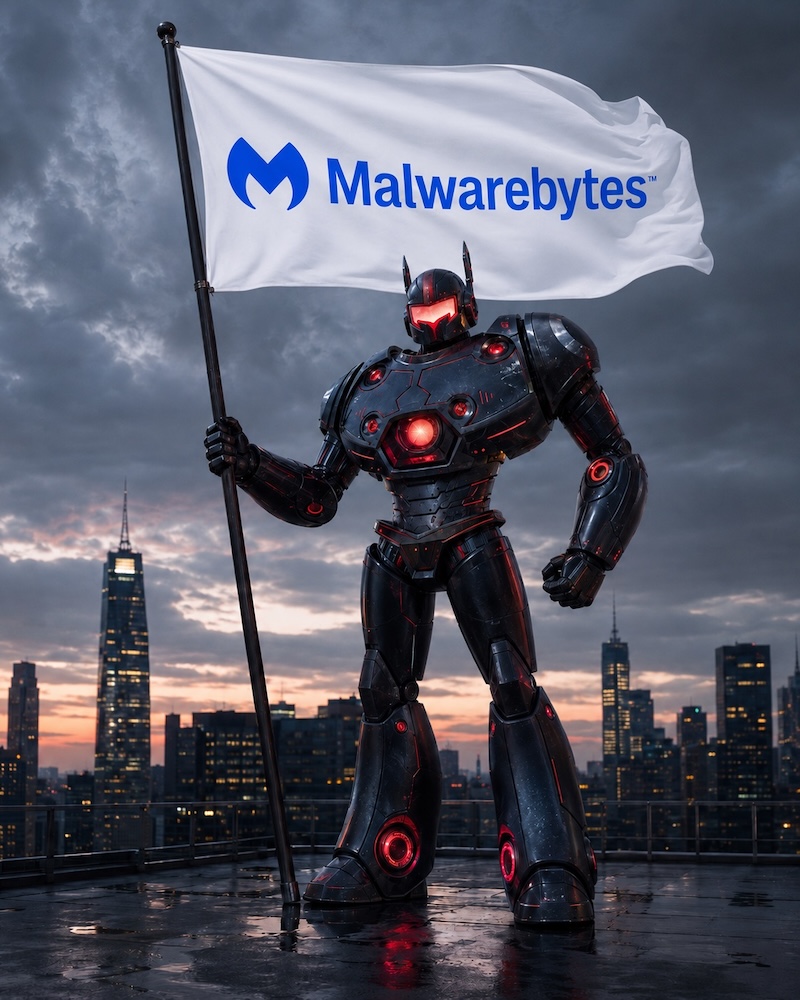
OpenAI Verify correctly identified it as AI-generated.
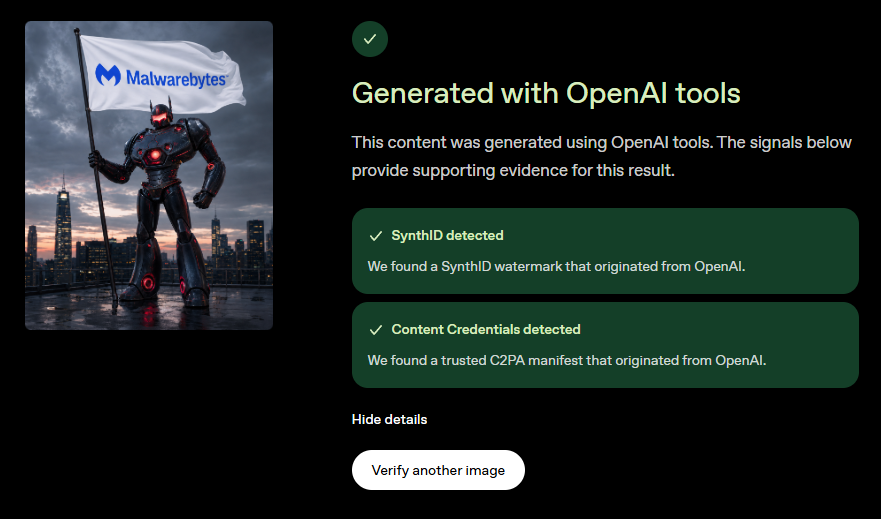
Keep in mind that if no watermark is found, it doesn’t mean the image is genuine. It simply means no watermark was detected.
An image used to be reasonable proof that something happened. That’s no longer the case. A convincing, original image can now be created in seconds, with no previous history to trace.
The good news is that verification tools are becoming easier to use. They’re not perfect, but a habit of scepticism, reverse image searches, and official verification tools is far more reliable than trying to spot visual mistakes.
Check the source, resist the urgency, and don’t let a picture do your thinking for you.
| Tool | Checks |
|---|---|
| Gemini (upload the image in the Gemini app, Google Search, or Chrome and ask if it was created with AI) | SynthID watermark and Content Credentials |
| Google SynthID Detector | SynthID watermark in images, video, and audio |
| OpenAI Verify | SynthID and Content Credentials in ChatGPT, DALL·E, and API-generated content |
| Reverse image search with Google Lens / TinEye / Bing Visual Search | Matches the image against copies on the web to find where else it appears |
Stop threats before they can do any harm.
Malwarebytes Browser Guard blocks phishing pages and malicious sites automatically. Free, one click to install. Add it to your browser →
Planning a holiday should be exciting, fun, and not a cybersecurity risk. But booking flights, hotels, and rental properties often means sharing sensitive personal and financial information across multiple platforms. Combined with frequent travel scams and recurring data breaches in the travel and hospitality sector, it creates plenty of opportunities for criminals.
This guide covers the most common risks when making travel reservations and explains how to avoid them. Save the adventure for your destination.
Travel bookings combine high-value payments with urgency and emotional decision-making. Attackers love that for several reasons:
Recent years have seen repeated breaches involving hotel chains, booking platforms, cruise operators, and airlines, exposing everything from email addresses to passport numbers.
Attackers create convincing clones of airline, hotel, and travel booking websites, often promoted through online ads or SEO poisoning (manipulating search engine results). Victims enter payment details, receive fake confirmations, and only discover the fraud later.
Last year we uncovered a campaign using fake Booking.com websites that tricked visitors into infecting their own devices with a Remote Access Trojan (RAT).
Emails, texts, or messaging app notifications may claim there’s a problem with your booking and urge you to click a link, open an attachment, or call a number. The scammers often impersonate legitimate travel brands and may include real stolen data from previous breaches.
Earlier this year, we wrote about a Booking.com breach that provided scammers with a lot of useful information that could make their messages appear more convincing.
Scammers post fake listings or hijack legitimate ones on rental platforms. They typically encourage off-platform communication or payments to avoid built-in protections.
In 2024, one of our researchers encountered exactly this type of scam. A supposedly legitimate Airbnb listing in Amsterdam turned out to be fake, and the scammer sent an email claiming to be from TripAdvisor in an attempt to collect payment details.
Deep discounts on flights or accommodation are used to lure victims into paying for offers that don’t exist.
If a deal seems unusually generous, look for the catch. Be especially cautious when advertisers claim the offer will end very soon. Creating urgency is one of the oldest tricks in the scammer playbook.
Booking.com has become an increasingly popular brand for scammers to impersonate. According to our—anonymized—Scam Guard data, we’ve recently seen:
The number of scams impersonating Booking.com has been growing. Since the breach disclosed in April, Scam Guard data shows a 56% increase in Booking.com-related scams compared to the previous period, with weekly volume up consistently across five straight weeks.
There are a few simple things that can dramatically reduce your risk:
Pro tip: Malwarebytes Browser Guard will block known phishing websites and can even recognize suspicious websites that are not in our database yet.
We don’t just report on threats—we remove them
Cybersecurity risks should never spread beyond a headline. Keep threats off your devices by downloading Malwarebytes today.
A Secure Boot certificate refresh is rolling out across supported Windows devices through Windows Update. In June 2026, the Secure Boot certificates that have shipped inside Windows since 2011 begin to expire, and Microsoft is replacing them with new 2023-dated certificates.
The good news: If you keep your PC updated, you probably won’t need to do anything. The bad news: Some older devices may not transition cleanly. Your PC won’t suddenly stop working, but over time it could miss important boot-level security protections without you realizing it.
Here’s what’s going on, why it matters, and how to check that your machine is on the right side of the deadline.
Secure Boot is a UEFI firmware feature built into virtually every PC sold since around 2012. It runs before Windows even starts loading, and its job is to verify that the boot loader and early boot components have been signed by a trusted party. If something tries to insert itself into the boot chain that isn’t on the trust list—a bootkit, for example—Secure Boot refuses to let it run.
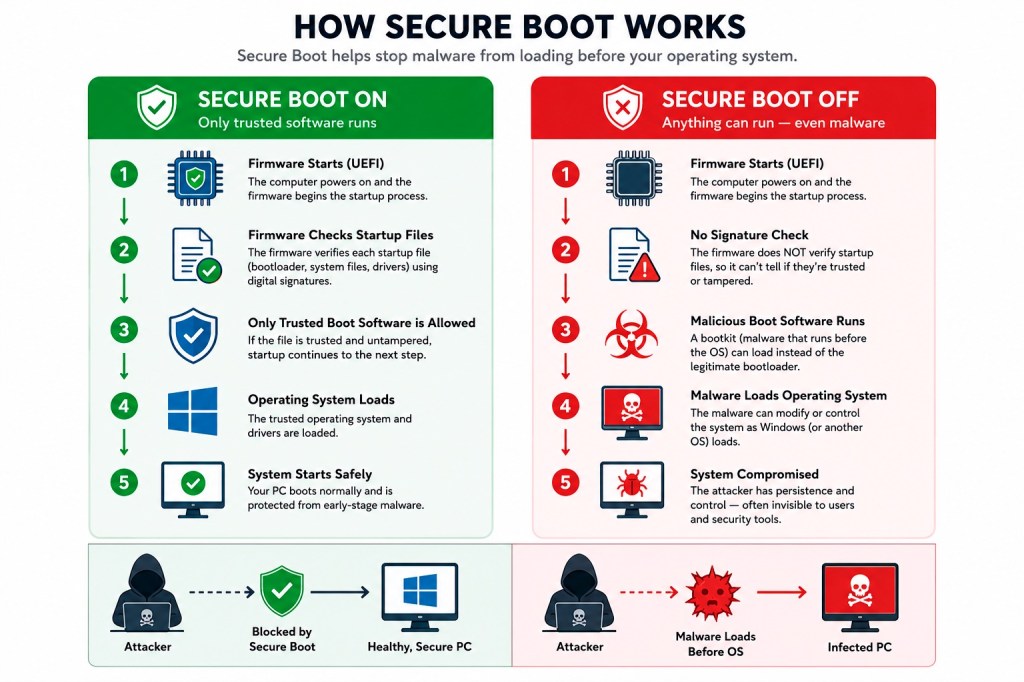
The “trusted party” part is the crucial bit. Trust is established through cryptographic certificates baked into your motherboard firmware. The current certificates were issued in 2011 and are now reaching expiration. Three specific certificates are involved:
Microsoft is replacing them with a 2023-dated set, including Windows UEFI CA 2023 and Microsoft Corporation KEK 2K CA 2023. According to Microsoft engineers speaking during a March 2026 AMA session, the new certificates are valid until 2038, and a separate post-quantum cryptography transition is planned for around 2030 for future hardware.
No. This is the single most important thing to understand, because the rumor mill has been louder than the facts.
If the deadline arrives and your PC is still running on the 2011 certificates, Windows will still boot, Windows Update will still work, and your PC will continue functioning normally.
What changes is that, in Microsoft’s own words, the device “will no longer be able to receive new security protections” for the early boot process, including updates to Windows Boot Manager, Secure Boot databases, revocation lists, and mitigations for newly discovered boot-level vulnerabilities.
In plain English: Your PC becomes harder to protect over time. It’s protected against today’s known boot threats, but not necessarily against the ones that will be discovered next month or next year.
That’s a problem because bootkits operate underneath Windows and antivirus software. They run before anything else and can disable the security tools that would normally catch them.
If you want a concrete example of why boot-level security matters, look at BlackLotus.
BlackLotus is a UEFI bootkit that emerged on hacking forums in 2022 and was confirmed in the wild by researchers in early 2023. It exploited CVE-2022-21894, nicknamed “Baton Drop,” to bypass Secure Boot on fully patched Windows systems. Once installed, it could disable BitLocker, Hypervisor-Protected Code Integrity (HVCI), and Microsoft Defender before Windows fully loaded.
Microsoft addressed the underlying flaw in CVE-2023-24932, but fixing vulnerable boot managers safely is complicated. Revoking the wrong boot components can leave systems unbootable, which is why Microsoft has rolled out protections gradually over several years.
The 2026 certificate rollover is a planned lifecycle event (the 2011 certificates were always going to expire), but it also enables the broader Secure Boot hardening Microsoft has been doing in response to vulnerable boot managers and attacks such as BlackLotus.
With the new trust anchors in place, Microsoft can continue rolling out newer 2023-signed boot components and safely revoke vulnerable ones as new threats emerge. Devices that don’t make the transition may eventually miss those future protections.
Microsoft is using a staged rollout designed to avoid breaking systems.
A scheduled Windows task runs roughly every 12 hours and applies the update in stages:
Microsoft’s IT pro guidance estimates the full process takes roughly 48 hours and one or more restarts to complete. Each step must succeed before the next one runs, so a device can sit partway through the sequence for a while if (for example) it’s waiting on a firmware update or a scheduled reboot.
For most home users, this happens silently in the background through normal cumulative updates.
Starting with the April 2026 Windows update, the Windows Security app includes updated Secure Boot status information under Device security that shows whether the new certificates have been applied successfully.
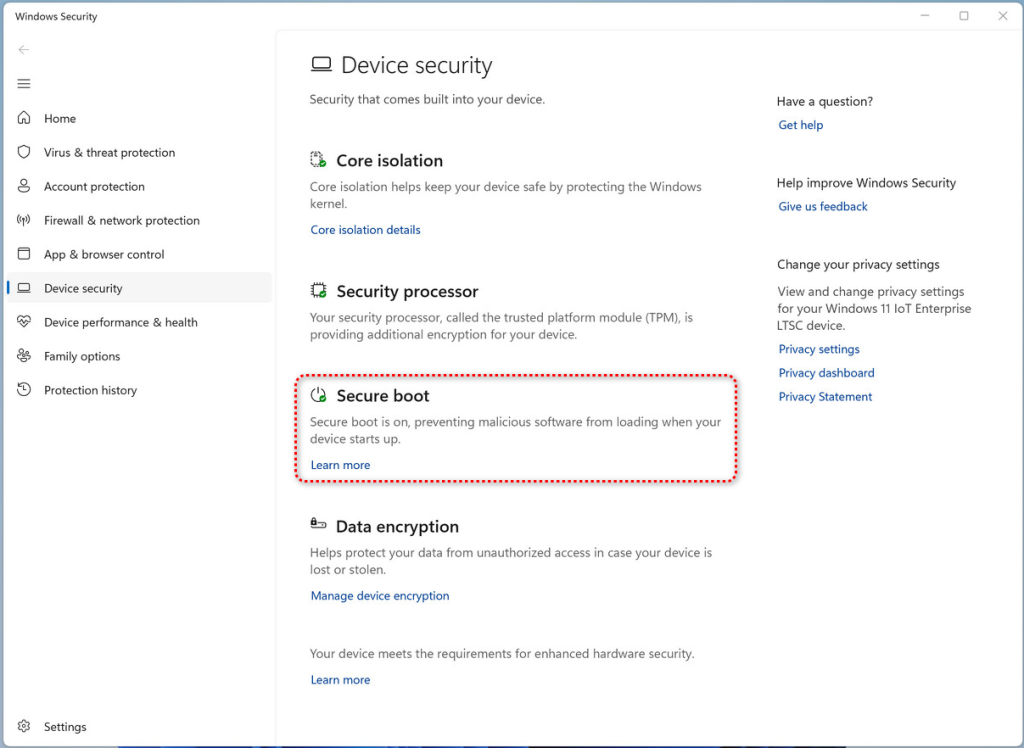
Most systems will transition without problems, but there are some known trouble spots:
Windows Latest reported seeing update failures on thousands of PCs with outdated firmware during testing. Microsoft’s own guidance more broadly warns that firmware, platform, and OEM limitations can block the transition. In many cases, Windows Security will flag affected systems with yellow or red status warnings.
For most people, the advice is straightforward:
C:\Windows\SecureBoot containing example PowerShell scripts intended for IT administrators. It’s not malware, it’s expected, and you don’t need to delete it.If you manage a fleet, Microsoft has published extensive guidance and the work is more involved. The short version:
aka.ms/GetSecureBoot that surfaces the relevant registry keys and event IDs.boot.wim, and Hyper-V hosts may need updating before new VMs are created with the 2023 KEK in the firmware template.This is one of those security events that won’t generate a dramatic incident on June 24, 2026. Nothing visible will break that day.
The risk is what happens in the months and years after. Devices that fail to transition to the new trust chain may slowly fall behind on future boot-level protections as Microsoft continues responding to threats like BlackLotus and other bootkits.
For most home users, Windows Update will handle the transition automatically. Your main job is to keep your system updated and verify Secure Boot status before the deadlines arrive.
If your hardware is older, now is a good time to check whether your manufacturer still provides firmware updates—and whether your PC is ready for the next decade of Secure Boot protections.

According to CNET. Read their review →
Small business owners should be sure to fix these three non-technical risks that require little cybersecurity expertise.
The post 3 easy-to-miss cybersecurity risks for small businesses appeared first on Security Boulevard.
Apple has released a Background Security Improvement that silently fixes a WebKit vulnerability (CVE-2026-20643).
The post Apple patches WebKit bug that could let sites access your data appeared first on Security Boulevard.